Issue: Assembly outside lib folder. (NuGet)
NuGet seems to be a great way to get windows developers to use your code, it makes it easy to package up an assembly to be used in another project. Seconds after uploading, I started to get developers downloading my code.
Here was a problem that I hit when I tried to package my assembly, there may be a better solution, but this worked for me.
I created a boiler-plate NuSpec file from my DLL by running
nuget spec MyAssembly.dll
I had to open the nuspec file in notepad, and edited the fairly obvious fields, like URL description, etc. Then, I went to pack the nuspec and dll together with this command:
NuGet Pack YourPackage.nuspec
However, I then got a warning:
WARNING: 1 issue(s) found with package ‘xxxx.dll’.
Issue: Assembly outside lib folder.
Description: The assembly ‘xxx.dll’ is not inside the ‘lib’ folder
and hence it won’t be added as reference when the package is installed into a project.
Solution: Move it into the ‘lib’ folder if it should be referenced.
The nupkg file was created, and I uploaded it to nuget.org, however, when I tried to download this again, using
PM> Install-Package xxxxx.dll
Installing ‘xxxxx.dll 1.0.0’.
Successfully installed ‘xxxx.dll 1.0.0’.
There was no reference added to my project, so, I couldn’t access the assembly.
So, after reading a bit, I edited my nuspec file, and added this node in the metadata
<references>
<reference file=”xxxx.dll” />
</references>
created a lib folder, and copied the dll into it. – and changed the version number
I repacked, and re-uploaded the nupkg, and when I downloaded it again, I got a reference automatically added to my test project.
And it’s all live on https://www.nuget.org/packages/OfflineAdvertsLib.dll
Could not load type ‘System.Action’ from assembly ‘mscorlib, Version=3.7.0.0, Culture=neutral, PublicKeyToken=969DB8053D3322AC’.
When porting some code from Silverlight 4 to Windows Phone 7.1, I got an unusual error “Could not load type ‘System.Action’ from assembly ‘mscorlib, Version=3.7.0.0, Culture=neutral, PublicKeyToken=969DB8053D3322AC’.” – At this bit of code:
Deployment.Current.Dispatcher.BeginInvoke(someMethod);
The code is designed to run “someMethod” on the main UI Thread, so you don’t an illegal cross thread exception.
Invoking Dispatcher.BeginInvoke with a function name like this, is interpreted as an Action, rather than a delegate, so the solution is to use a delegate as follows:
private delegate void someMethodDelegate();
private static void SomeMethodCalledByBackgroundThread()
{
someMethodDelegate action = someMethod;
Deployment.Current.Dispatcher.BeginInvoke(action);
}
Although a little less easy to read, and it appears to have an extra level of indirection, this code works in both SL4 and WP7
Display Data URI Image in Silverlight (Windows Phone)
The data uri is a string based representation of an image, which is base-64 encoded, so it’s easy to store in Javascript, and pass it in Post data. It bloats the image size, so it isn’t an efficient format, but it’s certainly easy to handle.
Here is an example of how to render a image from a data URI in Silverlight – which should also be suitable for Windows Phone 7, 8, and 8.1 (Silverlight).
Here’s my XAML:
<Grid x:Name=”LayoutRoot” Background=”White” Loaded=”LayoutRoot_Loaded”>
<Image x:Name=”imgDisplay”></Image>
</Grid>
And this is the underlying C# code:
public static BitmapSource BitmapSourceForDataUri(Uri dataUri)
{
var dataString = dataUri.OriginalString;
var b64Start = dataString.IndexOf(“,”, StringComparison.Ordinal);
if (b64Start == -1) return null;
var base64 = dataString.Substring(b64Start + 1);
Stream stream = new MemoryStream(Convert.FromBase64String(base64));
var image = new BitmapImage();
image.SetSource(stream);
return image;
}private void LayoutRoot_Loaded(object sender, RoutedEventArgs e)
{
const string strDataUri =
“data:image/png;base64,iVBORw0KGgoAAAANSUhEUgAAAAUAAAAFCAYAAACNbyblAAAAHElEQVQI12P4//8/w38GIAXDIBKE0DHxgljNBAAO9TXL0Y4OHwAAAABJRU5ErkJggg==”;
var bmp = BitmapSourceForDataUri(new Uri(strDataUri));
imgDisplay.Source = bmp;
imgDisplay.Width = bmp.PixelWidth;
imgDisplay.Height = bmp.PixelHeight;
}
Using Google Analytics in Phonegap apps.
 If you use Phonegap, and want to know how many people use your app regularly, and where they come from, then Google Analytics, with a small modification, is great for this purpose. – But you need a slight modifiction to the normal tracking code.
Firstly, download the ga.js file from http://www.google-analytics.com/ga.js – open it in a text editor and look for the word file:, and replace it with _file then stick it into your www folder. make a reference to it from every page you want to track, then use the script:
<script type="text/javascript" src="ga.js"></script>
    <script>
 var _gaq = _gaq || [];
    _gaq.push(['_setAccount', 'UA-YOUR_ID_HERE']);
    _gaq.push(['_setDomainName', 'none']);
    _gaq.push(['_trackPageview', 'NAME_OF_PAGE']);
    </script>
To get your UA-ID then you have to go to Google Analytics, create a new property – selecting “WEBSITE” not “APP”, and pick it out of the code.
To test it, then you run the app, and look at Google Analytics “Real time”, if you see activity appearing, then it’s working!
Select outbound IP address on multi-homed server for HTTP requests
If your server has multiple IP addresses, you can specify which IP address to make a HTTP request from in C#. This is useful if you want to need to ensure that requests do or do not originate from a particular IP address. This little console application demonstrates this, by listing available IP addresses, then making a request to an external website to reveal the outbound IP address as visible to the outside world.
private static IPAddress selectedIP;
static void Main(string[] args)
{
var ips = LocalIPAddress();
Console.WriteLine(“Select an IP Address”);
for (var i = 0; i < ips.Count(); i++)
{
Console.WriteLine(i + “. ” + ips[i]);
}
var choice = Console.Read() – 48 ;
selectedIP = ips[choice];
const string strUrl = “http://myexternalip.com/raw”;
var http = GetWebRequest(new Uri(strUrl));
var stream = http.GetResponse().GetResponseStream();
if (stream != null)
{
var sr = new StreamReader(stream);
Console.WriteLine(sr.ReadToEnd());
}
Console.ReadLine();
}protected static WebRequest GetWebRequest(Uri uri)
{
var request = (HttpWebRequest)WebRequest.Create(uri);
request.ServicePoint.BindIPEndPointDelegate = BindIPEndPointCallback;
request.Proxy = null;
return (request);
}public static IPEndPoint BindIPEndPointCallback(ServicePoint servicePoint, IPEndPoint remoteEndPoint, int retryCount)
{
return new IPEndPoint(selectedIP, 0);
}private static List<IPAddress> LocalIPAddress()
{
if (!System.Net.NetworkInformation.NetworkInterface.GetIsNetworkAvailable())
{
return null;
}
var host = Dns.GetHostEntry(Dns.GetHostName());
return host
.AddressList
.Where(ip => ip.AddressFamily == AddressFamily.InterNetwork).ToList();
}
To see it, you’ll need to run this on a multi-homed machine, type the number beside the required IP address, and see the external IP appear momentarily afterwards.
Javascript file handling
The FileReader object is a new feature of HTML5, and it allows handling of file-data on the client side of a web-application, so for instance, you could provide extra validation on an uploaded file before sending it to the server.
Here’s a simple example of it’s use:
<html>
<head>
<script src=”http://code.jquery.com/jquery-1.11.0.min.js”></script>
<script language=”javascript”>
$(init);
function init()
{
console.log(“Good to go!”);
$(“#myFile”).change(myFile_change);
}
function myFile_change(evt)
{
console.log(“myFile_change”);
console.log(evt.target.files[0]);
var f = evt.target.files[0];
reader = new FileReader();
reader.readAsDataURL(f);
reader.onload = function(e) {
console.log(reader.result);
$(“#imgUpload”).attr(“src”,reader.result);
}
}
</script>
</head>
<body>
<input type=”file” id=”myFile”>
<img id=”imgUpload”>
</body>
</html>
Using PhantomJS Cloud to scrape Windows Phone Apps+Games Store
I wanted to download the description, screenshots, and icons from apps in from the Windows Phone store, which seemed quite easy initially, until I discovered that simply using WebClient to download the HTML from the webpage fired back an error: “Your request appears to be from an automated process.”, so, I had to think of a more ‘natural’ way to extract the data from the page, that’s when I remembered PhantomJS cloud, a hosted service for running PhantomJS, the headless browser software.
I’ve left my API Key out of the code below, you’ll need to sign up for a key yourself,
var strWPUrl = “http://www.windowsphone.com/en-gb/store/app/barcelona_metro/36c88182-9a6d-e011-81d2-78e7d1fa76f8”;
var strUrl =
“http://api.phantomjscloud.com/single/browser/v1/YOUR_KEY_HERE/?targetUrl=” +
strWpUrl;
const string strScreenshotRegex = @”/images/(?<ScreenshotGuid>[\w-]+)\?imageType=ws_screenshot_large”;
const string strIconGuidRegex = @”/images/(?<IconGuid>[\w-]+)\?imageType=ws_icon_large”;
const string strDescriptionRegex = @”itemprop…description.{27}(?<Description>.*)./pre”;
const string strAppNameRegex = @”app/(?<Name>\w+)”;
var strAppName = Regex.Match(strUrl, strAppNameRegex).Groups[“Name”].Value;
var strPath = Environment.GetFolderPath(Environment.SpecialFolder.Desktop) + @”\WP\” + strAppName;
if (!Directory.Exists(strPath))
{
Directory.CreateDirectory(strPath);
Directory.CreateDirectory(strPath + @”\Screenshots”);
}var strHtml = wc.DownloadString(strUrl);
Console.WriteLine(“Downloaded WP url:” + strAppName);
var strDescription = Regex.Match(strHtml, strDescriptionRegex).Groups[“Description”].Value;
var fs = new FileStream(strPath + @”\” + strAppName + “.txt”, FileMode.Create);
var sw = new StreamWriter(fs);
sw.Write(strDescription);
sw.Flush();
sw.Close();
fs.Close();
var strIconGuid = Regex.Match(strHtml, strIconGuidRegex).Groups[“IconGuid”].Value;
var strIconUrl = @”http://cdn.marketplaceimages.windowsphone.com/v8/images/” + strIconGuid;
wc.DownloadFile(strIconUrl, strPath + @”\Icon.png”);
var strScreenshotGuids = Regex.Matches(strHtml, strScreenshotRegex).Cast<Match>().Select(m => m.Groups[“ScreenshotGuid”].Value);
foreach (var strScreenshotGuid in strScreenshotGuids)
{
var strScreenhotUrl = @”http://cdn.marketplaceimages.windowsphone.com/v8/images/” + strScreenshotGuid;
wc.DownloadFile(strScreenhotUrl, strPath + @”\Screenshots\” + strScreenshotGuid + “.png”);
}
This downloads the HTML via PhantomJS cloud, runs some regexes to get the description of the app, and downloads the icon and screenshots (in original size), and saves them to disk, in a folder called WP on the desktop
HTTP library using TcpClient in c#
If you’re looking at TcpClient to make HTTP requests, without totally exhausting the functionality of HttpWebRequest or WebClient, then you’re making a massive mistake. However, in my case, I had to deal with the case where a website required a cookie with a comma in it, which is against the HTTP protocol, and thus an illegal action when trying to construct a new System.Net.Cookie object, I was therefore forced to a lower level, and use TCP/IP to simulate my HTTP stream.
Starting with the lowest level, my TCP/IP stream is handled through this function, which has HTTPS handling built-in:
private static string SendWebRequest(string url, string request, bool isHttps)
{
using (var tc = new TcpClient())
{
tc.Connect(url, isHttps ? 443 : 80);
using (var ns = tc.GetStream())
{
if (isHttps)
{
// Secure HTTP
using (var ssl = new SslStream(ns, false, ValidateServerCertificate, null))
{
ssl.AuthenticateAsClient(url, null, SslProtocols.Tls, false);
using (var sw = new System.IO.StreamWriter(ssl))
{
using (var sr = new System.IO.StreamReader(ssl))
{
sw.Write(request);
sw.Flush();
return sr.ReadToEnd();
}
}
}
}
// Normal HTTP
using (var sw = new System.IO.StreamWriter(ns))
{
using (var sr = new System.IO.StreamReader(ns))
{
sw.Write(request);
sw.Flush();
return sr.ReadToEnd();
}
}
}
}
}
The SSL handling requires the following delegate to be defined, which simply accepts all server certs
// The following method is invoked by the RemoteCertificateValidationDelegate.
private static bool ValidateServerCertificate(
object sender,
X509Certificate certificate,
X509Chain chain,
SslPolicyErrors sslPolicyErrors)
{
return true; // Accept all certs
}
Then, my GET and POST methods were as follows:
/// <summary>
/// Requests the specified URL.
/// </summary>
/// <param name=”url”>The URL.</param>
/// <param name=”cookies”>The cookies.</param>
/// <returns></returns>
public string Request(string url, List<string> cookies )
{
var lCookieValues = cookies.Select(cookie => cookie.Left(cookie.IndexOf(“;”, StringComparison.Ordinal))).ToArray();
var strCookieValues = String.Join(“;”, lCookieValues);
var address = new Uri(url);
var strHttpRequest = “GET ” + address.PathAndQuery + ” HTTP/1.1\r\n”;
strHttpRequest += “Accept: application/x-ms-application, image/jpeg, application/xaml+xml, image/gif, image/pjpeg, application/x-ms-xbap, */*\r\n”;
strHttpRequest += “Accept-Language: en-US\r\n”;
strHttpRequest += “User-Agent: Mozilla/4.0 (compatible; MSIE 8.0; Windows NT 6.1; WOW64; Trident/4.0; SLCC2; .NET CLR 2.0.50727; .NET CLR 3.5.30729; .NET CLR 3.0.30729; Media Center PC 6.0; .NET4.0C; .NET4.0E)\r\n”;
strHttpRequest += “Cookie: ” + strCookieValues + “\r\n”;
strHttpRequest += “Connection: close\r\n”;
strHttpRequest += “Host: ” + address.Host + “\r\n\r\n”;return SendWebRequest(address.Host, strHttpRequest, address.Scheme == Uri.UriSchemeHttps);
}
Then the POST request is as follows:
/// <summary>
/// Requests the specified URL.
/// </summary>
/// <param name=”url”>The URL.</param>
/// <param name=”postdata”>The post data.</param>
/// <param name=”cookies”>The cookies.</param>
/// <returns></returns>
public string Request(string url, string postdata, List<string> cookies)
{
var lCookieValues = cookies.Select(cookie => cookie.Left(cookie.IndexOf(“;”, StringComparison.Ordinal))).ToArray();
var strCookieValues = String.Join(“;”, lCookieValues);
var address = new Uri(url);
var strHttpRequest = “POST ” + address.PathAndQuery + ” HTTP/1.1\r\n”;
strHttpRequest += “Accept: application/x-ms-application, image/jpeg, application/xaml+xml, image/gif, image/pjpeg, application/x-ms-xbap, */*\r\n”;
strHttpRequest += “Accept-Language: en-US\r\n”;
strHttpRequest += “User-Agent: Mozilla/4.0 (compatible; MSIE 8.0; Windows NT 6.1; WOW64; Trident/4.0; SLCC2; .NET CLR 2.0.50727; .NET CLR 3.5.30729; .NET CLR 3.0.30729; Media Center PC 6.0; .NET4.0C; .NET4.0E)\r\n”;
strHttpRequest += “Cookie: ” + strCookieValues + “\r\n”;
strHttpRequest += “Connection: close\r\n”;
strHttpRequest += “Content-Type: application/x-www-form-urlencoded\r\n”;
strHttpRequest += “Content-Length: “+ postdata.Length +”\r\n”;
strHttpRequest += “Host: ” + address.Host + “\r\n\r\n”;
strHttpRequest += postdata + “\r\n”;
return SendWebRequest(address.Host, strHttpRequest, address.Scheme == Uri.UriSchemeHttps);
}
FileOpenPicker, Windows Phone 8.1
One new features of Windows Phone 8.1 is the FileOpenPicker, which allows you select any file from the phone, and even from skydrive (ahem, OneDrive).
I tried following one of the examples on-line for how to use the FileOpenPicker, but as soon as I tried to
override OnActivated(IActivatedEventArgs e), It reported no suitable method to override. Which confused me
immensely, but I learned after a bit of messing about that Windows Phone 8.1 apps come in two flavours,
XAML and Silverlight. If you upgrade / retarget a Windows Phone 8 app, you get a Silverlight WP8 app, whereas
if you create one from scratch, you get a XAML based one, and they are VERY VERY different. This
article refers to the SILVERLIGHT flavour, not the XAML version.
Also, a very quirky thing about the FileOpenPicker, is that you’d expect an event or delegate to callback
when the operation has completed. But in fact what happens is that your application is suspended when the
FileOpenPicker opens, and is resumed when the FileOpenPicker closes. This is all to save device memory.
So, what you need to do, is create a handler for “ContractActivated” in App.xaml.cs as follows:
In App.xaml.cs
(Top level)
public FileOpenPickerContinuationEventArgs FilePickerContinuationArgs { get; set; }(In InitializePhonrApplication)
PhoneApplicationService.Current.ContractActivated += Application_ContractActivated;// Code to execute when the application is activated (brought to foreground)
// This code will not execute when the application is first launched
private void Application_ContractActivated(object sender, IActivatedEventArgs e)
{
var filePickerContinuationArgs = e as FileOpenPickerContinuationEventArgs;
if (filePickerContinuationArgs != null)
{
this.FilePickerContinuationArgs = filePickerContinuationArgs;
}
}
Then in your page, you add a button called btnSelectFile and kick off the FileOpenPicker as follows
In [YourPage].xaml.cs
private void btnSelectFile_Click(object sender, RoutedEventArgs e)
{
FileOpenPicker openPicker = new FileOpenPicker();
openPicker.FileTypeFilter.Add(“*”);
openPicker.PickSingleFileAndContinue();
}
In order to handle callback from the FileOpenPicker once the app resumes, then you have to override the OnNavigatedTo method, and check to see if the FilePickerContinuationArgs field has been populated.
protected override void OnNavigatedTo(NavigationEventArgs e)
{
var app = App.Current as App;
if (app.FilePickerContinuationArgs != null)
{
this.ContinueFileOpenPicker(app.FilePickerContinuationArgs);
}
}
This then calls some code to pop up a messagebox with the name of the file, and copy the file to local storage for further
processing.
public void ContinueFileOpenPicker(FileOpenPickerContinuationEventArgs args)
{
MessageBox.Show(“Picked file: ” + args.Files[0].Name);
CopyPickedFile(args.Files[0]);
}private async void CopyPickedFile(StorageFile file)
{
await file.CopyAsync(ApplicationData.Current.LocalFolder, file.Name, NameCollisionOption.ReplaceExisting);
// now the picked file is in local storage
}
All this code is used in the Windows Phone 8.1 version of http://www.printfromWindowsPhone.com and the app
can be downloaded from Windows Phone Store http://www.windowsphone.com/en-gb/store/app/print/da1074a1-8fbe-4f87-9592-52b2d67d966d
A reference to a higher version or incompatible assembly cannot be added to this project
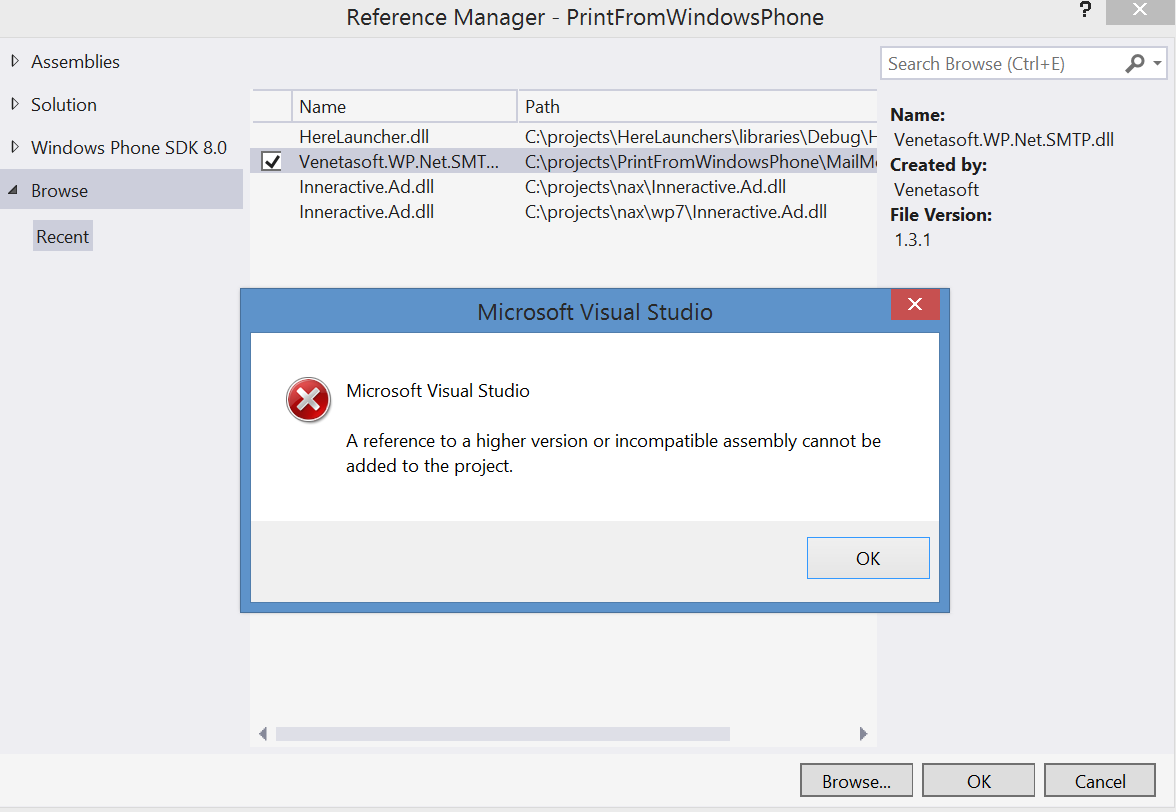
This was a horrible unhelpful message when I tried to reference a DLL to a Windows Phone 8 project, that I had downloaded off the internet. The solution is simple, find the DLL in windows explorer, right click on it, and select “unblock”.
The same error occurred in a Windows Phone 7 project in VS 2010, but the error message was much more helpful, Great to see Microsoft going backwards.

