Print From iPad.com – a simple printing solution for iPads
One of the limitations of an iPhone or iPad, is that you can’t directly connect a printer to it, and often, trying to connect to a wifi printer does not work, or is far too complicated. This simple new system that we’ve developed called “Print from iPad” see http://www.printfromipad.com allows you to print from your iPad by simply forwarding an email to your account at @printfromipad.com
Print any document or image directly from your iPad. Works with any printer, WiFi or USB. Follow this 3-step simple setup:
- Create an account with us to set up your free 10Mb online print queue.
- Download our Print From iPad printer spooler for Windows PC.
- Print anything from your iPad by emailing it to you@PrintFromIPad.com
Localising Windows Phone App Title
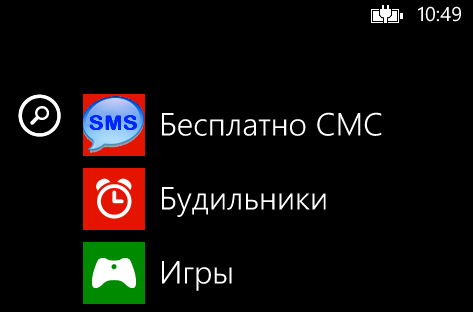
A key exercise in app store optimisation (ASO) is to ensure that your app title is in the language searched for
by your user. Therefore, my app “Free SMS”, should be written “Бесплатные СМС” in Russian.
This tool makes it really easy to do so. (http://engine-designs.com/2011/08/17/wp7-appreslib-dll-generator/)
Following the instructions are easy, but the steps are as follows:
1. Modify Sample.xml to your app name, translated into all supported languages:
– example:
<Language Name="French" LocaleID="040c“>
Mon App
Mon Tile
2. Run WPAppResLib.exe Sample.exe, and a folder will be generated with a dll and mui files. Copy all these files into your project root, and in Visual Studio, select View all files (refresh), Include in project, and change the build action to content.
3. Test it by switching the language to French on the emulator, and the app title should change.
Luhn Check algorithm in Javascript
Luhn Check algorithm in Javascript
An integral part of the generation of IMEI numbers is the Luhn Check algorithm, which determines the final digit in an IMEI number
 // Javascript code copyright 2009
 // This code may be used freely, as long as this copyright notice is intact.
 function Calculate(Luhn)
 {
	var sum = 0;
    for (i=0; i<luhn.length; for="" i="" (i="Luhn.length-1;" (0,1,2,3,4,-4,-3,-2,-1,0);="" array="" delta="new" var="" }="" +="parseInt(Luhn.substring(i,i+1));" sum="" {="" )="" i++="">0; i-=2 )
    {
		var deltaIndex = parseInt(Luhn.substring(i,i+1));
		var deltaValue = delta[deltaIndex];
		sum += deltaValue;
	}
	var mod10 = sum % 10;
	mod10 = 10 - mod10;
	if (mod10==10)
	{
		mod10=0;
	}
	return mod10;
 }

 function Validate(Luhn)
 {
	var LuhnDigit = parseInt(Luhn.substring(Luhn.length-1,Luhn.length));
	var LuhnLess = Luhn.substring(0,Luhn.length-1);
	if (Calculate(LuhnLess)==parseInt(LuhnDigit))
	{
		return true;
	}
	return false;
 }
Hello World, Xamarin C# for Android

Pretty cool stuff to see C# code run natively on Android, using Xamarin and Mono. Not sure if I’ll be moving from Phonegap yet, but, it’s got great potential.
Here’s the Main Activity in C#:
using System;
using Android.App;
using Android.Content;
using Android.Runtime;
using Android.Views;
using Android.Widget;
using Android.OS;namespace XamarinHelloWorld
{
[Activity (Label = “Xamarin-HelloWorld”, MainLauncher = true, Icon = “@drawable/icon”)]
public class MainActivity : Activity
{
int count = 1;protected override void OnCreate (Bundle bundle)
{
base.OnCreate (bundle);// Set our view from the “main” layout resource
SetContentView (Resource.Layout.Main);// Get our button from the layout resource,
// and attach an event to it
Button button = FindViewById<Button> (Resource.Id.myButton);button.Click += delegate {
button.Text = string.Format (“{0} clicks!”, count++);
};
}
}
}
And, I had to tweak the AndroidManifest.xml:
<?xml version=”1.0″ encoding=”utf-8″?>
<manifest xmlns:android=”http://schemas.android.com/apk/res/android” android:versionCode=”1″ android:versionName=”1.0″ package=”Xamarin_HelloWorld.Xamarin_HelloWorld”>
<uses-sdk android:targetSdkVersion=”19″ android:minSdkVersion=”19″ />
<application android:label=”Xamarin-HelloWorld”></application>
</manifest>
This was because I was using an API level 19 Emulator, and got this “minimum android version not supported by device” xamarin error whenever I tried to kick it off.
Code 19 Yellow Exclamation AVG miniport driver
Recently, I was asked to fix a Windows XP laptop where the internet connection was not working on either WiFi or wired connections. After checking device manager, I spotted yellow triangles on lots of Network Adapters. On clicking on these, I saw the message “Windows cannot start this hardware device because its configuration information (in the registry) is incomplete or damaged (code 19) ”
Then I noticed a pattern, all the failed network adapters were marked AVG miniport driver. So, my initial reaction was to uninstall AVG and reboot, but that didn’t h help. I couldn’t remove the failed network adapters either, so I checked the web, and found this procedure:
Windows Vista, Windows 7:
1. Open menu Start -> (Settings) -> Control Panel.
2. Double-click Network and Internet -> Network and Sharing Center.
3. In the left pane, click Change adapter settings.
4. Right-click the connection you are using and select Properties.
5. Under This connection uses the following items un-tick (clear) AVG network filter driver.
6. Click OK to store the changes.
Windows XP:
1. Open menu Start -> (Settings) -> Control Panel.
2. Double-click Network connections.
3. Right-click the connection you are using and select Properties.
4. Under This connection uses the following items un-tick (clear) AVG network filter driver.
5. Click OK to store the changes.
Which worked for me!
Hello World with Selenium and C#
I decided to take a look at Selenium as a way to automate the Chrome Browser from .NET. You first need to download three bits of software, the Selenium server, – which you run from the command line, and the Selenium Bindings for c#, both from http://docs.seleniumhq.org/download/. Finally, you have to download the Chrome driver from http://chromedriver.storage.googleapis.com/index.html?path=2.9/
I created a console app, and referenced all the WebDriver DLL (selenium\net35\WebDriver.dll), added the using statements:
using OpenQA.Selenium;
using OpenQA.Selenium.Chrome;
and, then declared a public static IWebDriver object
public static IWebDriver Driver = new ChromeDriver(@”C:\research\selenium\”);
The path, was pointing to my Chrome Driver (Win32)
I then started with a simple command in my Main() method to navigate to a URL:
Driver.Navigate().GoToUrl(“http://www.logitravel.co.uk/”);
After that, I wanted to execute some javascript, to fill in the form, and move to the next page, so I wrote this function:
static object ExecuteJavascript(string javascript)
{
object oResult = null;
var javaScriptExecutor = Driver as IJavaScriptExecutor;
if (javaScriptExecutor != null) oResult = javaScriptExecutor.ExecuteScript(javascript);
return oResult;
}
Then it’s just a matter of writing the chain of Javascript commands to navigate the website, and get the information I want, – everything’s synchronous,
Driver.Navigate().GoToUrl(“http://www.logitravel.co.uk/”);
ExecuteJavascript(“document.getElementById(‘hidOrigenSV’).value=’Paris’;”);
ExecuteJavascript(“document.getElementById(‘hidDestinoSV’).value=’Dublin’;”);
ExecuteJavascript(“document.getElementById(‘origenSV’).value=’Paris’;”);
ExecuteJavascript(“document.getElementById(‘destinoSV’).value=’Dublin’;”);
ExecuteJavascript(“document.getElementById(‘datePickerIda’).value = ‘Sat, 7 June, 2014’;”);
ExecuteJavascript(“document.getElementById(‘datePickerVuelta’).value = ‘Sat, 14 June, 2014’;”);
ExecuteJavascript(“document.getElementById(‘btnFormAereoV2’).click();”);
var cheapestPrice = ExecuteJavascript(“return document.getElementById(‘agr_0’).getAttribute(‘data-value’);”);
Console.WriteLine(“Cheapest price:” + cheapestPrice);
Driver.Close();
APK to BAR file from the command line
There are some very handy websites that allow you just upload a APK file, and you get a BAR file in return. Which is great, but sometimes you need some finer control over it. – such as having the BAR file signed with your own certificate rather than a random one provided by the website.
If you already have your BlackBerry certs set up then the process is easy:
apk2bar “C:\your.apk” “C:\android\sdk”
blackberry-signer -storepass xxxx “C:\your.bar”
blackberry-deploy -installApp -device 192.168.0.12 -password pass -package “C:\your.bar”
Embed Prepopulated SQL server db in Windows Phone app
This is a easy way to embed a Prepopulated SQL server database (read-only) into a Windows Phone app.
Include SDF into project at root level, mark it as “build-action: embed”
Using the SQL CE toolbox, generate a context class (http://sqlcetoolbox.codeplex.com/releases/view/104781), include this in your project.
Make a reference to system.data.linq
– I found I needed to comment out the lines containing “IDbConnection” but that might not be applicable.
Then the code for a select is simple:
using (dictContext db = new dictContext(“Data Source=appdata:/dict.sdf;File Mode=Read Only; Max Database Size = 512;”))
{
var translations = db.Dictionary.Where(d => d.Word == “CAT”);
MessageBox.Show(translations.First().Fr);
}
Convert SQLite database to SQL Compact Edition
This is a script I came up with that takes data from a SQLite database, and writes it into a SQL CE (SDF) database. This is a very simple use-case, where there is only one table, no indexes, views, or primary keys. Also, the SDF file has been pre-created, and set up with the same schema as the SQLite database.
var db = new SQLiteConnection(@”Data Source=C:\source.db;Version=3″);
db.Open();
string sql = “PRAGMA table_info( yourtable);”;
SQLiteCommand command = new SQLiteCommand(sql, db);
SQLiteDataReader reader = command.ExecuteReader();
List<string> strColumnNames = new List<string>();
while (reader.Read())
{
strColumnNames.Add(reader[1].ToString());
}
db.Close();db.Open();
sql = “select * from yourtable”;
command = new SQLiteCommand(sql, db);
reader = command.ExecuteReader();var conn = new SqlCeConnection(@”Data Source = C:\destination.sdf”);
conn.Open();SqlCeCommand cmd = conn.CreateCommand();
while (reader.Read())
{
try
{
sql = “insert into dictionary (” + String.Join(“,”, strColumnNames.ToArray()) + “) values (“;
var strColumnValues = new List<string>();
for (int i = 0; i < reader.FieldCount; i++)
{
strColumnValues.Add(“N'” + reader[i] + “‘”);
}
sql += String.Join(“,”, strColumnValues.ToArray());
sql += “)”;
cmd.CommandText = sql;
cmd.ExecuteNonQuery();
Console.WriteLine(sql);
}
catch (Exception ex)
{
Console.WriteLine(ex.ToString());
}
}
This requires the System.Data.SqlServerCe and System.Data.SQLite; namespaces
Parse JSON in WP7
Windows Phone 7 may be quite obsolete at this point, but since WP8 still runs WP7 apps, it is worth trying to make your apps backwards-compatible where possible.
Using Newtonsoft JSON.NET to parse JSON is a good option, but you have to get the right version, the latest version is only for Windows Phone 8. I found version 4.0.3 (40r3) worked for me.
Here is a brief example of how I used it:
public static void Search(string depart, string arrive, Action<JObject> callback)
{
var strUrl = “http://www.rome2rio.com/api/1.0/json/Search?key=xxxx&oName={0}&dName={1}”;
strUrl = string.Format(strUrl, depart, arrive);
WebClient wc = new WebClient();
wc.DownloadStringAsync(new Uri(strUrl), callback);
wc.DownloadStringCompleted += (sender, args) =>
{
var jo = JObject.Parse(args.Result);
callback(jo);
};
}
Of course, you need to use using Newtonsoft.Json.Linq;

