How does Palm Ares work?
Every once in a while you come accross a website that really does something that you’ve never seen before, one of which is Palm ares (Ares.palm.com). There is a button, where you can download an app onto your Palm phone via a USB cable. I never saw this before, so I descided to take it apart.
First file of interes was app-build.js, which connects to an applet webOsConnect on the page, which appears to do the magic. I ran the applet through JD-GUI decompiler to see how it worked. The Intall class looked interesting:
public void installPackage(INovacomDevice device, File ipkFile) throws InstallerException
{
if ((!ipkFile.isFile()) || (!ipkFile.canRead())) {
throw new InstallerException(“error reading ” + ipkFile);
}String developerDir = getDeveloperDirectory();
try {
NovacomUtil.mkdir(device, developerDir, true);
} catch (NovacomUtil.NovacomUtilException e) {
throw new InstallerException(e);
}String dest = developerDir + “/” + ipkFile.getName();
try
{
try
{
NovacomPutCommand cmd = new NovacomPutCommand(device, ipkFile, dest);
cmd.run();
} catch (NovacomCommand.NovacomCommandException e) {
throw new InstallerException(e);
}
try
{
AppManagerUtil.installApp(device, dest);
} catch (AppManagerUtil.AppManagerException e) {
throw new InstallerException(e);
}
}
finally {
try {
doCleanup(device, dest);
}
catch (InstallerException e)
{
}
}
}
Under the hood, this appears to make a connection to localhost on port 6968, guessing by the constants:
public static final int DEFAULT_PORT = 6968;
public static final String DEFAULT_HOST = “127.0.0.1”;
Looking at the “beautified” version of app-build.js (I used jsbeautifier.org), then the launch method has two interesting lines:
wc.installCloudPackage(deviceId, url, info.id + “.ipk”, dojo.toJson({
“Cookie”: “auth_tkt=” + authtkt
}));
wc.launchApp(deviceId, info.id);
Where “wc” stands for WebOsConnect (the applet). InstallCloudPackage has the following code:
public boolean installCloudPackage(String deviceId, String location, String pkgName, String headers)
{
try
{
AccessController.doPrivileged(new PrivilegedExceptionAction(location, headers, deviceId, pkgName)
{
public Void run() throws Exception {
InputStream input = null;
try {
HttpURLConnection connection = (HttpURLConnection)new URL(this.val$location).openConnection();
JSONObject headerObj = new JSONObject(this.val$headers);
Iterator a = headerObj.keys();
while (a.hasNext()) {
String key = a.next().toString();
connection.addRequestProperty(key, headerObj.getString(key));
}
connection.connect();
if (connection.getResponseCode() != 200) {
throw new Exception(connection.getResponseMessage());
}
input = connection.getInputStream();
new Installer().installPackage(NovacomUtil.connect(DeviceConnection.findNovacomDevice(this.val$deviceId)), input, this.val$pkgName);
} catch (Exception e) {
e.printStackTrace();
throw e;
} finally {
if (input != null)
try {
input.close();
}
catch (IOException e) {
}
}
return null;
}
});
return true; } catch (PrivilegedActionException ex) {
}
return false;
}
Now, the calling parameters are as follows
DeviceID = either “desktop” for the simulator, or the device UID as returned from gerDefaultNovacomDevice
Location = the URL of the IPK
pkgName = the name of the IPK
header = An authorisation ticket of some form * (I’ve yet to find what this is)
In a somewhat related vein, I’ve also taken a look at the source code for WebOSQuickInstall, which at it’s lowest level runs the following command to implement an installation
private String palmAppInstallCommand(String file, String id) throws Exception {
String pid = null;
String out = “”;
out = runProgram(“/usr/bin/luna-send”, new String[] { “-n”, “1”, “palm://com.palm.appinstaller/installNoVerify”, “{\”target\”:\”” + file + “\”}” });if (out.contains(“\”returnValue\”:false”))
throw new Exception();
do
{
if (fileExists(“/media/cryptofs/apps/usr/lib/ipkg/info/” + id + “.control”)) {
pid = null;
break;
}
try {
pid = runProgram(“/usr/bin/pgrep”, new String[] { “-f”, “ipkg” }).split(“\n”)[0];
}
catch (Exception e) {
pid = null;
}
}
while (pid == null);while (!fileExists(“/media/cryptofs/apps/usr/lib/ipkg/info/” + id + “.control”))
{
runProgram(“/bin/kill”, new String[] { “-0”, pid });
try {
pid = runProgram(“/usr/bin/pgrep”, new String[] { “-f”, “ipkg” }).split(“\n”)[0];
}
catch (Exception e) {
pid = null;
}}
return out;
}
Followup: The Novacom code also appears in the WebOs Emulator
OCR in C#
I’ve just set up a webservice to perform OCR (optical character recognition) in C#, It’s at http://www.free-ocr.co.uk
The code’s pretty simple:
Stream sFile = fileUploader.PostedFile.InputStream;
Bitmap bmp = System.Drawing.Image.FromStream(sFile) as Bitmap;
MemoryStream ms = new MemoryStream();
bmp.Save(ms, System.Drawing.Imaging.ImageFormat.Jpeg);
ocr webservice = new ocr();
lblResult.Text = webservice.Analyze("Your Email", ms.ToArray());
Here, the ASPX file is as follows:
<form id="form1" runat="server" enctype="multipart/form-data" >
<input type="file" runat="server" id="fileUploader" />
<asp:Button type="button" id="btnUpload" Text="Upload" runat="server" onclick="btnUpload_Click"  />
<asp:Label id="lblResult" runat="server" ></asp:Label>
</form>
Javascript evaluator for webOS

This is a handy utility to execute javascript within the context of your Palm WebOs mobile phone. It also includes the PhoneGap API, so you can test the advanced features offered by that platform.
The Code to this is quite similar to the Nokia version:
$(‘#evaluate’).click(function(){
var result = “”; try { result = eval($(‘#taJS’).val());
} catch(err) { result = err; }
$(‘#taResult’).val(result);
});
Update: This is now available on Palm’s App Store
Javascript evaluator for Nokia
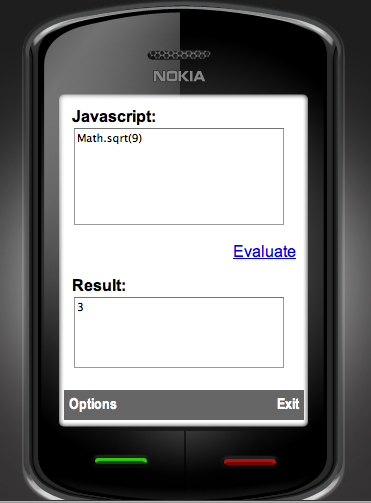 This is a handy utility to evaluate Javascript directly from your Nokia mobile Phone, in the context of your mobile web browser. It requires WRT (Web Runtime) support.
The source code behind this app is really simple:
function evaluate()
{
var JS = document.getElementById(“taJS”);
var Result = document.getElementById(“taResult”);
Result.value = eval(JS.value);
}
For Full source code, download the wgz
oAuth CosumerKey and SecretKey for Google,Twitter,Yahoo and Vimeo
Here are a list of oAuth providers, for Google, Twitter, Yahoo and Vimeo, with consumerKey and SecretKey set for http://Localhost, so they are ideal for testing, although you’ll need to get live ones for live environments:
if (Request.PathInfo == “/requestToken/google/”)
{
consumerKey = “anonymous”;
consumerSecret = “anonymous”;
// Google requires an additional “scope” parameter that identifies one of the google applications
requestTokenEndpoint = “https://www.google.com/accounts/OAuthGetRequestToken?scope=https://www.googleapis.com/auth/userinfo#email”;
requestTokenCallback = GetRouteableUrlFromRelativeUrl(“oAuth/default.aspx/authorizeToken/google/”);
authorizeTokenUrl = “https://www.google.com/accounts/OAuthAuthorizeToken”;
}
else if (Request.PathInfo == “/requestToken/twitter/”)
{
// http://twitter.com/oauth_clients/details/763647
consumerKey = “esK3OieltAXufhxvWJBNw”;
consumerSecret = “8APVHgYEXwDoPgtsUj7tYns4NFNkOnXG5yMAPAPUXU”;
requestTokenEndpoint = “https://api.twitter.com/oauth/request_token”;
requestTokenCallback = GetRouteableUrlFromRelativeUrl(“oAuth/default.aspx/authorizeToken/twitter/”);
authorizeTokenUrl = “https://api.twitter.com/oauth/authorize”;
}
else if (Request.PathInfo == “/requestToken/yahoo/”)
{
//https://developer.apps.yahoo.com/dashboard/createKey.html
consumerKey = “dj0yJmk9QVM4UjFabHZrME4zJmQ9WVdrOVRYbERhMVJSTTJVbWNHbzlOVFF5T0RJeU5UWXkmcz1jb25zdW1lcnNlY3JldCZ4PWJh”;
consumerSecret = “3d9ec8bea068a2bdd5b940b24fbedc9da6949569”;
requestTokenEndpoint = “https://api.login.yahoo.com/oauth/v2/get_request_token”;
requestTokenCallback = GetRouteableUrlFromRelativeUrl(“oAuth/default.aspx/authorizeToken/yahoo/”);
authorizeTokenUrl = “https://api.login.yahoo.com/oauth/v2/request_auth”;
}
else if (Request.PathInfo == “/requestToken/vimeo/”)
{
// http://vimeo.com/api/applications/new
consumerKey = “7a4b3b5d5205e6c6903bf77aeaf258cc”;
consumerSecret = “23609bc1174ca5c5”;
requestTokenEndpoint = “http://vimeo.com/oauth/request_token”;
requestTokenCallback = GetRouteableUrlFromRelativeUrl(“oAuth/default.aspx/authorizeToken/vimeo/”);
authorizeTokenUrl = “http://vimeo.com/oauth/authorize”;
}
Once the oAuth token is acquired, then you can get email address information from Google using:
oAuthConsumer.GetUserInfo(“https://www.googleapis.com/userinfo/email”, realm, consumerKey, consumerSecret, accessToken.Token, accessToken.TokenSecret);
And, significantly more information from Twitter using:
oAuthConsumer.GetUserInfo(“http://api.twitter.com/1/account/verify_credentials.xml”, realm, consumerKey, consumerSecret, accessToken.Token, accessToken.TokenSecret)
Please post updates to this post if you find equivalents for Yahoo!, or Vimeo. I’ve also heard about Messenger Connect which is supposed to be an oAuth system for Microsoft…
How to create a WGZ for Nokia Symbian WRT
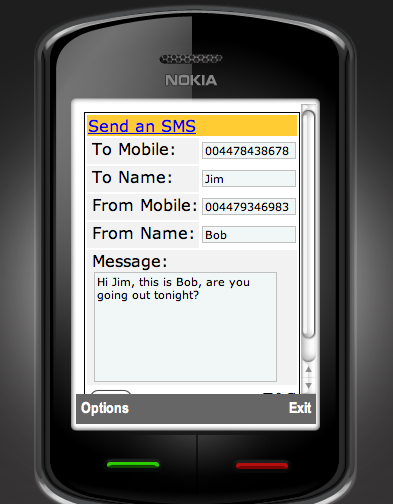 This is a simple HTML form packaged as a WGZ by using Aptana studio and Phonegap.
The WGZ can be created from within Aptana studio, by pressing control-click on the project, then selecting package. This WGZ can then be uploaded to Nokia’s OVI store under their WRT (Web runtime) category.
Source code for this project is available for download as a WGZ (basically a zip file)
This App is now published on OVI!
Parse a varchar to bigint using a regex (Regular Expression)
select convert(bigint,’6592370590..’) will fail with the error below due to the two dots at the end of the string, or a newline, or infact anything non-numeric.
Msg 8114, Level 16, State 5, Line 1
Error converting data type varchar to bigint.
Here’s a more brute-force way of converting ‘dirty’ varchars into numbers:
create function [dbo].[UDF_ExtractNumber](@NumStr varchar(100))
returns bigint
as
begin
BEGIN
WHILE PATINDEX(‘%[^0-9]%’,@NumStr)> 0
SET @NumStr = REPLACE(@NumStr,SUBSTRING(@NumStr,PATINDEX(‘%[^0-9]%’,@NumStr),1),”)
END
return convert(bigint,@NumStr)
end
This does have the side-effect of viewing complete nonsense as the number zero, but that’s fine for my application.
make [package] error 127 (PhoneGap WebOs on Windows)
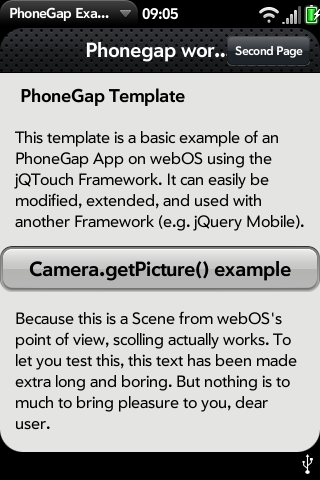 This is a sceenshot of a web-page that was converted into a webOs Palm App using Phonegap. Relatively straightforward until you hit this error “make: *** [package] Error 127”
In CygWin, you navigate to the webos folder, and type “make” and you get:
$ make
mkdir -p lib
rm -f lib/phonegap.js
cat js/phonegap.js.base >> lib/phonegap.js
cat js/acceleration.js >> lib/phonegap.js
cat js/accelerometer.js >> lib/phonegap.js
cat js/audio.js >> lib/phonegap.js
cat js/camera.js >> lib/phonegap.js
cat js/contacts.js >> lib/phonegap.js
cat js/debugconsole.js >> lib/phonegap.js
cat js/device.js >> lib/phonegap.js
cat js/file.js >> lib/phonegap.js
cat js/geolocation.js >> lib/phonegap.js
cat js/map.js >> lib/phonegap.js
cat js/network.js >> lib/phonegap.js
cat js/notification.js >> lib/phonegap.js
cat js/orientation.js >> lib/phonegap.js
cat js/position.js >> lib/phonegap.js
cat js/sms.js >> lib/phonegap.js
cat js/storage.js >> lib/phonegap.js
cat js/telephony.js >> lib/phonegap.js
cp lib/phonegap.js framework/www/phonegap.js
cp framework/www/index.html framework/www/app/views/First/First-
scene.html
palm-package framework/www/
make: palm-package: Command not found
make: *** [package] Error 127
So, it can’t find palm-package, which means you need to set a path to
/cygwin/c/program files/palm/sdk/bin
then navigate back to the /phonegap-0.9.4/webos folder, and type
User@Satellite /cygdrive/e/research/phonegap/phonegap-0.9.4/webos
$ palm-package.bat framework/www/
creating package com.phonegap.example_1.0.0_all.ipk in E:\research\phonegap\phon
egap-0.9.4\webos
User@Satellite /cygdrive/e/research/phonegap/phonegap-0.9.4/webos
$ palm-install.bat com.phonegap.example_1.0.0_all.ipk
installing package com.phonegap.example_1.0.0_all.ipk on device “castle-linux” {
a339f527fe6d98a2b95b9f2ef036d503042181c9} usb 49346
User@Satellite /cygdrive/e/research/phonegap/phonegap-0.9.4/webos
$ palm-launch.bat com.phonegap.example
launching application com.phonegap.example on device “castle-linux” {a339f527fe6
d98a2b95b9f2ef036d503042181c9} usb 49346
– With the palm phone in developer mode, and plugged into the USB all the while.
In a few seconds it pops up.
– Now, the challenge, to do something usefull with it 🙂
A simple Chrome App
This morning, I submitted a simple chrome app to the google app store,
It was simply a manifest file as follows:
{
“name”: “Freebie SMS – Free SMS UK”,
“version”: “1.0”,
“description”: “Send free SMS text messages from Chrome to UK mobile phones, no pre-payment or signup required. All networks supported.”,
“browser_action”: {
“default_icon”: “sms.gif”,
“popup”: “popup.html”
},
“permissions”: [
“http://www.freebiesms.co.uk/”
]
}
Then the file “popup.html” is the generated HTML from the FreebieSMS Affiliate form.
Using OpenSearch.xml

If your website is searchable, then you can let your browser know how to search it, and create a shortcut search box in the top right of the user’s browser using a few lines of HTML and XML
Add the line
<link rel=”search” type=”application/opensearchdescription+xml” href=”/opensearch.xml” title=”.NET Source Code” />
to the head of the page, where opensearch.xml is:
<?xml version=”1.0″ encoding=”UTF-8″?>
<OpenSearchDescription xmlns=”http://a9.com/-/spec/opensearch/1.1/” xmlns:moz=”http://www.mozilla.org/2006/browser/search/”>
<ShortName>.NET Source</ShortName>
<Description>.NET Framework source code</Description>
<InputEncoding>UTF-8</InputEncoding>
<Image height=”16″ width=”16″ type=”image/x-icon”>http://reflector.webtropy.com/images/favicon.ico</Image>
<Url type=”text/html” method=”get” template=”http://reflector.webtropy.com/Search.aspx?search={searchTerms}” />
<moz:SearchForm>http://reflector.webtropy.com</moz:SearchForm>
</OpenSearchDescription>
I’ve used this on my .NET Source code browser website.
 Network Programming in .NET