Cannot run program “C:\Program”: CreateProcess error
When building a Webworks / Phonegap app for BlackBerry, I got the following error message from ANT:
build:
[exec] [INFO] Parsing command line options
[exec] [INFO] Parsing bbwp.properties
[exec] [INFO] Validating application archive
[exec] [INFO] Parsing config.xml
[exec] [INFO] Populating application source
[exec] [INFO] Compiling BlackBerry WebWorks application
[exec] I/O Error: Cannot run program “C:\Program”: CreateProcess error=2, The system cannot find the file specified
[exec] [ERROR] RAPC exception occurred
This happened just after updating Java on my computer, so I assumed that it was something to do with Java, and that it was cutting off “Program Files” to “Program”.
After hunting around for the reference to Java that ANT uses, I spotted the file C:\BBWP\bin\bbwp.properties, which containted the following XML:
<?xml version=”1.0″ encoding=”UTF-8″?>
<wcp>
<additional>-quiet</additional>
<extension_repository>ext</extension_repository>
<jar>lib\net_rim_api.jar</jar>
<java>C:\Program files\Java\jdk1.6.0_25</java>
<rapc>bin\rapc.exe</rapc>
<wcp_template>device_templates</wcp_template>
</wcp>
So, using the old DOS hack, I changed Program files to “Progra~1”
<java>C:\Progra~1\Java\jdk1.6.0_25</java>
And re-ran ANT BUILD, and it worked!
Constantly refresh image with Javascript
A simple way to refresh an image in Javascript is to use a setTimeout or setInterval, however, it doesn’t take into account how long it takes to load the image, so you could end up with a situation where a user on a slow connection does not load the image in time before the next image is requested.
Binding the load event to a image element with JQuery tends to fire prematurely, so that it does not give a fair reflection on when this image is loaded.
Here is my solution (tested in Google Chrome):
<html>
<script src=”http://code.jquery.com/jquery-1.9.1.min.js”></script>
<script language=”javascript”>
$(init)
function init() {
refresh();
}
function refresh() {
var strImageUrl = “http://image.captchas.net?client=demo&random=RandomZufall&” + Date.now();
var img = new Image();
img.onload = function() {
$(“#img”).attr(‘src’,strImageUrl);
refresh();
}
img.src = strImageUrl;
}
</script>
<img id=”img”>
</html>
Output JSON from WordPress
Say that you wanted to read data from a MySQL database, using PHP in a Linux environment, and then wanted to connect this data with a PhoneGap application, then you need to find a way to convert the MySQL data to JSON, to provide the interface with the PhoneGap app (which is basically HTML5)
So, as an example, I wrote a PHP script that connects to the MySQL database that underlies my OpenMerchantAccount.com blog, and converts the wp_posts table to JSON
So, I wrote the following code in PHP:
<?php
$con=mysqli_connect(“localhost”,”xxxx”,”xxxxxx”,”wordpress773″);
// Check connection
if (mysqli_connect_errno())
{
echo “Failed to connect to MySQL: ” . mysqli_connect_error();
}
mysqli_set_charset($con, “utf8″);
$result = mysqli_query($con,”SELECT * FROM wp_posts where post_status=’publish'”);
$rows = array();
while($row = mysqli_fetch_array($result))
{
$rows[] = $row;
}
echo json_encode($rows);
mysqli_close($con);
?>
Which is accessable via this url: http://www.presentr.info/db2json.php
Then, using a simple PhoneGap app template, I connected it to a HTML5 webpage, which is hosted here
*Note*: You will need to use Google Chrome to visit the above url.
Plot tweets on a map
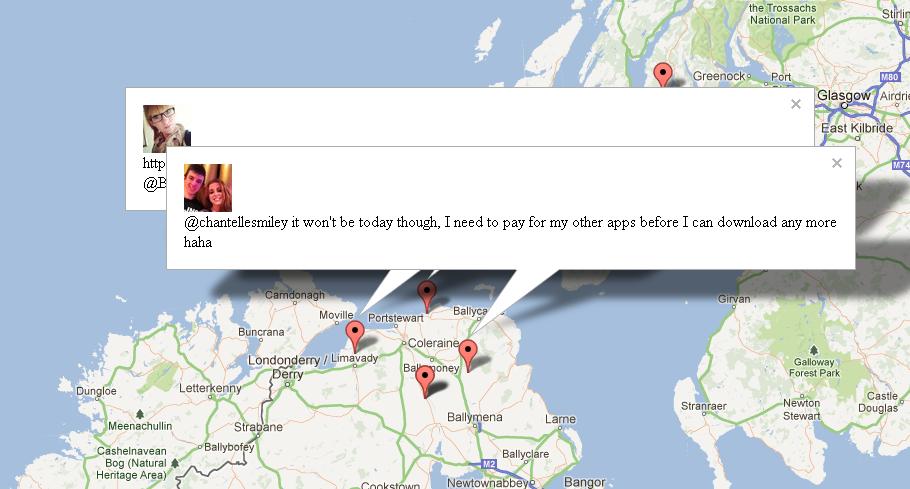
I wanted to do something quite simple, plot tweets live on a map, that is, as people posted tweets live on twitter, drop a pin on the map, and display the tweet in a message bubble. I’ve done that, and popped it up on a website “http://geotweet.webtropy.com/” – It takes a few seconds to start up, but goes quickly then.
I used the twitter stream API, which is an unusual API, since once you call it, it doesn’t close the connection, just keeps pumping out data. I used the API call https://stream.twitter.com/1/statuses/filter.json?locations=-7,55,-6,56 – now, this does require a twitter username and password, but not any fancy OAUTH authentication.
The bounding box -7,55,-6,56 is roughly the area shown in the screenshot above, but some tweets land outside of this area, you may need extra filtering if this is important to you.
I needed to write a bit of .NET that could extract one tweet at a time from the stream. Each tweet is a Json object, and they are delimited by new line chars.
public static string ReadLineFromUrl(string url)
{
string strData = “”;
var httprequest = (HttpWebRequest)WebRequest.Create(url);
httprequest.Credentials = new NetworkCredential(“your_twitter_name”, “your_twitter_password”);
var httpresponse = (HttpWebResponse)httprequest.GetResponse();
var responsestream = httpresponse.GetResponseStream();
StreamReader httpstream = new StreamReader(responsestream, Encoding.GetEncoding(“iso8859-1”));
strData = httpstream.ReadLine();
httprequest.Abort();
return strData;
}
Then, I created a page that calls this function, and writes it to screen
var strUrl = “https://stream.twitter.com/1/statuses/filter.json?locations=-7,55,-6,56”;
var strResponse = FireHose.ReadLineFromUrl(strUrl);
Response.Write(strResponse);
Response.End();
You can modify the bounding box to meet your needs.
The source code for the web page is visible through view-source, so I won’t include it here. All I did was, initialise a google map. Once the map was ready call my AJAX function above. extract either the geo or bounding_box object from it, and plot a marker on the map at that position. Once that is done, the Ajax is called again, and so the cycle continues.
***Update***
So, after a day of testing this new site, I suddenly got hit with a “402 client error” from twitter, which is funnily described as “Enhance your calm” on Twitter’s documentation. Basically, you’re not supposed to connect and disconnect rapidly to the stream API, you are supposed to keep connected to the stream, and only reconnect if you have to.
Fair enough, but it requires quite a redesign for the code.
What you need to do, is kick off a thread from Global.asax on Application_Start like so:
protected void Application_Start(object sender, EventArgs e)
{
FireHose hose = new FireHose();
hose.Url = “https://stream.twitter.com/1/statuses/filter.json?locations=-7,55,-6,56”;
Thread t = new Thread(new ThreadStart(hose.ReadConstantlyFromUrl));
t.Start();
}
I had to modify the “FireHose” class to have a new method called ReadConstantlyFromUrl, which opens a connection, reads a line at a time for the stream, setting a public static variable, and only disconnecting on error, or if the end of the stream is reached. I also added a cool off period of a second, so that the reconnection attempts wouldn’t bunch up.
public void ReadConstantlyFromUrl()
{
for (; ; )
{
try
{
var httprequest = (HttpWebRequest)WebRequest.Create(this.Url);
httprequest.Credentials = new NetworkCredential(“twitter_account”, “your_password”);
var httpresponse = (HttpWebResponse)httprequest.GetResponse();
var responsestream = httpresponse.GetResponseStream();
StreamReader httpstream = new StreamReader(responsestream, Encoding.GetEncoding(“iso8859-1”));
for (; ; )
{
FireHose.Tweet = httpstream.ReadLine();
if (FireHose.Tweet == null) break;
}
httpstream.Close();
Thread.Sleep(1000); // Cool off period
}
catch (Exception ex)
{
string sSource = “GeoTweet”;
string sLog = “Application”;if (!EventLog.SourceExists(sSource))
EventLog.CreateEventSource(sSource, sLog);EventLog.WriteEntry(sSource, ex.ToString());
}
}
}
Then, of course, I had to change the Ajax handler to simply read the value of FireHose.Tweet
while (string.IsNullOrEmpty(FireHose.Tweet))
{
Thread.Sleep(100);
}
Response.Write(FireHose.Tweet);
FireHose.Tweet = “”;
The Thread.Sleep allows the Ajax handler wait until a new tweet has arrived before writing to the output stream. Do note, that if there were more than one client visiting the page at the same time, then it would be a first-come-gets-the-tweet. Which is not ideal for most situations, but ok for my test.
**Update**
Working on a solution for multi-client access, so that one client would not “steal” the tweets that should be visible to all clients, I decided to add an extra field in the Ajax called “IgnoreTweetIf”, this is set to the length of the tweet (the full data, not the text only), and the Ajax handler will not return a tweet if the length of the last tweet it has matches the length of the tweet that the client last received. On first call this “IgnoreTweetIf” is set to zero, so that any tweet is returned.
Therefore, my Ajax handler is modified as follows;
var strIgnoreTweetIf = Request.QueryString[“IgnoreTweetIf”];
var intIgnoreTweetIf = Convert.ToInt16(strIgnoreTweetIf);
while (string.IsNullOrEmpty(FireHose.Tweet) || intIgnoreTweetIf == FireHose.Tweet.Length)
{
Thread.Sleep(100);
}
Response.Write(FireHose.Tweet);
And the Ajax code is modified thus;
function ajaxLoop(ignoreTweetIf) {
$.get(“NextTweet.aspx?IgnoreTweetIf=” + ignoreTweetIf, function (data) {
handleTweet(data);
ajaxLoop(data.length);
});
}
JQuery Mobile Drop Downs on BlackBerry 10
If you develop apps using Phonegap or WebWorks for BlackBerry 10 (BB Z10 / Q10) then you may have noticed that drop down lists (select elements) don’t work, they do nothing when clicked.
A simple solution to this is to set data-native-menu=”false” as an attribute of the select element, and it will work again, albeit via a sort of ‘pop-up’ screen.
Free VLC remote for BlackBerry

There are plenty of VLC remote apps for various platforms, but there is a simple web interface that allows any device to control VLC.
First, you have to enable the web interface, which is under View > Add interface > Web
Then, find your local ip address which is typically 192.168.0.xxx where xxx is a number between 1 and 255. Press the windows key and R at the same time, type cmd, and then press enter
Type ipconfig into your command prompt window, and you should find your ip address.
Once this is done, open a web browser on your BlackBerry and type this ip address followed by :8080, i.e. 192.168.0.100:8080
If you get a “forbidden error” at this point then you will have to open WordPad in administrator mode, To do this, type WordPad into the search box in windows, then right click on the WordPad icon, and select “run as administrator”. Once it has opened, open the file “C:\program files\Video Lan\VLC\Lua\http\.hosts
Then, remove the hash symbols beside the ip addresses listed under “Private addresses”, Save the file, restart VLC, ensure that the web interface is selected then try again. If this fails, remove the hash symbols besude the ip addresses listed under “world” (- some security risk here, so not recommended)
Nokia Remote Device Access now includes Windows Phone 8
 Nokia’s Remote Device Access service, which allows you to remotely connect to hundreds of Nokia phones, now includes Nokia Lumia 620, a Windows 8 Phone.
This is particularly useful if you find that the Simulator doesn’t suit your needs, or is too slow. Unfortunately this device is in high demand, so you may need to request your reservation a few times, but It looks well.

Emulate mobile devices in chrome without extensions

A very simple way to emulate mobile browsers within chrome, is to press F12, then the Settings cog in the bottom right hand corner. then press “Overrides”, and you can modify the user agent, screen resolution.
Here you can also override geo location, orientation, and even preview CSS as a printer.
No extensions to install!
– Although don’t expect this to be anywhere near as authentic as using a emulator or real device. It’s a good start, that’s all.
Mobile Resolutions by popularity
Mobile screen size by popularity
If you are designing an app or mobile website, for a wide variety of mobile devices then obviously you should design your app or webpage to stretch or shrink to any size, but realistically, how small or large should you go.
From a sample of 3,000 mobile users in February/March 2013 , I calculated the 10 most popular screen resolutions, and it looks like 320×480 is the most popular, with only 7% requiring screen sizes less than 480 pixels.
JQM Navbar iconpos ignored – fix
I noticed that in Jquery Mobile, the iconpos (icon position) property is ignored, and the icon is always placed at the top.
Here is a two-line javascript fix to this problem:
$(“#contentsNavbar a”).removeClass(“ui-btn-icon-top”);
$(“#contentsNavbar a”).addClass(“ui-btn-icon-left”);
I’ve read that this issue will be fixed in future versions of Jquery Mobile, but In case you don’t want to wait or upgrade, this fix should do.

