Archive
OCR in C#
I’ve just set up a webservice to perform OCR (optical character recognition) in C#, It’s at http://www.free-ocr.co.uk
The code’s pretty simple:
Stream sFile = fileUploader.PostedFile.InputStream;
Bitmap bmp = System.Drawing.Image.FromStream(sFile) as Bitmap;
MemoryStream ms = new MemoryStream();
bmp.Save(ms, System.Drawing.Imaging.ImageFormat.Jpeg);
ocr webservice = new ocr();
lblResult.Text = webservice.Analyze("Your Email", ms.ToArray());
Here, the ASPX file is as follows:
<form id="form1" runat="server" enctype="multipart/form-data" >
<input type="file" runat="server" id="fileUploader" />
<asp:Button type="button" id="btnUpload" Text="Upload" runat="server" onclick="btnUpload_Click"  />
<asp:Label id="lblResult" runat="server" ></asp:Label>
</form>
Javascript evaluator for webOS

This is a handy utility to execute javascript within the context of your Palm WebOs mobile phone. It also includes the PhoneGap API, so you can test the advanced features offered by that platform.
The Code to this is quite similar to the Nokia version:
$(‘#evaluate’).click(function(){
var result = “”; try { result = eval($(‘#taJS’).val());
} catch(err) { result = err; }
$(‘#taResult’).val(result);
});
Update: This is now available on Palm’s App Store
Javascript evaluator for Nokia
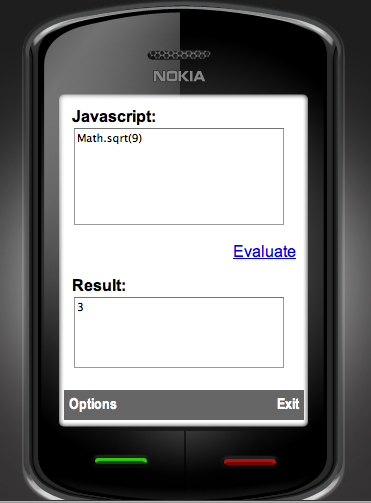 This is a handy utility to evaluate Javascript directly from your Nokia mobile Phone, in the context of your mobile web browser. It requires WRT (Web Runtime) support.
The source code behind this app is really simple:
function evaluate()
{
var JS = document.getElementById(“taJS”);
var Result = document.getElementById(“taResult”);
Result.value = eval(JS.value);
}
For Full source code, download the wgz
oAuth CosumerKey and SecretKey for Google,Twitter,Yahoo and Vimeo
Here are a list of oAuth providers, for Google, Twitter, Yahoo and Vimeo, with consumerKey and SecretKey set for http://Localhost, so they are ideal for testing, although you’ll need to get live ones for live environments:
if (Request.PathInfo == “/requestToken/google/”)
{
consumerKey = “anonymous”;
consumerSecret = “anonymous”;
// Google requires an additional “scope” parameter that identifies one of the google applications
requestTokenEndpoint = “https://www.google.com/accounts/OAuthGetRequestToken?scope=https://www.googleapis.com/auth/userinfo#email”;
requestTokenCallback = GetRouteableUrlFromRelativeUrl(“oAuth/default.aspx/authorizeToken/google/”);
authorizeTokenUrl = “https://www.google.com/accounts/OAuthAuthorizeToken”;
}
else if (Request.PathInfo == “/requestToken/twitter/”)
{
// http://twitter.com/oauth_clients/details/763647
consumerKey = “esK3OieltAXufhxvWJBNw”;
consumerSecret = “8APVHgYEXwDoPgtsUj7tYns4NFNkOnXG5yMAPAPUXU”;
requestTokenEndpoint = “https://api.twitter.com/oauth/request_token”;
requestTokenCallback = GetRouteableUrlFromRelativeUrl(“oAuth/default.aspx/authorizeToken/twitter/”);
authorizeTokenUrl = “https://api.twitter.com/oauth/authorize”;
}
else if (Request.PathInfo == “/requestToken/yahoo/”)
{
//https://developer.apps.yahoo.com/dashboard/createKey.html
consumerKey = “dj0yJmk9QVM4UjFabHZrME4zJmQ9WVdrOVRYbERhMVJSTTJVbWNHbzlOVFF5T0RJeU5UWXkmcz1jb25zdW1lcnNlY3JldCZ4PWJh”;
consumerSecret = “3d9ec8bea068a2bdd5b940b24fbedc9da6949569”;
requestTokenEndpoint = “https://api.login.yahoo.com/oauth/v2/get_request_token”;
requestTokenCallback = GetRouteableUrlFromRelativeUrl(“oAuth/default.aspx/authorizeToken/yahoo/”);
authorizeTokenUrl = “https://api.login.yahoo.com/oauth/v2/request_auth”;
}
else if (Request.PathInfo == “/requestToken/vimeo/”)
{
// http://vimeo.com/api/applications/new
consumerKey = “7a4b3b5d5205e6c6903bf77aeaf258cc”;
consumerSecret = “23609bc1174ca5c5”;
requestTokenEndpoint = “http://vimeo.com/oauth/request_token”;
requestTokenCallback = GetRouteableUrlFromRelativeUrl(“oAuth/default.aspx/authorizeToken/vimeo/”);
authorizeTokenUrl = “http://vimeo.com/oauth/authorize”;
}
Once the oAuth token is acquired, then you can get email address information from Google using:
oAuthConsumer.GetUserInfo(“https://www.googleapis.com/userinfo/email”, realm, consumerKey, consumerSecret, accessToken.Token, accessToken.TokenSecret);
And, significantly more information from Twitter using:
oAuthConsumer.GetUserInfo(“http://api.twitter.com/1/account/verify_credentials.xml”, realm, consumerKey, consumerSecret, accessToken.Token, accessToken.TokenSecret)
Please post updates to this post if you find equivalents for Yahoo!, or Vimeo. I’ve also heard about Messenger Connect which is supposed to be an oAuth system for Microsoft…
How to create a WGZ for Nokia Symbian WRT
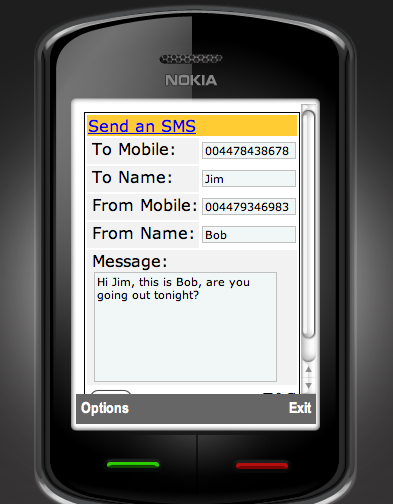 This is a simple HTML form packaged as a WGZ by using Aptana studio and Phonegap.
The WGZ can be created from within Aptana studio, by pressing control-click on the project, then selecting package. This WGZ can then be uploaded to Nokia’s OVI store under their WRT (Web runtime) category.
Source code for this project is available for download as a WGZ (basically a zip file)
This App is now published on OVI!
Parse a varchar to bigint using a regex (Regular Expression)
select convert(bigint,’6592370590..’) will fail with the error below due to the two dots at the end of the string, or a newline, or infact anything non-numeric.
Msg 8114, Level 16, State 5, Line 1
Error converting data type varchar to bigint.
Here’s a more brute-force way of converting ‘dirty’ varchars into numbers:
create function [dbo].[UDF_ExtractNumber](@NumStr varchar(100))
returns bigint
as
begin
BEGIN
WHILE PATINDEX(‘%[^0-9]%’,@NumStr)> 0
SET @NumStr = REPLACE(@NumStr,SUBSTRING(@NumStr,PATINDEX(‘%[^0-9]%’,@NumStr),1),”)
END
return convert(bigint,@NumStr)
end
This does have the side-effect of viewing complete nonsense as the number zero, but that’s fine for my application.
make [package] error 127 (PhoneGap WebOs on Windows)
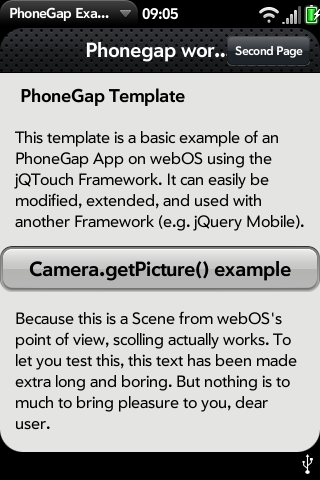 This is a sceenshot of a web-page that was converted into a webOs Palm App using Phonegap. Relatively straightforward until you hit this error “make: *** [package] Error 127”
In CygWin, you navigate to the webos folder, and type “make” and you get:
$ make
mkdir -p lib
rm -f lib/phonegap.js
cat js/phonegap.js.base >> lib/phonegap.js
cat js/acceleration.js >> lib/phonegap.js
cat js/accelerometer.js >> lib/phonegap.js
cat js/audio.js >> lib/phonegap.js
cat js/camera.js >> lib/phonegap.js
cat js/contacts.js >> lib/phonegap.js
cat js/debugconsole.js >> lib/phonegap.js
cat js/device.js >> lib/phonegap.js
cat js/file.js >> lib/phonegap.js
cat js/geolocation.js >> lib/phonegap.js
cat js/map.js >> lib/phonegap.js
cat js/network.js >> lib/phonegap.js
cat js/notification.js >> lib/phonegap.js
cat js/orientation.js >> lib/phonegap.js
cat js/position.js >> lib/phonegap.js
cat js/sms.js >> lib/phonegap.js
cat js/storage.js >> lib/phonegap.js
cat js/telephony.js >> lib/phonegap.js
cp lib/phonegap.js framework/www/phonegap.js
cp framework/www/index.html framework/www/app/views/First/First-
scene.html
palm-package framework/www/
make: palm-package: Command not found
make: *** [package] Error 127
So, it can’t find palm-package, which means you need to set a path to
/cygwin/c/program files/palm/sdk/bin
then navigate back to the /phonegap-0.9.4/webos folder, and type
User@Satellite /cygdrive/e/research/phonegap/phonegap-0.9.4/webos
$ palm-package.bat framework/www/
creating package com.phonegap.example_1.0.0_all.ipk in E:\research\phonegap\phon
egap-0.9.4\webos
User@Satellite /cygdrive/e/research/phonegap/phonegap-0.9.4/webos
$ palm-install.bat com.phonegap.example_1.0.0_all.ipk
installing package com.phonegap.example_1.0.0_all.ipk on device “castle-linux” {
a339f527fe6d98a2b95b9f2ef036d503042181c9} usb 49346
User@Satellite /cygdrive/e/research/phonegap/phonegap-0.9.4/webos
$ palm-launch.bat com.phonegap.example
launching application com.phonegap.example on device “castle-linux” {a339f527fe6
d98a2b95b9f2ef036d503042181c9} usb 49346
– With the palm phone in developer mode, and plugged into the USB all the while.
In a few seconds it pops up.
– Now, the challenge, to do something usefull with it 🙂
A simple Chrome App
This morning, I submitted a simple chrome app to the google app store,
It was simply a manifest file as follows:
{
“name”: “Freebie SMS – Free SMS UK”,
“version”: “1.0”,
“description”: “Send free SMS text messages from Chrome to UK mobile phones, no pre-payment or signup required. All networks supported.”,
“browser_action”: {
“default_icon”: “sms.gif”,
“popup”: “popup.html”
},
“permissions”: [
“http://www.freebiesms.co.uk/”
]
}
Then the file “popup.html” is the generated HTML from the FreebieSMS Affiliate form.
Using OpenSearch.xml

If your website is searchable, then you can let your browser know how to search it, and create a shortcut search box in the top right of the user’s browser using a few lines of HTML and XML
Add the line
<link rel=”search” type=”application/opensearchdescription+xml” href=”/opensearch.xml” title=”.NET Source Code” />
to the head of the page, where opensearch.xml is:
<?xml version=”1.0″ encoding=”UTF-8″?>
<OpenSearchDescription xmlns=”http://a9.com/-/spec/opensearch/1.1/” xmlns:moz=”http://www.mozilla.org/2006/browser/search/”>
<ShortName>.NET Source</ShortName>
<Description>.NET Framework source code</Description>
<InputEncoding>UTF-8</InputEncoding>
<Image height=”16″ width=”16″ type=”image/x-icon”>http://reflector.webtropy.com/images/favicon.ico</Image>
<Url type=”text/html” method=”get” template=”http://reflector.webtropy.com/Search.aspx?search={searchTerms}” />
<moz:SearchForm>http://reflector.webtropy.com</moz:SearchForm>
</OpenSearchDescription>
I’ve used this on my .NET Source code browser website.
ModMii 4.4.5 Custom Guide for Wii
ModMii 4.4.5 Custom Guide
Generated on 25/01/2011 – 18:48:55.34
Check for updates at tinyurl.com/ModMiiNow
This Guide was generated using the following parameters:
* Wii is currently a virgin (un-modified)
* Current firmware is 3.XE
* Desired firmware is 4.1E
* Download Extra Brick Protection
* Update active IOSs
* External Hard Drive to be Formatted as FAT32
* Download Configurable USB-Loader
* USB-Loader Settings and config files saved to USB Hard Drive
This software is not for sale. If you paid for this software or a “bundle” you have been scammed.
THIS PACKAGE COMES WITH ABSOLUTELY NO WARRANTY, NEITHER STATED NOR IMPLIED.
NO ONE BUT YOURSELF IS TO BE HELD RESPONSIBLE FOR ANY DAMAGE THIS MAY CAUSE TO YOUR NINTENDO WII CONSOLE!
USE THIS AT YOUR OWN RISK!
IMPORTANT NOTES:
*This guide does NOT require a Wifi connection on your Wii.
*An SD card formatted to FAT(32) required (Best results are with non-SDHC cards, SDHC will only work on 4.0 or above).
*If you get errors during any of the steps reformat your SD card as FAT or FAT32
*Turn off WiiConnect24 and take out all gamecube memory cards/controllers when modding the Wii (unless instructed otherwise).
*If your Wii ever freezes, hold the power button on the Wii for 5 seconds to power it off then try again.
*Don’t ever accept a new Nintendo update without first googling to see if it’s safe. The last update (to 4.3) was released in late June 2010 and is NOT safe to accept. If you accept an official Nintendo update after modding the Wii, you may lose some or all of your modifications.
*Never uninstall a system menu or IOS
*Do not install untested wads/themes without Bootmii or Priiloader installed.
*Not all external hard drive’s are compatible with the Wii, for a list of which USB Hard Drive’s are compatible, see this webpage: http://wiki.gbatemp.net/wiki/USB_Devices_Compatibility_List
*If you have questions, a more detailed guide can be found here: http://www.sites.google.com/site/completesg/
*This custom guide is great start, but Wii modding is always evolving. Check for updates online, and remember, google is your friend.
*If you have questions, a more detailed guide can be found here: http://www.sites.google.com/site/completesg/
1) INSTALLING THE HOMEBREW CHANNEL (HBC) AND BOOTMII
=================================================
Run BannerBomb v1 by going to Settings, Data Management, Channels, SD Card and choosing yes to load boot.dol/elf
Note: If it doesn’t work for you, visit http://bannerbomb.qoid.us/ for more variations of either version of bannerbomb.
This runs the Hackmii Installer (and silently/automatically installs BootMii as IOS). Use the installer to install the Homebrew Channel (HBC) and Bootmii as Boot2 if possible. If you cannot install BootMii as Boot2, you also need to ‘prepare an SD Card’ for BootMii (as the ‘BootMii’ folder is required to launch BootMii as IOS or Boot2).
Note: If you get a ‘no vulnerable IOS’ error message, run ModMii again and this time select the ‘Hackmii Solutions’ option instead of ‘ModMii Wizard’ and follow the new instructions before continuing this guide.
After you exit the hackmii installer, you will be taken to the HBC.
Hit the home button. In the top right corner you will see the IOS used by the HBC.
If the HBC is using an IOS other than IOS58 or your homebrew channel is upside-down, make a note of it as it applies later in the guide (you will have to reinstall the HBC).
If it is using IOS58 and your HBC is not upside-down, you can skip the Reinstall The Homebrew Channel step when you get to it.
2) MAKING A NAND BACKUP
====================
While inside the Homebrew Channel, load BootMii by pressing home and clicking Launch Bootmii.
Press the power button on the wii 3 times to get to the last option, then press the reset button. [You can also navigate with a Gamecube controller]
Press reset to choose the first option, then follow the directions on the screen to make your NAND backup. [Bad blocks are no problem.]
Backup the Bootmii folder, NAND.bin, and keys.bin elsewhere and erase from the sd card (or rename it). You’ll need these in case of emergencies, so don’t lose them.
Go back to The Homebrew Channel.
Note: if Bootmii was installed as boot2, then it will show up as soon as the Wii is turned on AS LONG AS it finds the bootmii folder (mentioned above) on the root of the SD card.
3) INSTALL A PATCHED IOS236
========================
Start the Homebrew Channel.
VERY IMPORTANT!
In the Homebrew channel, if you do not have a working internet connection already set up, you will see an icon flashing in the bottom right corner of the screen indicating its inability to initialize the network. You MUST wait for the icon to stop flashing OR let it flash for 30-60 seconds before proceeding otherwise these apps will error shortly after being launched. If you encounter this harmless error, power off the Wii and repeat this step from the beginning. To increase your chances of success, add a working internet connection to your Wii via the official Wii Settings Menu, but be sure to say “No” when asked to perform an update.
You only need to perform ONE of the below methods.
Method A: Using IOS236 Installer
——————————–
After waiting 30-60 seconds for the HBC to attempt to initialize the network, launch “IOS236 Installer v5 MOD”.
Note: This app must be launched using HBC v1.0.7 or higher in order to work properly.
It should say “IOS236 installation is complete!” and return to The Homebrew Channel.
If you experience errors, keep trying and it should eventually work.
If you continue to experience errors you can try using Simple IOS Patcher instead.
Once either method successfully installs IOS236, you can move onto the next step.
Method B: Using Simple IOS Patcher
———————————-
After waiting 30-60 seconds for the HBC to attempt to initialize the network, launch “IOS236 Installer”.
Note: This app must be launched using HBC v1.0.7 or higher in order to work properly.
Choose “IOS36” (already selected by default) and push A,
Select “Install IOS to slot” and choose 236,
Select “Install patched IOS36” leaving the 4 patches set to “yes” and press A,
Choose “Load IOS from SD card”.
Confirm your choice with the A button,
When prompted, push A to continue the installation.
When the installation is over you’ll be back at the Main Menu,
Then push B button to exit.
If you experience errors, keep trying and it should eventually work.
If you continue to experience errors you can try using IOS236 Installer instead.
Once either method successfully installs IOS236, you can move onto the next step.
4) INSTALL WADS
============
Load Multi-Mod Manager (MMM) via the HomeBrew Channel.
If IOS236 is not already loaded, select “Load another IOS”, then select IOS236
Note: If this step fails with error -ret 2011 or other, you may need to retry patching IOS236. If the Wii was previously softmodded, you can try loading cIOS250 (or others like 202,222,223,224,236,249)
In Multi-Mod Manager’s main menu, go down to select “WAD Manager”.
Install the following WADs from the WAD folder (this list of WADs is unique to how you answered the Wizard’s questions).
Be careful not to install any additional wads that may have been previously saved in this folder (they may be safe, but I cannot say for sure).
Hold + for 2 seconds to select all the WADs in the folder. Then Press A twice to install them all.
If any files fail to install properly, they will remain marked for installation, so just retry installing those files.
Your unique list of wads to install are as follows:
* IOS11v16174(IOS60v6174[FS-ES-NP])
* IOS20v16174(IOS60v6174[FS-ES-NP])
* IOS30v16174(IOS60v6174[FS-ES-NP])
* IOS50v14889(IOS50v4889[FS-ES-NP])
* IOS60v16174(IOS60v6174[FS-ES-NP])
* IOS70v16687(IOS70v6687[FS-ES-NP])
* SystemMenu_4.1E_v450
* cIOS202[57]-v5
* cIOS223[37-38]-v4
* cIOS222[38]-v5
* cIOS224[57]-v5
* cIOS250[57]-v20
* cIOS249[56]-v20
* RVL-cmios-v4_WiiGator_GCBL_v0.2
* IOS9-64-v1034
* IOS12-64-v526
* IOS13-64-v1032
* IOS14-64-v1032
* IOS15-64-v1032
* IOS17-64-v1032
* IOS21-64-v1039
* IOS22-64-v1294
* IOS28-64-v1807
* IOS31-64-v3608
* IOS33-64-v3608
* IOS34-64-v3608
* IOS35-64-v3608
* IOS36-64-v3608
* IOS37-64-v5663
* IOS38-64-v4124
* IOS41-64-v3607
* IOS43-64-v3607
* IOS45-64-v3607
* IOS46-64-v3607
* IOS48-64-v4124
* IOS53-64-v5663
* IOS55-64-v5663
* IOS56-64-v5662
* IOS57-64-v5919
* IOS58-64-v6176
* IOS61-64-v5662
* USBLoader(s)-ahbprot58-SD-USB-v8-IDCL
This is a forwarder channel that will load the first file it finds from the following list:
SD+USB:\apps\usbloader\boot.dol
SD+USB:\apps\usbloader\boot.elf
SD+USB:\apps\usb-loader\boot.dol
SD+USB:\apps\usb-loader\boot.elf
SD+USB:\apps\usbloader_cfg\boot.dol
SD+USB:\apps\usbloader_cfg\boot.elf
SD+USB:\apps\WiiFlow\boot.dol
SD+USB:\apps\WiiFlow\boot.elf
SD+USB:\apps\usbloader_gx\boot.dol
SD+USB:\apps\usbloader_gx\boot.elf
Notes: IOS58 is required to launch apps from an SD Card and hard drives formatted as
FAT32, NTFS, ext2, ext3 and ext4. It also supports meta.xml arguments
and is able to launch apps with direct hardware access.
You should always have at least one forwarder channel installed on your Wii,
that way, in the event of accidental update, you will be able to rehack your Wii without relying on a disc based exploit
Note: Whenever you install a new System Menu, Priiloader is uninstalled. So be sure to reinstall it afterwards (especially if you do not have bootmii as boot2)
5) INSTALL PRIILOADER
==================
Launch “Priiloader 236” via the Homebrew Channel
After the Priiloader Installer loads, press + to install it.
You may get an error for “loader.ini” and/or “password.txt” simply ignore these.
After successfully installing Priiloader, access it by powering off the Wii,
then powering it back on while holding reset until you see the Priiloader menu.
You should install some system menu hacks now (by going to System Menu hacks option).
RECOMMENDED HACKS: Block Disc Updates, Block Online Updates, Replace Health Screen, Auto-Press A at Health Screen, Region-Free Everything, remove no copy save file protection, and Move Disc Channel.
The priiloader menu is white by default, you can change it to black in the Priiloader settings if you prefer.
One of the special functions of Priiloader is that it can autoboot any app/file instead of the system menu. Some apps (like crazyIntro) can’t be used without it.
For details on how to do so, visit http://www.sites.google.com/site/completesg/system-hacks/priiloader
6) REINSTALL THE HOMEBREW CHANNEL (if applicable)
==============================================
Earlier you should have checked what IOS is used by the Homebrew Channel (HBC). If the IOS used by your HBC is IOS58 and your HBC is not upside-down, you can skip this step.
If the HBC is using an IOS other than IOS58 or your HBC is upside-down, you should reinstall the HBC.
Launch the HackMii_Installer via the HBC.
Use the Hackmii Installer to fix/re-install the HBC. Once you’ve successfully reinstalled the HBC, you can move onto the next step of the guide.
If the HBC is failing to load the HackMii_Installer (just blackscreens), instead launch the Hackmii Installer using the method described in the First Step
======================================================================================
THE REST OF THE GUIDE IS PERFORMED ON YOUR COMPUTER IN ORDER TO SET UP YOUR USB-LOADER
======================================================================================
7) FORMAT THE EXTERNAL HARD DRIVE (if applicable)
==============================================
First check if your drive needs to be formatted by checking the current Format\File-System of the drive.
Open ‘My Computer’, right-click the external hard drive you want to use, then select ‘properties’.
Make note of the Drive Letter of the external hard drive as this will be important later.
If the ‘File-System’ is already FAT32, you can skip this step.
If you have anything saved on the hard drive, you should back it up now as all the data will be lost once you format it.
Launch FAT32_GUI_Formatter.exe saved here:
D:\FAT32_GUI_Formatter\FAT32_GUI_Formatter.exe
Make sure you select the drive letter corresponding to your external hard drive.
You may optionally uncheck the ‘Quick Format’ box, then click start.
8) COPY FILES TO HARD DRIVE
========================
Copy everything inside the D: folder to the root of your FAT32 hard-drive\partition.
9) MANAGE WII BACKUPS USING WII BACKUP MANAGER (OPTIONAL)
======================================================
Launch WiiBackupManager.exe saved here:
D:\WiiBackupManager\WiiBackupManager.exe
You can use this program to manage/transfer your electronic backups of Wii Games.
It is very simple to use, but a detailed tutorial on using Wii Backup Manager can be found here:
http://www.sites.google.com/site/completesg/backup-launchers/iso/wbfs-managers/wii-backup-manager
Note: Original Wii Disc’s cannot be read/copied by using a computer (unless you have one of the rare LG Drives that is capable of doing so)
To copy ORIGINAL Wii Disc’s, insert the disc into your Wii and…
– Launch Configurable USB-Loader, and hit the plus sign ‘+’.
10) CONFIGURE/CUSTOMIZE CONFIGURABLE USB-LOADER (OPTIONAL)
======================================================
To Configure/Customize your USB-Loader, use the Configurator for Configurable USB-Loader found here:
D:\usb-loader\CfgLoaderConfigurator.exe
Optional: additional themes can be found here:
http://wii.spiffy360.com/themes.php
* IMPORTANT NOTES ON DEFAULT SETTINGS:
————————————
Two potentially dangerous features have been locked:
1) The ability to remove/delete games
2) the ability to format a hard drive.
To unlock these features, while in the configurable USB-Loader menu, hold ‘1’ for 5 seconds, then enter the password to unlock these features. The password is ‘AAAA’, you can change the password/settings by using the Configurator for Configurable USB-Loader. Hold ‘1’ again for 5 seconds to lock the USB-Loader again (or it will lock automatically again once you exit the USB-Loader).
11) AFTER MODDING
=============
After you are done modding your Wii, you can optionally delete any unnecesarry files
by using ModMii’s “File Cleanup” Feature.
If you choose not to use the File Cleanup feature, in order to avoid having your Wii freeze when accessing the SD Card Menu, you should delete the ‘aktn’ folder where bannerbomb is saved (SD:\private\wii\title\aktn), or rename the entire ‘private’ folder.
At this point you’re practically done.
Now you should be downloading the latest homebrew applications and setting them up on
your SD Card (or FAT32 USB Hard Drive) so they can be launched via the HBC.
For downloading applications, you should:
* Check out ModMii’s batch download pages as it has many popular apps available for download.
* Download Homebrew Browser via ModMii to get many popular apps, but this is an online only Wii application (www.sites.google.com/site/completesg/how-to-use/hbb)
* For those without internet on their Wii, check out this list of Homebrew applications (wiibrew.org/wiki/List_of_all_homebrew).
Another great resource is webrewwii.blogspot.com
After getting whatever apps you want, you should get a boot.dol file and possibly a icon.png and meta.xml.
For HBC to read your SD/USB correctly, your card must be structured SD:/apps/application name/boot.dol
If you have a *.dol not named boot.dol, rename it boot.dol, otherwise it will not be recognized by the HBC.
(optional: the icon.png and meta.xml should be saved in the same place as the boot.dol)
12) SUPPORT XFLAK
=============
IF MODMII WORKED FOR YOU, PLEASE VOTE IN FAVOUR OF THE PROGRAM HERE (tinyurl.com/ModMiiNow)
DONATIONS CAN OPTIONALLY BE MADE VIA PAYPAL TO XFLAK40@HOTMAIL.COM
CHECK OUT MY TOP CHANNELS HERE (tinyurl.com/topchannels)
CHECK OUT MY CRAZY INTRO VIDEOS HERE (tinyurl.com/crazyintro)
 Network Programming in .NET