Under the hood InAppBrowser for Cordova 3.5.0 (Phonegap)
In previous versions of Phonegap/Cordova (i.e. 2.x), the InAppBrowser was baked into Cordova.js proper, and was not considered a plugin, it was simply called via “Window.open”, and you got Phonegap’s ‘augmented’ version of the browser control.
However, after upgrading a project to Cordova 3.5.0, the inAppBrowser baffled me, since, although window.open was still working, it wasn’t using the inAppBrowser, so therefore, once window.open was called, the user had left the app, and was then on the web.
Anyway, I finally figured out that you needed to download the InAppBrowser as a plugin. Copy the js files into the src folder (talking about Android here), a couple of images for the forward and back button, and a js file into the www folder.
However that *bloody* js file didn’t work, not sure why, but calls to “require” and “modules”, were simply not there, so, since it was a short file, I decided to pick it apart, and just use the little functionality I required from it.
Now, I’m not advocating this approach, just if you can’t face it any longer, this hack may save you alot of time.
So, instead of Window.open(url, … ), I use a new function AltWindowOpen as follows:
function altWindowOpen(strUrl, strWindowName, strWindowFeatures)
{
console.error(“altWindowOpen()”);
var cb = function(event) {
console.error(“inappBrowser – ” + event.type);
if(event.type == “loadstart”)
{
browserRef_loadstart(event);
}
};
cordova.exec(cb, cb, “InAppBrowser”, “open”, [strUrl, strWindowName, strWindowFeatures]);
}
As you see, I’m only interested in the “loadstart” event, and I want to call browserRef_loadstart() whever that happens. The event object has the property “event.url” so you can see what it’s loaded.
In order to close the browser, you call
cordova.exec(null, null, “InAppBrowser”, “close”, []);
I’ve used console.error instead of console.log so it shows up in logcat more visibly. – Just another trick I discovered tonight.
Google Search API (Single site)
The Google search API is only really useful for searching one site, or a list of related sites. It also has a stingy limit of 100 queries per day, so I guess, Google isn’t really making it easy for people to use it.
Anyway, if those caveats are acceptable, then here’s some code that can be used to query Google in JSON format, once again, this code is designed for Phonegap – or similar trusted environments.
function GoogleSearch(query,callback)
{
var strUrl = “https://www.googleapis.com/customsearch/v1?”;
strUrl += “q=” +encodeURIComponent(query);
strUrl+= “&cx=xxxxxx&key=xxxxxxx”;
$.get(strUrl,function(data)
{
console.log(data);
callback(data);
});
}
The callback from this function can be rendered simply using mustache thus:
<div id=”results”></div>
<script id=”resultsTpl” type=”text/template”>
{{#items}}
<a href=”{{link}}”>{{title}}</a><br>
{{/items}}
</script>
Of course, there’s plenty more data there, but all I needed was the link and title.
Bing Search API V2.0

EDIT: NB: This is no longer supported, please see this instead;
https://blog.dotnetframework.org/2017/04/24/bing-image-search-using-cognitive-search/
Once again, bing dissapoints, I spent an hour this morning getting the new Bing API to work. It’s great that the old documentation isn’t marked as deprecated. Grrr. Yup, if you see anything requiring an AppId, it’s obsolete.
Anyway, here is the new API, which on the free level, gives you 5,000 requests per month to play with. Unfortunately, for my needs, it wasn’t suitable, but the code is here anyway.
A word of note, is that you have to wrap your query in quotes for this to work, and yet again, I’m presuming a high trust environment for this code, such as Phonegap / Webworks / Windows Store / Firefox OS etc. Not the web.
function bingSearch(query,callback)
{
console.log(“bingSearch(” + query + “)”);
$.ajax
({
type: “GET”,
url: “https://api.datamarket.azure.com/Bing/SearchWeb/Web?$format=json&Query=” + encodeURIComponent(query),
dataType: ‘json’,
async: false,
headers: {
“Authorization”: “Basic ” + btoa(“:YOUR-PASSWORD”)
},
success: function (data){
console.log(“bingSearch() – success:”);
console.log(data);
callback(data);
}
});
}
Hope this is useful to someone.
LinkedIn OAuth in Javascript – Manual Flow
 This is very much on the same vein as my last post on Facebook OAuth, and demonstrates how a very similar method can be used to read and display linkedin Connections from a user.
As with all OAuth systems, the manual flow is as follows (a) Send the user to a login page (b) get a code back (c) exchange this code for an access token (d) use the access token to request data from the provider’s API.
In this example, it is designed for use in situations where XDR is allowed, such as Phonegap, Windows store apps, Firefox os, etc – not a normal website. However, the flow could be adapted using JSONP.
So, step 1. is to send the user to the login page
function openLoginDialog()
{
console.log(“openLoginDialog()”);
var strUrl = “https://www.linkedin.com/uas/oauth2/authorization?”;
strUrl += “response_type=code”;
strUrl += “&client_id=xxxxxxxxxxxxxx”;
strUrl += “&scope=r_fullprofile%20r_emailaddress%20r_network”;
strUrl += “&state=DCEEFWF45453sdffef424”;
strUrl += “&redirect_uri=http://xxxxxxxxxxxxxxx”;
location.href=strUrl;
}
You will need to set up an “App” at developers.linkedin.com, and you will also need access to a web server, in the above code, you’ll need to replace client_id and redirect_uri. “state” appears to be an extra security measure, but quite an ineffective one, in my mind, it can be any random string.
Once the user logs in, then LinkedIn will refer the user back to your redirect_uri with the “code” parameter added. You have about 10 seconds to exchange this for an access token, any delay at this point, and the key exchange will fail.
function ExchangeCodeForAccessToken(code,callback)
{
console.log(“ExchangeCodeForAccessToken(” + code + “)”);
var strUrl = “https://www.linkedin.com/uas/oauth2/accessToken?”;
strUrl += “grant_type=authorization_code”;
strUrl += “&code=” + code;
strUrl += “&redirect_uri=http://xxxxxxxxxxxxxxxx”;
strUrl += “&client_id=xxxxxxxx”;
strUrl += “&client_secret=xxxxxxxxxx”;
$.get(strUrl,function(data){
console.log(“ExchangeCodeForAccessToken() ” + data);
if (typeof(data)==”string”)
{
data = eval(“(” + data + “)”);
}
OAUTH_Access_token = data.access_token;
var currentDate = new Date();
OAUTH_Expiry = new Date(currentDate.getTime() + 60*24*60*60*1000);
localStorage.setItem(“OAUTH_Access_token”,OAUTH_Access_token);
localStorage.setItem(“OAUTH_Expiry”,OAUTH_Expiry);
callback();
});
}
Unlike facebook, all tokens have a lifetime of 60 days, it doesn’t vary, and the response of the key exchange is in JSON. You’ll need to replace the client_id and client_secret from the developer console on Linkedin for your app.
Once you have the access_token, then you can call the linkedin API, here, for example, I am getting my connections, and displaying them in a HTML table using mustache
function logged_in()
{
console.log(“logged_in()”);var strUrl = “https://api.linkedin.com/v1/people/~/connections?”;
strUrl += “format=json”;
strUrl += “&oauth2_access_token=” + OAUTH_Access_token;
$.get(strUrl,function(data){
console.log(“logged_in() ” + data);
if (typeof(data)==”string”)
{
data = eval(“(” + data + “)”);}
connections = data;
var template = $(“#friendlistTpl”).html();
var html = Mustache.to_html(template, data);
$(“#friendlist”).html(html);
});
}
Where my Mustache template is as follows:
<div id=”friendlist”></div>
<script id=”friendlistTpl” type=”text/template”>
<table>
{{#values}}
<tr>
<td>
<img src=”{{pictureUrl}}”>
</td>
<td>
{{firstName}} {{lastName}} <br>
{{headline}}
</td>
</tr>
{{/values}}
</table>
</script>
There is plenty more data returned from this call, and much more to explore in the LinkedIn API.
Facebook Manual Login flow (JQuery / OAuth / FQL)
Although Facebook recommend that you use their SDK to provide access to their data, and only suggest using the manual login flow for Windows 8 apps, or desktop apps, lets just take a look at how you do it. – This particular code is designed for use within Phonegap mobile apps, where cross domain ajax is permitted.
As with all OAuth systems, you never get to see the user’s username and password, you are only provided with proof that the user has logged in.
So, the first step, is to send the user to the Facebook login page.
function openLoginDialog()
{
console.log(“openLoginDialog()”);
var strUrl = buildLoginDialog(OAUTH_App_id,OAUTH_Redirect_Url);
location.href=strUrl;
}function buildLoginDialog(app_id, redirect_uri)
{
console.log(“buildLoginDialog(” + app_id + “,” + redirect_uri + “)”);
var strUrl = “https://www.facebook.com/dialog/oauth?”;
strUrl += “client_id=” + app_id;
strUrl += “&redirect_uri=” + redirect_uri;
return strUrl;
}
When openLoginDialog is called, then the user will be redirected to the login page on facebook. You will need to have a App_id set up in Facebook developers. The redirect URL is any page online, as long as it’s authorised for your facebook app.
Once facebook returns the user to your URL, it will append a “code” in the querystring. You need to now exchange this code for an access_key, this is because the code is very easily spoofed, so it needs to be checked.
function ExchangeCodeForAccessToken(code,callback)
{
console.log(“ExchangeCodeForAccessToken(” + code + “)”);
/*
https://graph.facebook.com/oauth/access_token?
client_id={app-id}
&redirect_uri={redirect-uri}
&client_secret={app-secret}
&code={code-parameter}
*/
var strUrl = “https://graph.facebook.com/oauth/access_token?”;
strUrl += “client_id=” + OAUTH_App_id;
strUrl += “&redirect_uri=” + OAUTH_Redirect_Url;
strUrl += “&client_secret=” + OAUTH_App_Secret;
strUrl += “&code=” + code;
$.get(strUrl,function(data)
{
console.log(data);
OAUTH_Access_token = getQueryVariable(“access_token”,data);
var expiry = getQueryVariable(“expires”,data);
var currentDate = new Date();
OAUTH_Expiry = new Date(currentDate.getTime() + expiry*1000);
localStorage.setItem(“OAUTH_Access_token”,OAUTH_Access_token);
localStorage.setItem(“OAUTH_Expiry”,OAUTH_Expiry);
callback();
});
}
This ideally should be placed on a server, since the App_secret is now visible to anyone who decompiles your code.
Once you have the access_token, then you can make authenticated requests against Facebook, one of the most flexible ways to query facebook’s data is using FQL, which is based on SQL, as it’s name suggests.
Here is some code I used to run a FQL query against facebook, and display the results using mustache
function logged_in()
{
console.log(“logged_in()”);
executeFql(“SELECT name, uid FROM user WHERE uid in (SELECT uid2 FROM friend WHERE uid1 = me())”,function(data)
{
fqlResponse = data;
console.log(JSON.stringify(data));
var template = $(“#friendlistTpl”).html();
var html = Mustache.to_html(template, {data: data});
$(“#friendlist”).html(html);
});
}function executeFql(query,callback)
{
console.log(“executeFql(” + query + “)”);
var strUrl = “https://api.facebook.com/method/fql.query?”;
strUrl += “query=” + encodeURI(query);
strUrl += “&access_token=” + OAUTH_Access_token;
strUrl += “&format=json”;
$.get(strUrl,callback);
}
I hope all that info helps someone!
com.facebook.http.protocol.ApiException: Key hash does not match any stored key hashes.
 I’m not alone in the type of developer who things he understands how something works without reading instructions, and this is certainly a lesson in reading instructions before banging you head off a wall trying to fix a problem that was solved by reading the next paragraph.
But, the diagnostic technique may help someone else.
I was trying to get the Android Facebook SDK to get up and running, with a view to then move onto the Phonegap Facebook Plugin. But quite naturally, I knew that I would have to get the base level Facebook SDK examples to work before moving on to the Phonegap plugin.
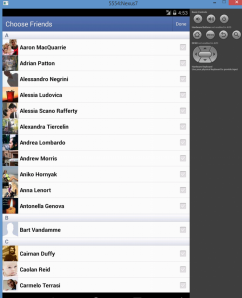
So, I installed the Facebook Android SDK, imported the projects into my workspace, and tried to run the first one, Friend Picker, and lo and behold. Nothing. Nada. No worky. Just a prompt asking me permission, then nothing else.
I tried then connecting a real android device. Same result. #
I checked in LogCat, and scrolled up to the first mention of a Facebook related error and got this:
04-08 04:50:01.757: W/fb4a(:<default>):BlueServiceQueue(1711): com.facebook.http.protocol.ApiException: Key hash bBZxOcCkWDdGSW8zex5GXuvuwpY does not match any stored key hashes.
04-08 04:50:01.757: W/fb4a(:<default>):BlueServiceQueue(1711): at com.facebook.http.protocol.ApiResponseChecker.b(ApiResponseChecker.java:83)
04-08 04:50:01.757: W/fb4a(:<default>):BlueServiceQueue(1711): at com.facebook.http.protocol.ApiResponseChecker.a(ApiResponseChecker.java:162)
04-08 04:50:01.757: W/fb4a(:<default>):BlueServiceQueue(1711): at com.facebook.http.protocol.ApiResponse.g(ApiResponse.java:151)
04-08 04:50:01.757: W/fb4a(:<default>):BlueServiceQueue(1711): at com.facebook.platform.auth.server.AuthorizeAppMethod.a(AuthorizeAppMethod.java:275)
04-08 04:50:01.757: W/fb4a(:<default>):BlueServiceQueue(1711): at com.facebook.platform.auth.server.AuthorizeAppMethod.a(AuthorizeAppMethod.java:31)
04-08 04:50:01.757: W/fb4a(:<default>):BlueServiceQueue(1711): at com.facebook.http.protocol.ApiResponseHandler.a(ApiResponseHandler.java:55)
04-08 04:50:01.757: W/fb4a(:<default>):BlueServiceQueue(1711): at com.facebook.http.protocol.ApiResponseHandler.handleResponse(ApiResponseHandler.java:28)
04-08 04:50:01.757: W/fb4a(:<default>):BlueServiceQueue(1711): at com.facebook.http.common.FbHttpRequestProcessor.a(FbHttpRequestProcessor.java:314)
04-08 04:50:01.757: W/fb4a(:<default>):BlueServiceQueue(1711): at com.facebook.http.common.FbHttpRequestProcessor.a(FbHttpRequestProcessor.java:144)
04-08 04:50:01.757: W/fb4a(:<default>):BlueServiceQueue(1711): at com.facebook.http.common.FbHttpRequestProcessor.b(FbHttpRequestProcessor.java:100)
04-08 04:50:01.757: W/fb4a(:<default>):BlueServiceQueue(1711): at com.facebook.http.common.FbHttpRequestProcessor.a(FbHttpRequestProcessor.java:230)
04-08 04:50:01.757: W/fb4a(:<default>):BlueServiceQueue(1711): at com.facebook.http.protocol.SingleMethodRunnerImpl.a(SingleMethodRunnerImpl.java:402)
04-08 04:50:01.757: W/fb4a(:<default>):BlueServiceQueue(1711): at com.facebook.http.protocol.SingleMethodRunnerImpl.a(SingleMethodRunnerImpl.java:164)
04-08 04:50:01.757: W/fb4a(:<default>):BlueServiceQueue(1711): at com.facebook.http.protocol.AbstractSingleMethodRunner.a(AbstractSingleMethodRunner.java:18)
04-08 04:50:01.757: W/fb4a(:<default>):BlueServiceQueue(1711): at com.facebook.platform.common.server.SimplePlatformOperation.a(SimplePlatformOperation.java:40)
04-08 04:50:01.757: W/fb4a(:<default>):BlueServiceQueue(1711): at com.facebook.platform.common.server.PlatformOperationHandler.a(PlatformOperationHandler.java:60)
04-08 04:50:01.757: W/fb4a(:<default>):BlueServiceQueue(1711): at com.facebook.fbservice.service.BlueServiceQueue.e(BlueServiceQueue.java:329)
04-08 04:50:01.757: W/fb4a(:<default>):BlueServiceQueue(1711): at com.facebook.fbservice.service.BlueServiceQueue.d(BlueServiceQueue.java:55)
04-08 04:50:01.757: W/fb4a(:<default>):BlueServiceQueue(1711): at com.facebook.fbservice.service.BlueServiceQueue$3.run(BlueServiceQueue.java:258)
04-08 04:50:01.757: W/fb4a(:<default>):BlueServiceQueue(1711): at java.util.concurrent.Executors$RunnableAdapter.call(Executors.java:422)
04-08 04:50:01.757: W/fb4a(:<default>):BlueServiceQueue(1711): at java.util.concurrent.FutureTask.run(FutureTask.java:237)
04-08 04:50:01.757: W/fb4a(:<default>):BlueServiceQueue(1711): at com.facebook.common.executors.ListenableScheduledFutureImpl.run(ListenableScheduledFutureImpl.java:59)
04-08 04:50:01.757: W/fb4a(:<default>):BlueServiceQueue(1711): at android.os.Handler.handleCallback(Handler.java:733)
04-08 04:50:01.757: W/fb4a(:<default>):BlueServiceQueue(1711): at android.os.Handler.dispatchMessage(Handler.java:95)
04-08 04:50:01.757: W/fb4a(:<default>):BlueServiceQueue(1711): at android.os.Looper.loop(Looper.java:136)
04-08 04:50:01.757: W/fb4a(:<default>):BlueServiceQueue(1711): at android.os.HandlerThread.run(HandlerThread.java:61)
04-08 04:50:01.797: D/dalvikvm(2292): GC_FOR_ALLOC freed 467K, 15% free 3196K/3736K, paused 360ms, total 366ms
04-08 04:50:01.997: W/CursorWrapperInner(2292): Cursor finalized without prior close()
04-08 04:50:02.107: I/Choreographer(382): Skipped 31 frames! The application may be doing too much work on its main thread.
04-08 04:50:02.137: W/fb4a(:<default>):GDPDialog(1711): Failed to send
04-08 04:50:02.137: W/fb4a(:<default>):GDPDialog(1711): com.facebook.fbservice.service.ServiceException: API_ERROR: API_ERROR
04-08 04:50:02.137: W/fb4a(:<default>):GDPDialog(1711): at com.facebook.fbservice.ops.BlueServiceOperation.c(BlueServiceOperation.java:639)
04-08 04:50:02.137: W/fb4a(:<default>):GDPDialog(1711): at com.facebook.fbservice.ops.BlueServiceOperation.c(BlueServiceOperation.java:47)
04-08 04:50:02.137: W/fb4a(:<default>):GDPDialog(1711): at com.facebook.fbservice.ops.BlueServiceOperation$2.run(BlueServiceOperation.java:604)
04-08 04:50:02.137: W/fb4a(:<default>):GDPDialog(1711): at android.os.Handler.handleCallback(Handler.java:733)
04-08 04:50:02.137: W/fb4a(:<default>):GDPDialog(1711): at android.os.Handler.dispatchMessage(Handler.java:95)
04-08 04:50:02.137: W/fb4a(:<default>):GDPDialog(1711): at android.os.Looper.loop(Looper.java:136)
04-08 04:50:02.137: W/fb4a(:<default>):GDPDialog(1711): at android.app.ActivityThread.main(ActivityThread.java:5017)
04-08 04:50:02.137: W/fb4a(:<default>):GDPDialog(1711): at java.lang.reflect.Method.invokeNative(Native Method)
04-08 04:50:02.137: W/fb4a(:<default>):GDPDialog(1711): at java.lang.reflect.Method.invoke(Method.java:515)
04-08 04:50:02.137: W/fb4a(:<default>):GDPDialog(1711): at com.android.internal.os.ZygoteInit$MethodAndArgsCaller.run(ZygoteInit.java:779)
04-08 04:50:02.137: W/fb4a(:<default>):GDPDialog(1711): at com.android.internal.os.ZygoteInit.main(ZygoteInit.java:595)
04-08 04:50:02.137: W/fb4a(:<default>):GDPDialog(1711): at dalvik.system.NativeStart.main(Native Method)
Finding the first reference (highlighted in bold) was
com.facebook.http.protocol.ApiException: Key hash does not match any stored key hashes.
So, I searched for that online, and realised I hadn’t read all the instructions, you have to enter in the hash provided (base64 padded) to https://developers.facebook.com/settings/developer/sample-app/
– Which is generated from DOS, like this:
C:\OpenSSL-Win32\bin>keytool -exportcert -alias androiddebugkey -keystore %HOMEP
ATH%\.android\debug.keystore | openssl sha1 -binary | openssl base64
Enter keystore password: android
bBZxOcCkWDdGSW8zex5GXuvuwpY=
Obviously, this means that I’ll have to re-do this step whenever I’m using my signing key. Hopefully that’s not going to be a problem…
Confirm18.com – Credit card verification, without taking payment
- A user visits your website – say, http://www.yourwebsite.com/welcome.html
- The user clicks on a link saying “I am over 18” on your website, and it takes the user to the page http://www.confirm18.com/verify.aspx?merchant=xxx
- If the user passes our credit-card check, then they will be returned to your website, say http://www.yourwebsite.com/page1.html
To set this up, you must have at least three webpages on your website.
- A welcome page, where you ask the user to click a link saying “I am 18”
- A success page, where the user will be taken if they pass our credit-card check
- A failure page, where the user will be taken if they fail our credit-card check
When you register on this website, you will set up your success and failure urls, and you will be given a merchant id. This is then used in the link from your welcome page to our website, in the form http://www.confirm18.com/verify.aspx?merchant=xxx where xxx is your merchant id.
More advanced uses: Passing a consumer idIf you need to make sure that the user that you send to our verification process is the same user that comes back in to your success page, then you should use the consumerid parameter to ensure that you do not loose track of a user’s session, shopping cart, or preferences.
To pass a consumerid, simply add it as a parameter to the link to our verification page, i.e. http://www.confirm18.com/verify.aspx?merchant=xx&consumer=yy where xx is your merchant id, and yy can be any value that identifies the user on your website.
The consumer id will be passed back in the querystring to either the success or failure page. i.e. http://www.yourwebsite.com/success.html?consumer=yy
Additionally, if the user fails the credit check, then the reason will be passed back in the querystring to the failure page on your website. You can choose whether to display the reason for failure to the user or not.
i.e. http://www.yourwebsite.com/fail.html?consumer=yy&reason=Bank_Invalid
Reasons can be as followsCard_type_invalid = The card issuing network does not match that suppled by the user Bank_Invalid = The bank entered by the user did not match that of the card issuing bank IP_Invalid = The card is issued by a bank in another country than the user’s current location
You can optionally opt to allow certain failures, for example, IP_Invalid could happen under legitimate circumstances, if the user is abroad on holiday.
Premium Only: Branding the verification pageBy default, our verification page will show our adverts, and our branding. If you wish to remove these, you can upgrade to a premium account.
Once you have upgraded to a premium account, then you can embed the verification page as an iFrame in your website, so the user will not be aware that they are using Confirm18.com
To use this verification iframe, use code such as the following
Where “xxx” is your merchant id.
Your success and failure urls may need to use iFrame killer script to ensure the correct user experience, i.e.
<script type=”text/javascript”> if (top != self) top.location.replace(location); </script>
Premium Only: API useageIf you want to have full control over the branding of the Confirm18.com experience, then premium users can avail of our API. This API is designed for developers, and requires programming experience. It is based on industry standard XML SOAP.
You can find the API at the following URL: http://www.confirm18.com/api.asmx, where you will find two methods:
Method 1:
VerifyCreditCard(int merchantid, string consumerId, string firstSixDigits, string clientIP, string cardType, string bankName)
– Performs the same check as Verify.aspx, returns a class containing pass/fail , and a reason, and the data returned from both the BIN lookup and IP lookup
* The merchant must have a premium account
Method 2:
VerifyPastCheck(string consumerid, int merchantid)
– Used to get information on a past verification check, either to double check that the user has arrived on the success url via legitimate means, or to get extra information about your customers.
* The merchant must have a premium account
Nokia X Try & Buy Pilot

Unveiled at the MWC in Barcelona was the Nokia X, the first Nokia phone to run Android.
Keen to get started, I submitted an app on the day, to the Nokia Publish site, although, it wasn’t until afterwards that I realised I never set a price point for the app. Believe it or not, There is no simple pay-to-download option for Nokia X apps. – Gasp –
So, after research, I see that Nokia are piloting a Try & Buy scheme using in-app payments. Here is the technical details I’ve found about it:
Nokia Try&Buy Pilot – Developer Guide
- Select your apps for T&B
- Create the app metadata in Publish, if new app.
- Create the Product ID (and related metadata) in Publish
- Remember to include: Display name, short and long description and Global Price Point (recommended 3 to 5)
- Choose the type of trial
- Time based (180 seconds) or usage based (3 plays)
- You can change the duration of the trial, 180 seconds is the default setting.
- Fill the T&B configurations in the table below with the following information: Content ID, Product ID, Display Name, Price Point, Trial Type (time vs plays) and Trial Duration
- Send your APKs and T&B configurations to the partner manager
- Use the cloud storage information provided to you by your partner manager
- Package your files in a single zip file with a meaningful name (eg PacMan_T&B.zip)
- Upload your package in the storage provided
- Nokia T&B team will wrap your APKs and upload a new package in the same folder
- Sign your APKs and upload to Publish
- If premium, convert your app to free (App must be published as free)
- Change the content file name (not the display name) to end with _TRYBUYNOK (Eg. PacMan becomes PacMan_TRYBUYNOK)
- Add the following sentence to the Content Description: This content has a time-based free trial which provides the user with free access to the content for a limited time period.
- Modify your application icon in order to include the wording “Free trial”. Example
- Make sure to sign each APK with your signature, upload them Publish and submit your app.
- Notify your PM once these steps have been completed
| Title | Title 1 | Title 2 | Title 3 | Title 4 |
| Content ID | ||||
| Product ID | ||||
| Display Name | ||||
| Price Point | ||||
| Trial Type | ||||
| Trial Duration |
Find duplicate name values in resx files
 A Resx file is used to define localized text in a .NET application. It is an XML file, which is primarily in the form:
var datanodes = document.getElementsByTagName(“data”);var strNames = [];for(i=0;i<datanodes.length;i++){strNames.push(datanodes[i].getAttribute(“name”));};strNames = strNames.sort();var results = []; for (var i = 0; i < strNames.length – 1; i++) { if (strNames[i + 1] == strNames[i]) { results.push(strNames[i]); }}; console.log(results);
It will then list any duplicate name vales.
Broadcast data to all viewers of your webpage using Firebase

Firebase is a cloud-hosted JSON based database, which can be used to replace the back-end of web applications.
It excells in certain cases, using websockets to communicate seamlessless between client and server, it removes the need for postbacks or Ajax polling.
Here is a simple example using Firebase to broadcast a message to all viewers of a particular web-page. I have removed the security settings for this particular instance, so no username or password is required.
The callback is event-orientated, so whenever the value held in the database changes, the event is fired on all clients, with the snapshot object containing the updated value.
<html>
 <head>
  <script type='text/javascript' src='https://cdn.firebase.com/js/client/1.0.6/firebase.js'></script>
  <script src="http://code.jquery.com/jquery-1.11.0.min.js"></script>
  <script language="javascript">
    var myRootRef = new Firebase('https://vivid-fire-7206.firebaseio.com/');
    function setData()
	{
		myRootRef.set($("#message").val());
	}
	myRootRef.on('value', function(snapshot) {
	  $("#lastMessage").html(snapshot.val());
	});
  </script>
  Say something to all users viewing this page:<br>
  <input name="text" id="message" onkeyup="setData()">
   <br>
   <br>
   <h2 id="lastMessage"></h2>
 </head>
 <body>
 </body>
</html>

