Accept Bitcoin payments in your #App or #Website using BitcoinToBankAccount.com #API
BITCOIN TO BANK ACCOUNT API
An API to automate Bitcoin to BACS / SWIFT transfers.
INTRODUCTION
BitcoinToBankAccount.com offers a service where a payment made in bitcoin can be paid back out via BACS / SWIFT (Electronic bank transfer) for a low fixed fee, and within 24 hours. It uses Stripe as a payment processor.
This API allows your website or software accept bitcoin payments, by allowing the customer make a payment to a specified Bitcoin Wallet. Then once the payment has been verified, make the bank transfer back to your account, and then provide the service to the customer.
Since payments are asynchronous, you need to poll on the wallet, to wait for the transaction to appear from the consumer. We recommend polling every 1 second for a maximum of 10 minutes.
GETTING STARTED
The API endpoint is located at the following URL:
https://www.bitcointobankaccount.com/api/api.asmx
Ensure to use the “https” version of the API, since this ensures a level of security in the data being sent.
The steps involved are:
- Call MakeTransfer with the amount of Bitcoin being paid, you will receive a Wallet and SessionID in return. You should ask the consumer to make a payment to the Bitcoin Wallet.
- Call PollOnTransfer every second for up to 10 minutes, passing the SessionID returned from MakeTransfer, until a status of true is returned
- Finally call MakeBankTransfer passing your Account number, Sort code, IBAN, and SWIFT/BIC code, and the SessionID as before. This will return true if the data is valid, the bank transfer will appear within 24 hours.
C# Example
-
Create a new console application in Visual Studio
-
Make a service reference to https://www.bitcointobankaccount.com/api/api.asmx call the reference “Bitcoin”
- Add the following code
| using System;
using ConsoleApplication1.Bitcoin; { class Program { static void Main(string[] args) { var client = new apiSoapClient(“apiSoap”); var tx = client.MakeTransfer(0.1); Console.WriteLine(“Waiting for Bitcoin payment to wallet: ” + tx.Wallet); var isReady = false; for (var i = 0; i<600; i ++) { isReady = client.PollOnTransfer(tx.Session); if (isReady) break; System.Threading.Thread.Sleep(TimeSpan.FromSeconds(1)); } if (!isReady) { Console.WriteLine(“Bitcoin Payment not received”); return; } Console.WriteLine(“Bitcoin Payment received and verified”); var isOK = client.MakeBankTransfer(“82982675”, “904974”, “IE4482982675904974”, “BOFII2D”, tx.Session); if (isOK) { Console.WriteLine(“Bank Transfer Made”); } else { Console.WriteLine(“Bank transfer failed, please check account details”); } } } } |
Fees
There is a fixed fee per transaction, which is deducted before the bank transfer is made, the currency is deduced from the destination bank account.
Currency |
Fee |
| USD | 0.6 |
| ISK | 70 |
| HKD | 5 |
| TWD | 19 |
| CHF | 0.60 |
| EUR | 0.55 |
| DKK | 4 |
| CLP | 8 |
| CAD | 0.80 |
| CNY | 4 |
| THB | 21 |
| AUD | 0.80 |
| SGD | 0.80 |
| KRW | 726 |
| JPY | 70 |
| PLN | 2 |
| GBP | 0.50 |
| SEK | 5 |
| NZD | 0.80 |
| BRL | 2 |
| RUB | 36 |
Transfer #Bitcoin to #Bank Account using #stripe
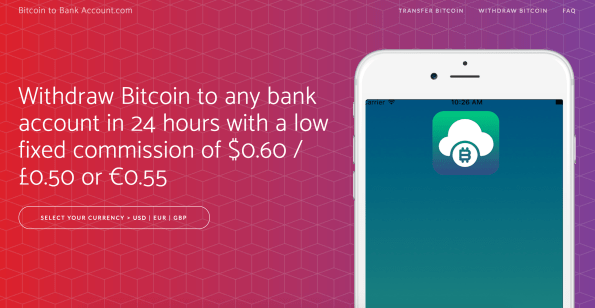
Almost there … https://www.bitcointobankaccount.com/ – It’s a new site that uses stripe to transfer between a bitcoin wallet and a real-life bank account.
For once I’m not sharing the code … since I think this could be big 🙂
Post a #YouTube video to #Facebook via C#

This post demonstrates how to post Video content to a Facebook page automatically, for example on https://www.facebook.com/Petrucci-Sheet-Music-1109694145794629/ – Here I am assuming you have a Faceook page set up, you know it’s Page Id, and you have a long-lived access token, and an API Key for Google, with the YouTube API enabled.
Install the Youtube Nuget package using
Install-Package Google.Apis.YouTube.v3
Then add this code to get videos;
private static SearchListResponse GetVideos(string searchTerm)
{
var youtubeService = new YouTubeService(new BaseClientService.Initializer()
{
ApiKey = “{{API key}}”,
ApplicationName = “Test Application”
});var searchListRequest = youtubeService.Search.List(“snippet”);
searchListRequest.Q = searchTerm;
searchListRequest.MaxResults = 50;
searchListRequest.Type = “video”;// Call the search.list method to retrieve results matching the specified query term.
var searchListResponse = searchListRequest.Execute();
return searchListResponse;
}
Then this code to post to facebook
static async Task PostToFacebookAsync(string searchTerm, string accessToken, string pageId, string suffix)
{
// Use HttpClient
using (var client = new HttpClient())
{
// Set variable values for post to facebook
string uri = string.Format(“https://graph.facebook.com/{0}/feed?”, pageId);var results = GetVideos(searchTerm);
var rand = new Random();
var result = results.Items[rand.Next(results.Items.Count)];var strName = HttpUtility.UrlEncode(result.Snippet.Title + ” ” + result.Snippet.Description + suffix);
var strLink = HttpUtility.UrlEncode(“http://youtu.be/” + result.Id.VideoId);
// Formulate querystring for graph post
StringContent queryString = new StringContent(“access_token=” + accessToken + “&message=” + strName + “&link=” + strLink);// Post to facebook /{page-id}/feed edge
HttpResponseMessage response = await client.PostAsync(new Uri(uri), queryString);
if (response.IsSuccessStatusCode)
{
// Get the URI of the created resource.
string postId = await response.Content.ReadAsStringAsync();
Console.WriteLine(“Post Successfully: Your Post ID is: {0}”, postId);}
else
{
string postId = await response.Content.ReadAsStringAsync();
Console.WriteLine(“Something Going Wrong”);}
}
}
and you call it like so;
PostToFacebookAsync(strSearchTerm, strAccessToken, strPageId, strSuffix).Wait();
Send physical #mail automatically from c#

In a world of email, sometimes a letter caries more weight. It is more likely to be read, and has a nice physical quality to it. Docmail offers an automated service to send PDFs as physical mail to an address automatically, and here’s some C# code to show how it’s done.
- Create a new project, and make a service reference to https://www.cfhdocmail.com/LiveAPI/DMWS.asmx – call the reference ServiceReference2
- Importantly: modify your app.config changing the binding to say maxReceivedMessageSize=”2147483647″ like follows;
<?xml version=”1.0″ encoding=”utf-8″ ?>
<configuration>
<startup>
<supportedRuntime version=”v4.0″ sku=”.NETFramework,Version=v4.5″ />
</startup>
<system.serviceModel>
<bindings>
<basicHttpBinding>
<binding name=”DMWSSoap” maxReceivedMessageSize=”2147483647″ >
<security mode=”Transport” /></binding>
<binding name=”DMWSSoap1″ maxReceivedMessageSize=”2147483647″/>
</basicHttpBinding>
</bindings>
<client>
<endpoint address=”https://www.cfhdocmail.com/LiveAPI/DMWS.asmx”
binding=”basicHttpBinding” bindingConfiguration=”DMWSSoap”
contract=”ServiceReference2.DMWSSoap” name=”DMWSSoap”>
</endpoint>
</client>
</system.serviceModel>
</configuration> - Ensure you’ve got a username and password with Docmail, as I’ve omitted this from the code, and the postal address is obscured.
using System;
using System.IO;namespace Docmail
{
class Program
{
static void Main()
{
// Need reference to https://www.cfhdocmail.com/LiveAPI/DMWS.asmx
// put maxReceivedMessageSize=”2147483647″ into the binding
SendFile(“email@gmail.com”,”password”);
}//(where ServiceReference2 is the root namespace for the web service reference)
private static void SendFile(string sUsr, string sPwd)
{
var bFile = File.ReadAllBytes(@”C:\Users\Fiach\Documents\MBCloud Invoice.pdf”);
var oService = new ServiceReference2.DMWSSoapClient();
var oSAH = new ServiceReference2.ServiceAuthHeader
{
Username = sUsr,
Password = sPwd
};
var oMailing = new ServiceReference2.Mailing();
var oAddress = new ServiceReference2.Address();
oMailing.MailingDescription = “Test mail.”;
oMailing.IsBlackAndWhite = false;
oMailing.IsDuplex = false;
oMailing.AddressNameFormat = “T”;
{
oAddress.Title = “MR”;
oAddress.FirstName = “Bob”;
oAddress.Surname = “Jones”;
oAddress.JobTitle = “”;
oAddress.FullName = “Bon Jones”;
oAddress.Address1 = “10 Main Street”;
oAddress.Address2 = “London”;
oAddress.Address3 = “SW1 444”;
oAddress.Address4 = “England”;
oAddress.Address5 = “(UK)”;
}
//add address to mailing
var oAddresses = new ServiceReference2.Address[1];
oAddresses.SetValue(oAddress, oAddresses.Length – 1);
oMailing.Addresses = oAddresses;
var oTemplate = new ServiceReference2.Template();
{
oTemplate.FileData = bFile;
oTemplate.FileName = “tsftfile.pdf”;
oTemplate.TemplateName = “TemplateName”;
oTemplate.AddressedDocument = true;
}
//add template to mailing
var oTemplates = new ServiceReference2.Template[1];
oTemplates.SetValue(oTemplate, oTemplates.Length – 1);
oMailing.Templates = oTemplates;
//Save mailing
var oMailingResult = oService.SaveMailing(oSAH, oMailing);
if (!oMailingResult.Success) throw new Exception(string.Format(“Mailing error: {0}”, oMailingResult.FailureMessage));
//Create a proof of the mailing
var oProof = oService.GetProof(oSAH, oMailingResult.MailingGUID, true);
var iSecondCount = 0;
//Loop for 3 mins waiting for a proof
while ((iSecondCount < 180) && oProof.Success && !oProof.ProofReady)
{
//Sleep for 5 seconds
System.Threading.Thread.Sleep(1000);
oProof = oService.GetProof(oSAH, oMailingResult.MailingGUID, true);
iSecondCount += 1;
}
if (!oProof.Success | !oProof.ProofReady) throw new Exception(“Proof not ready within 3 mins”);
//Place the order
var oOrderResult = oService.PlaceOrder(oSAH, oMailingResult.MailingGUID, “”);
if (!oOrderResult.Success) throw new Exception(string.Format(“PlaceOrder error: {0}”, oOrderResult.FailureMessage));
}
}
}
Verify #SSL expiry using C#
Need to remember when to renew a SSL cert?, here’s some handy code in c#
using System;
using System.Net;
using System.Security.Cryptography.X509Certificates;namespace CheckSSL
{
class Program
{
static void Main(string[] args)
{
//Do webrequest to get info on secure site
HttpWebRequest request = (HttpWebRequest)WebRequest.Create(“https://www.avatarapi.com”);
HttpWebResponse response = (HttpWebResponse)request.GetResponse();
response.Close();//retrieve the ssl cert and assign it to an X509Certificate object
X509Certificate cert = request.ServicePoint.Certificate;//convert the X509Certificate to an X509Certificate2 object by passing it into the constructor
X509Certificate2 cert2 = new X509Certificate2(cert);string cn = cert2.GetIssuerName();
string cedate = cert2.GetExpirationDateString();Console.WriteLine(cn);
Console.WriteLine(cedate);Console.ReadLine();
}
}
}
A simple #Watchkit app in #ObjectiveC

Yes, I just got an apple watch, and the first thing I want to do with it, is to learn to program on it. so, apart from a simple “Hello World” app. I wanted to create a very simple companion app for a bitcoin app (https://itunes.apple.com/gb/app/get-bitcoin/id1072062149?mt=8) – which just looks up the BTC / USD exchange rate and shows it on the watch.
So, here’s the code;
@interface InterfaceController()
@property (unsafe_unretained, nonatomic) IBOutlet WKInterfaceLabel *lblHello;
@end
@implementation InterfaceController
– (void)awakeWithContext:(id)context {
[super awakeWithContext:context];
// Configure interface objects here.
[self.lblHello setText:@”Loading…”];
// make request to https://blockchain.info/tobtc?currency=USD&value=1
NSURL *url = [NSURL URLWithString:@”https://blockchain.info/tobtc?currency=USD&value=1″];
NSError* error;
NSString *content = [NSString stringWithContentsOfURL:url encoding:NSASCIIStringEncoding error:&error];
// Check for network errors
if (error)
{
[self.lblHello setText:@”Network error”];
return;
}
// Get reciprocal
float fRate = [content floatValue];
float fReciprocal = 1 / fRate;
NSString *str = [NSString stringWithFormat:@”$%.2lf”, fReciprocal];
[self.lblHello setText:str];
}
Custom #Email #Autoresponder in c#

I wanted to set up an autoresponder to my emails so that people would get notified over the christmas holidays that I’d be away. But I had quite specific requirements…
I tried http://www.listwire.com/fiach – but it required me to use a different email address, which wasn’t what I wanted.
So, I just coded my own autoresponder, a console app, that runs once a day, gathers emails via POP3, then replies to them using Amazon SES, then deletes the message again.
I set up my own POP3 server using Mailenable, – finding to my annoyance that the autoresponder in MailEnable didn’t work!, but then I went for this code (passwords removed)
using System;
using System.Configuration;
using System.IO;
using System.Net.Mail;
using System.Text;
using Pop3;namespace Autoresponder
{
class Program
{
static void Main(string[] args)
{Pop3Client pop3Client = new Pop3Client( );
pop3Client.Connect(“mail.xxx.com”, “all@xxxx”, “xxx”, false);
var strResponseFile = AppDomain.CurrentDomain.BaseDirectory + “autoresponder.txt”;
var strResponse = (new StreamReader(strResponseFile)).ReadToEnd();
var messages = pop3Client.List( );
foreach ( Pop3Message message in messages )
{
pop3Client.Retrieve( message );try
{
Send(message.From, “Thank you for sending your CV”, strResponse, “noreply@outsourcetranslation.com”);
}
catch
{
}
Console.WriteLine( “MessageId: {0}”, message.MessageId );
Console.WriteLine( “Date: {0}”, message.Date );
Console.WriteLine( “From: {0}”, message.From );
pop3Client.Delete(message);}
pop3Client.Disconnect( );}
/// <summary>
/// Sends the specified recipient with reply to
/// </summary>
/// <param name=”recipient”>The recipient.</param>
/// <param name=”subject”>The subject.</param>
/// <param name=”body”>The body.</param>
/// <param name=”replyTo”>The reply to.</param>
public static void Send(string recipient, string subject, string body, string replyTo)
{
MailMessage mail = new MailMessage(ConfigurationManager.AppSettings[“FROM_ADDRESS”], recipient);
SmtpClient client = new SmtpClient();
client.Port = 25;
client.EnableSsl = true;
client.DeliveryMethod = SmtpDeliveryMethod.Network;
client.UseDefaultCredentials = false;
client.Host = ConfigurationManager.AppSettings[“MAILSERVER”];
client.Credentials = new System.Net.NetworkCredential(
ConfigurationManager.AppSettings[“EMAIL_USERNAME”],
ConfigurationManager.AppSettings[“EMAIL_PASSWORD”]);
mail.Subject = subject;
mail.Body = body;
mail.ReplyToList.Add(replyTo);
mail.BodyEncoding = Encoding.UTF8;
client.Send(mail);
}
}
}
It uses the Nuget package Install-Package Pop3
And I installed this on my server as a scheduled task.
Build a quick #slack #bot in c#

I’m not actually a big fan of Slack, but personal opinions aside, creating a simple slack bot for notifications is super easy to do in C#. I built a File system watcher slack bot, that could notify a custom channel in Slack whenever a new file was uploaded to my server.
You need to log in to Slack and get a slack incoming webhook url, it should look something like this:
https://hooks.slack.com/services/T04XXX/B3HKKXXXXL/4XXXXXW
You can set the name and icon for the bot too via the Web UI, which is nice.
So, the main class, which I found on Github, is as follows
using Newtonsoft.Json;
using System;
using System.Collections.Specialized;
using System.Net;
using System.Text;

namespace SaleWatcherApp
{


    //A simple C# class to post messages to a Slack channel
    //Note: This class uses the Newtonsoft Json.NET serializer available via NuGet
    public class SlackClient
    {
        private readonly Uri _uri;
        private readonly Encoding _encoding = new UTF8Encoding();

        public SlackClient(string urlWithAccessToken)
        {
            _uri = new Uri(urlWithAccessToken);
        }

        //Post a message using simple strings
        public void PostMessage(string text, string username = null, string channel = null)
        {
            Payload payload = new Payload()
            {
                Channel = channel,
                Username = username,
                Text = text
            };

            PostMessage(payload);
        }

        //Post a message using a Payload object
        public void PostMessage(Payload payload)
        {
            string payloadJson = JsonConvert.SerializeObject(payload);

            using (WebClient client = new WebClient())
            {
                NameValueCollection data = new NameValueCollection();
                data["payload"] = payloadJson;

                var response = client.UploadValues(_uri, "POST", data);

                //The response text is usually "ok"
                string responseText = _encoding.GetString(response);
            }
        }
    }

    //This class serializes into the Json payload required by Slack Incoming WebHooks
    public class Payload
    {
        [JsonProperty("channel")]
        public string Channel { get; set; }

        [JsonProperty("username")]
        public string Username { get; set; }

        [JsonProperty("text")]
        public string Text { get; set; }
    }
}
It requires Newtonsoft nuget, which you should install now.
Then, I created a console app, that watches my folder of interest. I installed this on the server using NSSM so that the EXE ran as a service.
using System;
using System.Collections.Generic;
using System.Configuration;
using System.IO;
using System.Linq;

namespace SaleWatcherApp
{
    class Program
    {
        static List<string> newFiles = new List<string>();
        private static SlackClient slack = null;

        static void Main(string[] args)
        {
            slack = new SlackClient(ConfigurationManager.AppSettings["slackHook"]);
            watch();
            Console.ReadLine();
        }

        private static void watch()
        {
             var watcher = new FileSystemWatcher
            {
                Path = ConfigurationManager.AppSettings["watchPath"],
                NotifyFilter = NotifyFilters.LastWrite,
                Filter = "*.*"
            };
            watcher.Changed += (sender, args) =>
            {
                if (newFiles.All(f => f != args.Name))
                {
                    Console.WriteLine(args.Name);
                    slack.PostMessage(args.Name);
                }
                newFiles.Add(args.Name);
            };
            watcher.EnableRaisingEvents = true;
        }
    }
}
#Outsource #Translation website relaunch

OutsourceTranslation.com – is a website we’ve been running for a good few years now, just got a facelift.
#ReCaptcha #Invisible #beta with #Ajax #Jquery

The Google Recaptcha invisible beta isn’t really invisible… you get a logo down in the bottom left hand corner, and it prompts you to select “images of sushi” (or similar), which is more annoying than “I am not a robot”.
I’ve opted to use Ajax and jQuery with it, for more control, so lets see how that’s done – I’ve omitted my keys and the server side code is C# asp.net
Include the script in the head;
then add this div anywhere on the page
And then on the call to action (i.e. search) call:
grecaptcha.execute();
but don’t perform the ajax post yet, wait for recaptcha_callback to be called. Then in the recaptcha_callback, call your back-end script, passing the captcha reponse
var strUrl = “/ajax.aspx”;
$.post(strUrl, {
captcha: grecaptcha.getResponse()
}, function (data) {
// Display your data here
});
On the server side, you need to validate the captcha data as follows;
var captcha = Request.Form[“captcha”];
var webClient = new WebClient();
const string strSecretKey = “YOUR PRIVATE KEY”;
var strUrl = string.Format(“https://www.google.com/recaptcha/api/siteverify?secret={0}&response={1}”, strSecretKey, captcha);
string verification = webClient.DownloadString(strUrl);
var jsSerializer = new JavaScriptSerializer { MaxJsonLength = Int32.MaxValue };
var isOK = jsSerializer.Deserialize<CaptchaObject>(verification).success;
if (isOK)
{
// go look up your data
Response.Write(strJson);
}
Where CaptchaObject is defined as follows
public class CaptchaObject
{
public bool success { get; set; }
public string challenge_ts { get; set; }
public string hostname { get; set; }
}
 Network Programming in .NET