Detecting #TempEmail Addresses using C#
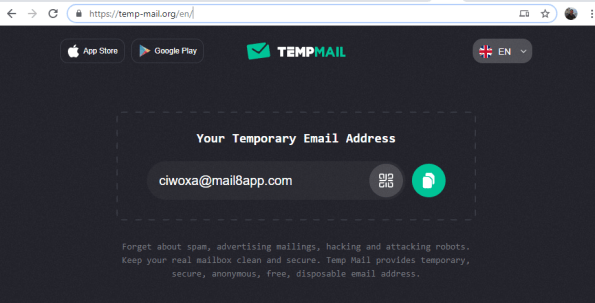
If you are providing a freemium service online, and you find yourself giving away repeated free trials to users registering with disposable email addresses, then you can find yourself loosing money.
There will always be a cat-and-mouse game between service providers and disposable email address providers, so this particular “mouse trap” will not last long. However, I do welcome comments on other temp email providers, and detection mechanisms
Most temporary email addresses can be spotted by using a simple (long) list of known domains, which you can get from github here; https://gist.github.com/adamloving/4401361
However, certain providers, such as temp-mail.org register new domains every day, so yesterday’s domains are already obsolete. So, for the cost of a few thousand domain registrations a year, they can bypass most static detection.
If you check the Whois of the domains registered by this company, you can see that the domains they use are only 5 days old, i..e they are registered, then used on their website within 5 days, then disposed. They also use DNSOwl as a nameserver, which is operated by NameSilo, but is shared by a million other domains, so this could lead to false positives. – see https://securitytrails.com/list/ns/ns1.dnsowl.com
However, what I discovered is that the mail. subdomain points to the IP address 89.38.99.80, which appears to be their hosting provider, WorldStream BV. The mail. subdomain, is not necessarily their MX (Mail Exchanger), but the domain seems to be present. This could be a default DNS setup, but it’s a give away, and specific enough that it’s unlikely to lead to many false positives.
Here’s some C# code to check this
private void CheckForBlacklistedMX(string domain)
{
try
{
var address = System.Net.Dns.GetHostAddresses(“mail.” + domain)[0].ToString();
if (address != “89.38.99.80”) return; // black-listed https://temp-mail.org/en/
… Do something to warn user.
}
catch {}
}
ModuleNotFoundError: No module named ‘flask’ #IIS #Windows

If you’re trying to run a Flask based Python Web app in IIS, and you get the following error,
Traceback (most recent call last):
File “C:\Python37\wfastcgi.py”, line 790, in main
env, handler = read_wsgi_handler(response.physical_path)
File “C:\Python37\wfastcgi.py”, line 630, in read_wsgi_handler
handler = get_wsgi_handler(os.getenv(“WSGI_HANDLER”))
File “C:\Python37\wfastcgi.py”, line 613, in get_wsgi_handler
raise ValueError(‘”%s” could not be imported%s’ % (handler_name, last_tb))
ValueError: “index.app” could not be imported: Traceback (most recent call last):
File “C:\Python37\wfastcgi.py”, line 597, in get_wsgi_handler
handler = __import__(module_name, fromlist=[name_list[0][0]])
File “.\index.py”, line 1, in <module>
from flask import Flask
ModuleNotFoundError: No module named ‘flask’
Then, here was my solution.
- Activate the virtualenv by typing myApp\Flask\Scripts>activate
- open a Python terminal, by typing python
- type import sys
- type print(sys.path)
- Copy all the paths (remove the escaping, and put ;’s instead of commas)
- Go to IIS > FastCGI Settings > Edit > Environment variables
- Then enter all the paths into the PYTHONPATH variable.
For reference, here is the github repo:
#OneStream BTWholeSale Service Information error #ADSL #Broadband

If you use OneStream ADSL broadband, and when you try to connect, you get the above error message; which reads;
SERVICE INFORMATION
You have been connected to this page due to one of the
following reasons. You must now shut down your internet
browser and internet applications before attempting to
reconnect. This may clear the issue immediately, if not then
please select the appropriate action from list below.
1. Your service provider is currently unable to accept your
connection request, please wait and reattempt later or
contact your service provider for more information.
Or
2. You have attempted to access an invalid Service Provider
domain, check your user details.
Or
3. You are testing your connection using
bt_test_user@startup_domain. Please proceed to next ste
as advised by your Service Provider
Or
4. You are testing your connection to your service provider
using bt_test user@domain. where “domain” is your
Service Provider domain name. Please proceed to next
step as advised by your Service Provider.
Or
5. The access circuit to your Service Provider is currently
down. Your service should be resumed soon. Please try
again later or contact your Sewice Provider
Page maintained by BTWholesale
The solution is as follows;
1. Connect to your router via WIFI or hardwired (hardwired preferred)
2. Open a browser and type in the address bar 192.168.1.1 (Safari may have some issues)
3. Sign into the router using the username: ‘admin’ and password located on the back of the router. The password is the access key located in the bottom left of the label on the router. (not the WIFI password)
4. Click the section names ‘Gateway’
5. Scroll to the bottom and select ‘Gateway Set up’
6. About half way down the page select update the information in the username field by placeing dots between the words: onestreamltd.vodafone.net
7. Then click save at the bottom.
8. Restart the Router
Simple bootstrap-themed website in .NET

This simple one page website, I put together in 2 hours, which displays information on tourist attractions in Northern Ireland, in seven different languages;
- http://zh.irlandadonorte.com – Chinese
- http://fr.irlandadonorte.com – French
- http://www.irlandadonorte.com – Portuguese
- http://es.irlandadonorte.com – Spanish
- http://de.irlandadonorte.com – German
- http://ja.irlandadonorte.com – Japanese
- http://it.irlandadonorte.com – Italian
It’s developed in Bootstrap, with a .NET / SQL server backend. Nothing special.
Call a #JSON based #API from #SQL server using a Table Valued #CLR function.
TL;DR; Get the source from https://github.com/infiniteloopltd/SQL-TableValued-CLR/
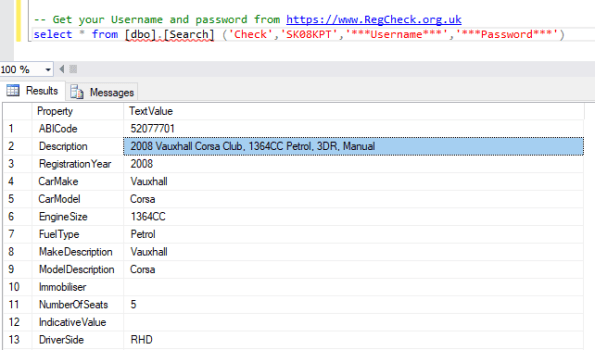
This is an example of a Table Valued CLR Function for SQL server that demonstrates how SQL server can call an API directly, without a webserver involved. The API called returns JSON, and this function converts the JSON into a table, with two columns, Property, and TextValue
The Json is retrieved from the URL https://www.regcheck.org.uk/api/json.aspx/Check/SK08KPT, and is returned as follows;
{
  "ABICode": "52077701",
  "Description": "2008 Vauxhall Corsa Club, 1364CC Petrol, 3DR, Manual",
  "RegistrationYear": "2008",
  "CarMake": {
    "CurrentTextValue": "Vauxhall"
  },
  "CarModel": {
    "CurrentTextValue": "Corsa"
  },
  "EngineSize": {
    "CurrentTextValue": "1364CC"
  },
  "FuelType": {
    "CurrentTextValue": "Petrol"
  },
  "MakeDescription": "Vauxhall",
  "ModelDescription": "Corsa",
  "Immobiliser": {
    "CurrentTextValue": ""
  },
  "NumberOfSeats": {
    "CurrentTextValue": 5
  },
  "IndicativeValue": {
    "CurrentTextValue": ""
  },
  "DriverSide": {
    "CurrentTextValue": "RHD"
  },
  "ImageUrl": "\/image\/vehicleimage\/none"
}
Which becomes
| Property | TextValue |
|---|---|
| ABICode | 52077701 |
| Description | 2008 Vauxhall Corsa Club, 1364CC Petrol, 3DR, Manual |
| RegistrationYear | 2008 |
| CarMake | Vauxhall |
| CarModel | Corsa |
| EngineSize | 1364CC |
| FuelType | Petrol |
| MakeDescription | Vauxhall |
| ModelDescription | Corsa |
| Immobiliser | |
| NumberOfSeats | 5 |
| IndicativeValue | |
| DriverSide | RHD |
| ImageUrl | /image/vehicleimage/none |
Installation instructions are as follows;
CREATE ASSEMBLY [SQLAPI] AUTHORIZATION [dbo]
FROM 0x4D5A90000300000004000000FFFF0000B800000000000000400000000000000000000000000000000000000000000000000000000000000000000000800000000E1FBA0E00B409CD21B8014CCD21546869732070726F6772616D2063616E6E6F742062652072756E20696E20444F53206D6F64652E0D0D0A2400000000000000504500004C0103000A13825D0000000000000000E00022200B0130000022000000060000000000005241000000200000006000000000001000200000000200000400000000000000060000000000000000A000000002000000000000030060850000100000100000000010000010000000000000100000000000000000000000004100004F00000000600000A002000000000000000000000000000000000000008000000C000000C83F00001C0000000000000000000000000000000000000000000000000000000000000000000000000000000000000000200000080000000000000000000000082000004800000000000000000000002E7465787400000058210000002000000022000000020000000000000000000000000000200000602E72737263000000A0020000006000000004000000240000000000000000000000000000400000402E72656C6F6300000C000000008000000002000000280000000000000000000000000000400000420000000000000000000000000000000034410000000000004800000002000500D42D0000F411000001000000000000000000000000000000000000000000000000000000000000000000000000000000000000000000000000000000000000001B3005007B0100000100001100730700000A250F02280800000A0F03280800000A730900000A6F0A00000A000A72010000700B070F00280800000A0F01280800000A280B00000A0B06076F0C00000A0C082804000006750100001B0D730D00000A130400096F0E00000A6F0F00000A130538EB0000001205281000000A1306000911066F1100000A750100001B14FE03130711073988000000000911066F1100000A750100001B13080011086F0E00000A6F0F00000A13092B4A1209281000000A130A001108110A6F1100000A14FE01130B110B2C022B2C1104730A0000062511066F0700000600251108110A6F1100000A6F1200000A6F09000006006F1300000A00001209281400000A2DADDE0F1209FE160400001B6F1500000A00DC002B3F000911066F1100000A14FE01130C110C2C022B2C1104730A0000062511066F0700000600250911066F1100000A6F1200000A6F09000006006F1300000A0000001205281400000A3A09FFFFFFDE0F1205FE160400001B6F1500000A00DC1104130D2B00110D2A00011C00000200AC005703010F0000000002006500FE63010F00000000133002002B00000002000011000274040000020A03066F06000006281600000A810800000104066F08000006281600000A81080000012A2202281700000A002A133002001900000003000011000214FE010A062C0500140B2B0902280D0000060B2B00072A000000133001000C000000040000110002281B0000060A2B00062A1E027B010000042A2202037D010000042A1E027B020000042A2202037D020000042A00001330020022000000050000110002281800000A2D13726500007002281900000A15FE0116FE012B01170A2B00062A5602281700000A00000203731A00000A7D040000042A1B3001001F000000060000110002730C0000060A00066F110000060BDE0B062C07066F1500000A00DC072A0001100000020008000A12000B000000005600027B040000046F1B00000A0002147D040000042A000013300300890000000700001100731C00000A0A027B040000046F1D00000A262B6D000228190000060B072C0E2B0007182E0E2B00071C2E062B0A140D2B552B4E060D2B4F0228130000060C0814FE01130411042C0500140D2B390228190000061BFE0116FE01130511052C0500140D2B22027B040000046F1D00000A2606080228110000066F1E00000A002B00001713062B8E092A00000013300200610000000800001100731F00000A0A027B040000046F1D00000A26170B2B3B000228190000060C080D092C0E2B00091A2E0F2B00091C2E072B0B1413052B272B19160B2B140208281200000613040611046F2000000A002B000007130611062DBE0613052B0011052A000000133002001400000009000011000228190000060A020628120000060B2B00072A13300200790000000900001100030A061759450B000000140000003C0000001D0000003C0000003C0000003C000000020000000B000000260000002F000000380000002B3A0228130000060B2B350228140000060B2B2C02280F0000060B2B230228100000060B2B1A178C1D0000010B2B11168C1D0000010B2B08140B2B04140B2B00072A00000013300300870100000A00001100732100000A0A027B040000046F1D00000A26170C385601000000027B040000046F2200000A15FE010D092C0800160C38450100000228170000060B07130411041F222E0D2B0011041F5C2E0C3813010000160C3816010000027B040000046F2200000A15FE01130511052C0800160C38FA0000000228170000060B07130611061F5C351B11061F222E552B0011061F2F2E4D2B0011061F5C2E4538C300000011061F66351311061F622E3E2B0011061F662E4038AA00000011061F6E2E402B0011061F725945040000002F000000880000003A00000045000000388300000006076F2300000A262B79061E6F2300000A262B6F061F0C6F2300000A262B64061F0A6F2300000A262B59061F0D6F2300000A262B4E061F096F2300000A262B431A8D1B00000113071613082B1300110711080228170000069D0011081758130811081AFE04130911092DE2061107732400000A1F10282500000AD16F2300000A262B002B0A06076F2300000A262B000008130A110A3AA0FEFFFF066F1200000A130B2B00110B2A0013300200410000000B000011000228180000060A061F2E6F1900000A15FE010C082C1400061203282600000A26098C1F00000113042B13061201282700000A26078C2000000113042B0011042A00000013300200360000000C000011002B2300027B040000046F1D00000A26027B040000046F2200000A15FE010A062C03002B1000022816000006281800000A0B072DCE2A000013300100160000000D00001100027B040000046F2200000A282800000A0A2B00062A000013300100160000000D00001100027B040000046F1D00000A282800000A0A2B00062A0000133002004A0000000E00001100732100000A0A2B2400060228170000066F2300000A26027B040000046F2200000A15FE010B072C03002B1300022816000006280B00000616FE010C082DCA066F1200000A0D2B00092A000013300200450100000F0000110002281500000600027B040000046F2200000A15FE010A062C0800160B38210100000228160000060C081F5B3576081F225945190000005900000065000000650000006500000065000000650000006500000065000000650000006500000049000000610000006500000065000000610000006100000061000000610000006100000061000000610000006100000061000000610000005D0000002B00081F5B2E2E2B5C081F5D2E2B2B00081F7B2E092B00081F7D2E092B47170B3883000000027B040000046F1D00000A26180B2B73190B2B6F027B040000046F1D00000A261A0B2B5F027B040000046F1D00000A261C0B2B4F1D0B2B4B1B0B2B471E0B2B430228180000060D097275000070282900000A2D1C097281000070282900000A2D1409728B000070282900000A2D0C2B0F1F0A0B2B0E1F090B2B091F0B0B2B04160B2B00072A5202281700000A000002732100000A7D050000042A0000133002001F0000001000001100731A0000060A06026F1C00000600067B050000046F1200000A0B2B00072A0013300300DF00000011000011000314FE010D092C1800027B05000004728B0000706F2A00000A260038BD00000003751A000001250C14FE03130411042C0F000208281F0000060000389D00000003751D00000114FE03130511052C2400027B0500000403A51D0000012D0772750000702B0572810000706F2A00000A26002B6A037515000001250A14FE03130611062C0C000206281E00000600002B4D037516000001250B14FE03130711072C0C000207281D00000600002B3003751B00000114FE03130811082C17000203A51B00000117732B00000A281F00000600002B0A000203282000000600002A001B3003009A0000001200001100170A027B050000041F7B6F2300000A2600036F2C00000A6F2D00000A0B2B4C076F2E00000A0C000616FE010D092C1000027B050000041F2C6F2300000A260002086F1200000A281F00000600027B050000041F3A6F2300000A260203086F2F00000A281C00000600160A00076F3000000A2DACDE15077511000001130411042C0811046F1500000A00DC027B050000041F7D6F2300000A262A00000110000002001E0058760015000000001B300200740000001200001100027B050000041F5B6F2300000A26170A00036F2D00000A0B2B2B076F2E00000A0C000616FE010D092C1000027B050000041F2C6F2300000A26000208281C00000600160A00076F3000000A2DCDDE15077511000001130411042C0811046F1500000A00DC027B050000041F5D6F2300000A262A01100000020019003750001500000000133003006D0100001300001100027B050000041F226F2300000A26036F3100000A0A00060B160C38350100000708930D0009130411041E59450600000041000000960000006D000000A900000057000000830000002B0011041F222E0D2B0011041F5C2E1B3894000000027B0500000472950000706F2A00000A2638DC000000027B05000004729B0000706F2A00000A2638C6000000027B0500000472A10000706F2A00000A2638B0000000027B0500000472A70000706F2A00000A26389A000000027B0500000472AD0000706F2A00000A263884000000027B0500000472B30000706F2A00000A262B71027B0500000472B90000706F2A00000A262B5E09283200000A130511051F20320B11051F7EFE0216FE012B0116130611062C1100027B05000004096F2300000A26002B2B00027B0500000472BF0000706F2A00000A26027B05000004120572C5000070283300000A6F2A00000A26002B00000817580C08078E693FC2FEFFFF027B050000041F226F2300000A262A00000013300300D9000000140000110003752300000114FE030A062C2600027B0500000403A5230000010B120172CB000070283400000A6F2A00000A260038A40000000375220000012D3B0375240000012D3303751F0000012D2B0375250000012D230375260000012D1B0375270000012D130375280000012D0B03752900000114FE032B01170C082C1100027B05000004036F3500000A26002B4B0375200000012D0B03752A00000114FE032B01170D092C2400027B0500000403283600000A1304120472CB000070283700000A6F2A00000A26002B0F0002036F1200000A281F00000600002A00000042534A4201000100000000000C00000076342E302E33303331390000000005006C00000048070000237E0000B40700002406000023537472696E677300000000D80D0000D000000023555300A80E0000100000002347554944000000B80E00003C03000023426C6F620000000000000002000001571FA2090902000000FA013300160000010000002A0000000700000012000000200000001500000001000000370000000D0000000C00000014000000020000000600000008000000050000000100000003000000040000000000610301000000000006002302B20406004302B2040600DF019F040F00D2040000060059057E030A000E02550406006C0121050A000403EF040E007705600506001700DB0006000100DB002B00CC03000033008A0400000600C401B2040600AD019F040600F3019F04060078017E0306001104AD0006002904AD05060085037E0306009E0521050600EF05210506007B0421050E00470360050E000405600506001B037E03060000047E0306001E04AD0006008A037E03060096057E03060025007E03060086017E030600C0032105060011007E0306008D017E03060008007E03060061027E03060062027E0306002C007E0306002B007E03060024007E03060059037E030000000032000000000001000100010010003903000015000100010081011000DA03720015000100040002001000A7020000150001000600030110004E040000150003000B000301100070040000150005001A00030100008900000051000600210001001A012C020100FF002C02518079002C020100DF032F020100370433020606BE003702568041003A0256809C003A0256805A003A0256808F003A0256804C003A025680A7003A0256803B003A0256806B003A025680B7003A02568066003A02568046003A02568084003A02502000000000960022033E020100F421000000009600B9054B0205002B220000000086189504060008003422000000009600C502560208005C22000000009600BB025B0209007422000000008608070642000A007C220000000086081406C8000A0085220000000086088B0242000B008D220000000086089902C8000B002B22000000008618950406000C0098220000000096002D03BE000C00C6220000000081189504C8000D00DC22000000009600A70156020E00182300000000E6019C0106000F003023000000008100440560020F00C823000000008100C10569020F0038240000000081007102A6010F005824000000008100A00371020F00E024000000008100E8024200100074260000000081000504A6011000C4260000000081005E01060010000827000000008108E403770210002C27000000008108F8037702100050270000000081083B0142001000A82700000000810892037B021000F9280000000081189504060010001029000000009600BB025B0210003C290000000081007C0280021100282A000000008100500585021200E02A000000008100CC058B021300702B000000008100F402C8001400EC2C0000000081003F0480021500000001008D0500000200B30300000300940100000400480100000100E104020002001806020003009D0200000100DF0300000100290300000100B50200000100B50200000100F400000001000E03000001000E0300000100AD0300000100290300000100B50200000100290300000100DB05000001009B0400000100B50205004500090095040100110095040600190095040A00310095040600710095040600810095041000490095040600410067024200C10095044600490011054C00D1003D0552004900D90259001400950406000C0034056C001C0087047E002400810590000C006C0395002900190342001400FB009C002400A405A20089009C01060041006B05AB00290095040600D9005101BE00D100D102C30091009504C800E1009C0106000C0095040600E100F600E8000C007503EC002C00950406002C00FB009C00990095040600E1004203E800990034012501D10095042B01F1000F003101F900A4013F010101A4014601F100F1035601D100FB056B01990034018501D10095048B01B10034059B0139008704A101B9008105A601B1006C03AA01B900A405A200D100E305BB01F1000F00C00111011903590019011903590099003401CD01F1008401D3010101190359000E000C00E10108001C00F00108002000F50108002400FA0108002800FF0108002C000402080030000902080034000E0208003800130208003C001802080040001D0208004400220208004800270220002300CF0221002B00F5012100330032032E000B009E022E001300A7022E001B00C60241002B00F501410033003203C0002B00F501E0002B00F50100012B00F50120012B00F5011600A600B100B600BA00CD00D300F4000E01140137014D0152015B016301710177019101AF01C501040001000500030000001806910200009D0291020000E80395020000FC03950200003F019102000096039902020006000300010007000300020008000500010009000500020016000700020017000900020018000B00020019000D005E00650077008900080104800000000000000000000000000000000072000000040000000000000000000000D801D20000000000040000000000000000000000D801C60000000000040000000000000000000000D8017E0300000000040002000500030006000300070005000000004C69737460310055496E74333200546F496E7433320044696374696F6E61727960320055496E7436340055496E743136003C4D6F64756C653E00434F4D4D41004E4F4E450046414C534500535155415245445F434C4F5345004355524C595F434C4F5345005452554500535452494E470053514C41504900574F52445F425245414B004E554C4C00544F4B454E00535155415245445F4F50454E004355524C595F4F50454E00434F4C4F4E0053797374656D2E494F004E554D4245520076616C75655F5F0053797374656D2E44617461006D73636F726C69620053797374656D2E436F6C6C656374696F6E732E47656E65726963005265616400416464003C5465787456616C75653E6B5F5F4261636B696E674669656C64003C50726F70657274793E6B5F5F4261636B696E674669656C6400417070656E64006765745F4E657874576F72640070617373776F72640049735768697465537061636500456174576869746573706163650049456E756D657261626C650049446973706F7361626C6500546F446F75626C650053696E676C650075736572616D6500446973706F736500547279506172736500446562756767657242726F777361626C65537461746500436F6D70696C657247656E6572617465644174747269627574650044656275676761626C6541747472696275746500446562756767657242726F777361626C654174747269627574650053716C46756E6374696F6E41747472696275746500436F6D70696C6174696F6E52656C61786174696F6E734174747269627574650052756E74696D65436F6D7061746962696C697479417474726962757465005342797465006765745F56616C756500506172736556616C75650053657269616C697A6556616C7565006765745F5465787456616C7565007365745F5465787456616C75650050726F706572747956616C75650076616C75650053657269616C697A6500446573657269616C697A6500496E6465784F6600446F776E6C6F6164537472696E67005061727365537472696E670053657269616C697A65537472696E670053716C537472696E67006A736F6E537472696E6700546F537472696E6700536561726368006F626A004973576F7264427265616B00526567436865636B005065656B004E6574776F726B43726564656E7469616C00446563696D616C0053514C4150492E646C6C006765745F4974656D007365745F4974656D0053797374656D00456E756D00426F6F6C65616E006765745F4E657874546F6B656E0050617273654279546F6B656E00746F6B656E00726567697374726174696F6E0049436F6C6C656374696F6E004B6579436F6C6C656374696F6E004A736F6E006A736F6E006765745F5065656B4368617200546F43686172006765745F4E657874436861720050617273654E756D62657200537472696E67526561646572005465787452656164657200537472696E674275696C646572006275696C6465720053657269616C697A654F7468657200506172736572004D6963726F736F66742E53716C5365727665722E5365727665720053657269616C697A65720049456E756D657261746F7200476574456E756D657261746F72002E63746F72007374720053797374656D2E446961676E6F73746963730053797374656D2E52756E74696D652E436F6D70696C6572536572766963657300446562756767696E674D6F646573006F626A50726F706572746965730053797374656D2E446174612E53716C5479706573004943726564656E7469616C73007365745F43726564656E7469616C730053797374656D2E436F6C6C656374696F6E73006765745F4B65797300466F726D61740050617273654F626A6563740053657269616C697A654F626A6563740053797374656D2E4E6574006F705F496D706C6963697400576562436C69656E74006765745F43757272656E7400656E64706F696E7400436F6E7665727400494C697374004D6F76654E6578740053797374656D2E546578740046696C6C526F7700506172736541727261790053657269616C697A65417272617900616E417272617900546F436861724172726179004944696374696F6E617279006F705F457175616C697479006765745F50726F7065727479007365745F50726F7065727479000000000063680074007400700073003A002F002F007700770077002E0072006500670063006800650063006B002E006F00720067002E0075006B002F006100700069002F006A0073006F006E002E0061007300700078002F007B0030007D002F007B0031007D00000F7B007D005B005D002C003A002200000B660061006C00730065000009740072007500650000096E0075006C006C0000055C00220000055C005C0000055C00620000055C00660000055C006E0000055C00720000055C00740000055C00750000057800340000035200000063B8D1FDF37E27468AE58C6622AA11A30004200101080320000105200101111105200101113D2B070E12250E0E151229020E1C15122D011210151135020E1C0E02151229020E1C151135020E1C0E0202121D0320000E052002010E0E0520010112650600030E0E1C1C0420010E0E06151229020E1C0615122D0112100A2000151231021300130106151231020E1C0A2000151135021300130106151135020E1C04200013000620011301130005200101130003200002040701121005000111210E040702021C0307010E0307010204000102030420010803042001010E05070212141C140707151229020E1C111C0E151229020E1C02020203200008072002011300130113070715122D011C02111C111C1C15122D011C020515122D011C050702111C1C10070C124D0302020302031D030802020E052001124D03052001011D03050002080E080707050E0D020A1C060002020E100A060002020E100D0407020202030701030400010308070704124D02020E07070402111C030E050002020E0E05070212180E0D0709125512590E020202020202052001124D0E05200201030809070502125D1C021245052000128085042000125D0320001C0420011C1C0B07071D031D0308030308020420001D030400010803070705020C02020D052001124D1C0400010D1C08B77A5C561934E0890E7B007D005B005D002C003A0022000400000000040100000004020000000403000000040400000004050000000406000000040700000004080000000409000000040A000000040B00000002060E030612490306124D0206080306111C0C0004121D11211121112111210A0003011C1011211011210400011C0E0400010E1C082000151229020E1C07200015122D011C0520011C111C03200003042000111C042001011C0520010112590520010112550328000E03280003042800111C0801000800000000001E01000100540216577261704E6F6E457863657074696F6E5468726F7773010801000701000000006201000200540E1146696C6C526F774D6574686F644E616D650746696C6C526F77540E0F5461626C65446566696E6974696F6E2F50726F7065727479206E7661726368617228353030292C205465787456616C7565206E76617263686172283530302908010000000000000000000000000A13825D00000000020000001C010000E43F0000E4210000525344534404F9AA17E5AB48850554A34A71375001000000433A5C55736572735C466961636820526569645C446F63756D656E74735C56697375616C2053747564696F20323031375C50726F6A656374735C53514C4150495C53514C4150495C6F626A5C44656275675C53514C4150492E7064620000000000000000000000000000000000000000000000000000000000000000000000000000000000000000000000000000000000000000000000000000000000000000000000000000000000000000000000000000000000000000000000000000000000000000000000000000000000000000000000000000000000000000000000000000000000000000000000000000000000000000000000000000000000000000000000002841000000000000000000004241000000200000000000000000000000000000000000000000000034410000000000000000000000005F436F72446C6C4D61696E006D73636F7265652E646C6C0000000000FF250020001000000000000000000000000000000000000000000000000000000000000000000000000000000000000000000000000000000000000000000000000000000000000000000000000000000000000000000000000000000000000000000000000000000000000000000000000000000000000000000000000000000000000000000000000000000000000000000000000000000000000000000000000000000000000000000000000000000000000000000000000000000100100000001800008000000000000000000000000000000100010000003000008000000000000000000000000000000100000000004800000058600000440200000000000000000000440234000000560053005F00560045005200530049004F004E005F0049004E0046004F0000000000BD04EFFE00000100000000000000000000000000000000003F000000000000000400000002000000000000000000000000000000440000000100560061007200460069006C00650049006E0066006F00000000002400040000005400720061006E0073006C006100740069006F006E00000000000000B004A4010000010053007400720069006E006700460069006C00650049006E0066006F0000008001000001003000300030003000300034006200300000002C0002000100460069006C0065004400650073006300720069007000740069006F006E000000000020000000300008000100460069006C006500560065007200730069006F006E000000000030002E0030002E0030002E003000000036000B00010049006E007400650072006E0061006C004E0061006D0065000000530051004C004100500049002E0064006C006C00000000002800020001004C006500670061006C0043006F0070007900720069006700680074000000200000003E000B0001004F0072006900670069006E0061006C00460069006C0065006E0061006D0065000000530051004C004100500049002E0064006C006C0000000000340008000100500072006F006400750063007400560065007200730069006F006E00000030002E0030002E0030002E003000000038000800010041007300730065006D0062006C0079002000560065007200730069006F006E00000030002E0030002E0030002E00300000000000000000000000000000000000000000000000000000000000000000000000000000000000000000000000000000000000000000000000000000000000000000000000000000000000000000000000000000000000000000000000000000000000000000000000000000000000000000000000000000000000000000000000000000000000000000000000000000000000000000000000000000000000000000000000000000000000000000000000000000000000000000000000000000000000000000000000000000000000000000000000000000000000000000000000000000000000000000000000000000000000000000000000000000000000000000000000000000000000000000000000000000000000000000000000000000000000000000000000000000000000000000000000000000000000000000000000000000000000000000000000000000000000000000000000000000000000000000000000004000000C000000543100000000000000000000000000000000000000000000000000000000000000000000000000000000000000000000000000000000000000000000000000000000000000000000000000000000000000000000000000000000000000000000000000000000000000000000000000000000000000000000000000000000000000000000000000000000000000000000000000000000000000000000000000000000000000000000000000000000000000000000000000000000000000000000000000000000000000000000000000000000000000000000000000000000000000000000000000000000000000000000000000000000000000000000000000000000000000000000000000000000000000000000000000000000000000000000000000000000000000000000000000000000000000000000000000000000000000000000000000000000000000000000000000000000000000000000000000000000000000000000000000000000000000000000000000000000000000000000000000000000000000000000000000000000000000000000000000000000000000000000000000000000000000000000000000000000000000000000000000000000000000000000000000000000000000000000000000000000000000000000000000000000000000000000000000000000000000000000
WITH PERMISSION_SET = UNSAFE

CREATE FUNCTION [dbo].[Search] (@endpoint [nvarchar](MAX), @registration [nvarchar](MAX), @userame [nvarchar](MAX), @password [nvarchar](MAX))
RETURNS TABLE (Property nvarchar(500), TextValue nvarchar(500))
AS EXTERNAL NAME [SQLAPI].[RegCheck].[Search];
and is called as follows;
(You’ll need a username and password from https://www.regcheck.org.uk)
-- Get your Username and password from https://www.RegCheck.org.uk
select * from [dbo].[Search] ('Check','SK08KPT','***Username***','***Password***')
Make a HTTP request from #SQLServer using a #CLR #UDF

SQL server doesn’t have a native way to retrieve content from the internet, and you may wish to do a join on data that you have in your database, and data that might be available via an API.
Here is code in C# that defines this CLR UDF (Common Language Runtime User Defined Function);
using System.Data.SqlTypes;
using System.Net;public partial class UserDefinedFunctions
{
[Microsoft.SqlServer.Server.SqlFunction]
public static SqlString http(SqlString url)
{
var wc = new WebClient();
var html = wc.DownloadString(url.Value);
return new SqlString (html);
}
}
Which you can then compile to a DLL and deploy to your SQL server as follows
-- Installation Instructions

EXEC sp_changedbowner 'sa'
ALTER DATABASE [<your database here>] SET trustworthy ON

sp_configure 'show advanced options', 1;
GO
RECONFIGURE;
GO

sp_configure 'clr enabled', 1;
GO
RECONFIGURE;
GO

CREATE ASSEMBLY [HttpDb] AUTHORIZATION [dbo]
FROM 0x4D5A90000300000004000000FFFF0000B800000000000000400000000000000000000000000000000000000000000000000000000000000000000000800000000E1FBA0E00B409CD21B8014CCD21546869732070726F6772616D2063616E6E6F742062652072756E20696E20444F53206D6F64652E0D0D0A2400000000000000504500004C010300690B815D0000000000000000E00022200B013000000600000006000000000000CE2500000020000000400000000000100020000000020000040000000000000006000000000000000080000000020000000000000300608500001000001000000000100000100000000000001000000000000000000000007C2500004F00000000400000A002000000000000000000000000000000000000006000000C000000442400001C0000000000000000000000000000000000000000000000000000000000000000000000000000000000000000200000080000000000000000000000082000004800000000000000000000002E74657874000000D4050000002000000006000000020000000000000000000000000000200000602E72737263000000A0020000004000000004000000080000000000000000000000000000400000402E72656C6F6300000C0000000060000000020000000C00000000000000000000000000004000004200000000000000000000000000000000B025000000000000480000000200050088200000BC030000010000000000000000000000000000000000000000000000000000000000000000000000000000000000000000000000000000000000000013300200200000000100001100730500000A0A060F00280600000A6F0700000A0B07730800000A0C2B00082A2202280900000A002A00000042534A4201000100000000000C00000076342E302E33303331390000000005006C0000005C010000237E0000C80100007401000023537472696E6773000000003C030000040000002355530040030000100000002347554944000000500300006C00000023426C6F620000000000000002000001471502000900000000FA013300160000010000000800000002000000020000000100000009000000040000000100000001000000030000000000B00001000000000006004F00FF0006006F00FF0006002600EC000F001F01000006005801BF000A003A00CB000A00A6002E010E006A015F01000000000100000000000100010001001000430100001500010001005020000000009600C6002F0001007C20000000008618E6000600020000000100BB000900E60001001100E60006001900E6000A003100E60006004100E600060039008D001800410097001C003900E60021002900E60006002000230067002E000B0036002E0013003F002E001B005E0010000480000000000000000000000000000000001600000004000000000000000000000026001D000000000004000000000000000000000026000A00000000000400000000000000000000002600BF00000000000000003C4D6F64756C653E0053797374656D2E4461746100487474704462006D73636F726C69620044656275676761626C654174747269627574650053716C46756E6374696F6E41747472696275746500436F6D70696C6174696F6E52656C61786174696F6E734174747269627574650052756E74696D65436F6D7061746962696C697479417474726962757465006765745F56616C756500446F776E6C6F6164537472696E670053716C537472696E67004874747044622E646C6C0075726C0053797374656D0068747470004D6963726F736F66742E53716C5365727665722E536572766572002E63746F720053797374656D2E446961676E6F73746963730053797374656D2E52756E74696D652E436F6D70696C6572536572766963657300446562756767696E674D6F6465730053797374656D2E446174612E53716C54797065730055736572446566696E656446756E6374696F6E73004F626A6563740053797374656D2E4E657400576562436C69656E7400000000001CDD5E8F295E9C409C5184BA38C18A700004200101080320000105200101111107070312210E111D0320000E0420010E0E042001010E08B77A5C561934E089060001111D111D0801000800000000001E01000100540216577261704E6F6E457863657074696F6E5468726F777301080100070100000000040100000000000000690B815D00000000020000001C010000602400006006000052534453D1084ED4A1FABB4481590D5EFF27E75E01000000433A5C55736572735C466961636820526569645C446F63756D656E74735C56697375616C2053747564696F20323031375C50726F6A656374735C4874747044625C4874747044625C6F626A5C44656275675C4874747044622E706462000000000000000000000000000000000000000000000000000000000000000000000000000000000000000000000000000000000000000000000000000000000000000000000000000000000000000000000000000000000000000000000000000000000000000000000000000000000000000000000000000000000000000000000000000000000000000000000000000000000000000000000000000000000000000000000000A42500000000000000000000BE250000002000000000000000000000000000000000000000000000B0250000000000000000000000005F436F72446C6C4D61696E006D73636F7265652E646C6C0000000000FF2500200010000000000000000000000000000000000000000000000000000000000000000000000000000000000000000000000000000000000000000000000100100000001800008000000000000000000000000000000100010000003000008000000000000000000000000000000100000000004800000058400000440200000000000000000000440234000000560053005F00560045005200530049004F004E005F0049004E0046004F0000000000BD04EFFE00000100000000000000000000000000000000003F000000000000000400000002000000000000000000000000000000440000000100560061007200460069006C00650049006E0066006F00000000002400040000005400720061006E0073006C006100740069006F006E00000000000000B004A4010000010053007400720069006E006700460069006C00650049006E0066006F0000008001000001003000300030003000300034006200300000002C0002000100460069006C0065004400650073006300720069007000740069006F006E000000000020000000300008000100460069006C006500560065007200730069006F006E000000000030002E0030002E0030002E003000000036000B00010049006E007400650072006E0061006C004E0061006D00650000004800740074007000440062002E0064006C006C00000000002800020001004C006500670061006C0043006F0070007900720069006700680074000000200000003E000B0001004F0072006900670069006E0061006C00460069006C0065006E0061006D00650000004800740074007000440062002E0064006C006C0000000000340008000100500072006F006400750063007400560065007200730069006F006E00000030002E0030002E0030002E003000000038000800010041007300730065006D0062006C0079002000560065007200730069006F006E00000030002E0030002E0030002E00300000000000000000000000000000000000000000000000000000000000000000000000000000000000000000000000000000000000000000000000000000000000000000000000000000000000000000000000000000000000000000000000000000000000000000000000000000000000000000000000000000000000000000000000000000000000000000000000000000000000000000000000000000000000000000000000000000000000000000000000000000000000000000000000000000000000000000000000000000000000000000000000000000000000000000000000000000000000000000000000000000000000000000000000000000000000000000000000000000000000000000000000000000000000000000000000000000000000000000000000000000000000000000000000000000000000000000000000000000000000000000000000000000000000000000000000000000000000000000000000002000000C000000D03500000000000000000000000000000000000000000000000000000000000000000000000000000000000000000000000000000000000000000000000000000000000000000000000000000000000000000000000000000000000000000000000000000000000000000000000000000000000000000000000000000000000000000000000000000000000000000000000000000000000000000000000000000000000000000000000000000000000000000000000000000000000000000000000000000000000000000000000000000000000000000000000000000000000000000000000000000000000000000000000000000000000000000000000000000000000000000000000000000000000000000000000000000000000000000000000000000000000000000000000000000000000000000000000000000000000000000000000000000000000000000000000000000000000000000000000000000000000000000000000000000000000000000000000000000000000000000000000000000000000000000000000000000000000000000000000000000000000000000000000000000000000000000000000000000000000000000000000000000000000000000000000000000000000000000000000000000000000000000000000000000000000000000000000000000000000000000000
WITH PERMISSION_SET = UNSAFE

CREATE FUNCTION [dbo].[http] (@url [nvarchar](MAX))
RETURNS [nvarchar](MAX)
AS EXTERNAL NAME [HttpDb].[UserDefinedFunctions].[http];
The Github repo for this code is available here; https://github.com/infiniteloopltd/SQLHttp
Update 2020: This code has been included in Github’s 2020 Archive program, to be buried under ice in Svalbard!

Database of SRA.ASSO vehicle classifications

This is a database of over 50,000 vehicles as classified by the SRA.ASSO, it includes the following fields (listed below). It is available via this download link https://payhip.com/b/rR2j
- Make
- Model
- Version
- Body
- Generation
- Segment
- ID code
- Administative power
- Energy
- Fuel
- Kind
- Mine type
- Number of seats
- CNIT number
- Limited series
- Power steering
- Type
- Number of reports
- Group at the origin
- Current group
- Price class originally
- Current price class
- Repair class originally
- Current repair class
- Current immobilizer
- Date of assignment of the current immobilizer
- Location system
- Date of equipment of the vehicle
Car Registration #API for #Iceland

There are 344.664 registered cars in Iceland. The Icelandic population is 338.349. There are more cars in Iceland than people, and the number of cars doesn’t even take into account unregistered cars. It is one of the very unusual countries where car ownership exceeds 100%.
We’ve developed an API that allows developers query vehicle details in Iceland from it’s number plate, using http://www.skraningarnumer.is/
To try out this API, use the /CheckIceland endpoint and return the following information:
- Make / Model
- Age
- Colour
- VIN number
- Representative image
Sample Registration Number:
HB355
Sample Json:
{
“Description”: “CHEVROLET MONZA”,
“RegistrationYear”: 1986,
“CarMake”: {
“CurrentTextValue”: “CHEVROLET”
},
“CarModel”: {
“CurrentTextValue”: “MONZA”
},
“MakeDescription”: {
“CurrentTextValue”: “CHEVROLET”
},
“ModelDescription”: {
“CurrentTextValue”: “MONZA”
},
“VehicleIdentificationNumber”: “9BG5JK69VGB052234”,
“RegistrationDate”: “19/06/1986”,
“NextInspectionDate”: “01/10/1993”,
“Weight”: {
“Gross”: “1517”,
“Net”: “1062”
},
“Colour”: “Dökkgrár”,
“ImageUrl”: “http://www.skraningarnumer.is/image.aspx/@Q0hFVlJPTEVUIE1PTlpB”
}
Car Registration #API now available for Islamabad Capital territory and Gilgit-Baltistan

Our Pakistan car registration API, which is available at http://pk.carregistrationapi.com/ is now available in the Islamabad capital territory (ICT) and Gilgit-Baltistan (GB), bringing our coverage of Pakistan to almost completion, excluding Balochistan.
The two states return different data, but in the following formats;
Gilgit-Baltistan Province (GB)
Sample Json:
{
“Description”: “Messy Farauror 1972”,
“CarMake”: {
“CurrentTextValue”: “Messy Farauror”
},
“MakeDescription”: {
“CurrentTextValue”: “Messy Farauror”
},
“CarModel”: {
“CurrentTextValue”: “1972”
},
“ModelDescription”: {
“CurrentTextValue”: “1972”
},
“VechileIdentificationNumber”: “4584-L-3”,
“RegistrationYear”: 1974,
“RegistrationDate”: “22/01/1974”,
“Image”: “http://pk.carregistrationapi.com/image.aspx/@TWVzc3kgRmFyYXVyb3IgMTk3Mg==”,
“Engine”: “08103”,
“Ownwer”: {
“Name”: “RIASAT ALI”,
“Father”: “BARKET ALI”,
“Address”: “SHEIKHPURE”
}
}
Islamabad Province (ICT)
Sample Json:
{
“Description”: “SUZUKI MEHRAN”,
“CarMake”: {
“CurrentTextValue”: “SUZUKI”
},
“CarModel”: {
“CurrentTextValue”: “MEHRAN”
},
“MakeDescription”: {
“CurrentTextValue”: “SUZUKI”
},
“ModelDescription”: {
“CurrentTextValue”: “MEHRAN”
},
“RegistrationDate”: “22-05-2017”,
“TaxDate”: “30-06-2018”,
“EngineNumber”: “PKB686079”,
“BodyType”: “MOTOR CAR”,
“Owner”: “AHMAD FARAZ”,
“Class”: “PRIVATE”,
“Color”: “WHITE”,
“EngineSize”: “796”,
“RegistrationYear”: “2017”,
“VehicleIdentificationNumber”: “SB308PK01224610”,
“Image”: “http://pk.carregistrationapi.com/image.aspx/@U1VaVUtJIE1FSFJBTg==”
}
Car Registration API for #Ukraine

Ukraine has a population of 42 million, and 9.2 million vehicles, 6.9 million cars;
250 thousand buses; 1.3 million trucks; and More than 840 thousand motorcycles, and we now offer an API that lets you determine the technical details of a vehicle based on it’s registration number (license plate) in Ukraine. – Please visit http://www.api.dn.ua for more information.
Ukraine support
Car registration plates in Ukraine use the /CheckUkraine endpoint and return the following information:
- Make / Model
- Engine Size
- Age
- Fuel
- Colour
- Representative image
Sample Registration Number:
AA5816EI
Sample Json:
{
“Description”: “RENAULT DUSTER”,
“RegistrationYear”: 2019,
“CarMake”: {
“CurrentTextValue”: “RENAULT”
},
“CarModel”: {
“CurrentTextValue”: “DUSTER”
},
“EngineSize”: {
“CurrentTextValue”: “1461”
},
“FuelType”: {
“CurrentTextValue”: “ДИЗЕЛЬНОЕ”
},
“MakeDescription”: {
“CurrentTextValue”: “RENAULT”
},
“ModelDescription”: {
“CurrentTextValue”: “DUSTER”
},
“BodyStyle”: {
“CurrentTextValue”: “УНИВЕРСАЛ”
},
“Colour”: “БІЛИЙ”,
“RegistrationDate”: “31/07/2019”,
“Weight”: {
“Net”: “1280”,
“Gross”: “1819”
},
“Validity”: {
“Start”: “2013-01-01”,
“End”: “2019-07-31”
},
“Address”: “М.КИЇВ\nДНІПРОВСЬКИЙ”,
“ImageUrl”: “http://api.dn.ua/image.aspx/@UkVOQVVMVCBEVVNURVI=”
}

