Archive
TFS: Under the hood
With the help of Lutz Roeder’s reflector, and Denis Bauer’s FileDissassembler I’ve started to pick apart the source code for Microsoft’s TFS libraries.
Microsoft.TeamFoundation.TestManagement.Client
Microsoft.TeamFoundation.WorkItemTracking.Client.QueryLanguage
Microsoft.TeamFoundation.WebAccess.VersionControl
Microsoft.TeamFoundation.WebAccess.WorkItemTracking
WebOs Hacks: List all installed apps on a Palm pre
 One of the fun things you can do with a Palm Pre is access the underlying Linux OS via a terminal program, which I’ve used NovaTerm
By navigating around the file system I could find a list of installed apps, by navigating to /media/cryptofs/apps/user/palm/applications
navigating into these apps gives the source code… you can use the vi editor to view file contents (use : x to exit)
Looking into the source code of NovaTerm, it connects to localhost on port 6968, recreating this on Telnet, It reports
3517 a339f527fe6d98a2b95b9f2ef036d503042181c9 usb castle-linux
Then closes the port.
3517 is another port number, and the long hex number is the NDUID or DeviceID
OSDb in C#
This is a protocol developed by OpenSubtitles.org for getting subtitles for films, here’s the basis of it:
http://www.opensubtitles.org/en/search/sublanguageid-all/moviename-terminator+2/simplexml
http://dl.opensubtitles.org/en/download/sub/3592583
Unzip:
Gives SRT file.
—————-
Or:
1. Download IMDB Dump –
http://www.opensubtitles.org/addons/export_movie.php
Second number is IMDB ID (i.e. 34763 438488 Terminator Salvation 2009)
2. Get OSDB XML
http://www.opensubtitles.org/en/search/sublanguageid-all/imdbid-438488/simplexml
3. Download Zip
http://dl.opensubtitles.org/en/download/sub/4127259
And here’s, for example, movies by year:
Select Movie Year:
1892 1893 1894 1895 1896 1897 1898 1899 1900 1901 1902 1903 1904 1905 1906 1907 1908 1909 1910 1911 1912 1913 1914 1915 1916 1917 1918 1919 1920 1921 1922 1923 1924 1925 1926 1927 1928 1929 1930 1931 1932 1933 1934 1935 1936 1937 1938 1939 1940 1941 1942 1943 1944 1945 1946 1947 1948 1949 1950 1951 1952 1953 1954 1955 1956 1957 1958 1959 1960 1961 1962 1963 1964 1965 1966 1967 1968 1969 1970 1971 1972 1973 1974 1975 1976 1977 1978 1979 1980 1981 1982 1983 1984 1985 1986 1987 1988 1989 1990 1991 1992 1993 1994 1995 1996 1997 1998 1999 2000 2001 2002 2003 2004 2005 2006 2007 2008 2009 2010 2011 2012 2013
How does Palm Ares work?
Every once in a while you come accross a website that really does something that you’ve never seen before, one of which is Palm ares (Ares.palm.com). There is a button, where you can download an app onto your Palm phone via a USB cable. I never saw this before, so I descided to take it apart.
First file of interes was app-build.js, which connects to an applet webOsConnect on the page, which appears to do the magic. I ran the applet through JD-GUI decompiler to see how it worked. The Intall class looked interesting:
public void installPackage(INovacomDevice device, File ipkFile) throws InstallerException
{
if ((!ipkFile.isFile()) || (!ipkFile.canRead())) {
throw new InstallerException(“error reading ” + ipkFile);
}String developerDir = getDeveloperDirectory();
try {
NovacomUtil.mkdir(device, developerDir, true);
} catch (NovacomUtil.NovacomUtilException e) {
throw new InstallerException(e);
}String dest = developerDir + “/” + ipkFile.getName();
try
{
try
{
NovacomPutCommand cmd = new NovacomPutCommand(device, ipkFile, dest);
cmd.run();
} catch (NovacomCommand.NovacomCommandException e) {
throw new InstallerException(e);
}
try
{
AppManagerUtil.installApp(device, dest);
} catch (AppManagerUtil.AppManagerException e) {
throw new InstallerException(e);
}
}
finally {
try {
doCleanup(device, dest);
}
catch (InstallerException e)
{
}
}
}
Under the hood, this appears to make a connection to localhost on port 6968, guessing by the constants:
public static final int DEFAULT_PORT = 6968;
public static final String DEFAULT_HOST = “127.0.0.1”;
Looking at the “beautified” version of app-build.js (I used jsbeautifier.org), then the launch method has two interesting lines:
wc.installCloudPackage(deviceId, url, info.id + “.ipk”, dojo.toJson({
“Cookie”: “auth_tkt=” + authtkt
}));
wc.launchApp(deviceId, info.id);
Where “wc” stands for WebOsConnect (the applet). InstallCloudPackage has the following code:
public boolean installCloudPackage(String deviceId, String location, String pkgName, String headers)
{
try
{
AccessController.doPrivileged(new PrivilegedExceptionAction(location, headers, deviceId, pkgName)
{
public Void run() throws Exception {
InputStream input = null;
try {
HttpURLConnection connection = (HttpURLConnection)new URL(this.val$location).openConnection();
JSONObject headerObj = new JSONObject(this.val$headers);
Iterator a = headerObj.keys();
while (a.hasNext()) {
String key = a.next().toString();
connection.addRequestProperty(key, headerObj.getString(key));
}
connection.connect();
if (connection.getResponseCode() != 200) {
throw new Exception(connection.getResponseMessage());
}
input = connection.getInputStream();
new Installer().installPackage(NovacomUtil.connect(DeviceConnection.findNovacomDevice(this.val$deviceId)), input, this.val$pkgName);
} catch (Exception e) {
e.printStackTrace();
throw e;
} finally {
if (input != null)
try {
input.close();
}
catch (IOException e) {
}
}
return null;
}
});
return true; } catch (PrivilegedActionException ex) {
}
return false;
}
Now, the calling parameters are as follows
DeviceID = either “desktop” for the simulator, or the device UID as returned from gerDefaultNovacomDevice
Location = the URL of the IPK
pkgName = the name of the IPK
header = An authorisation ticket of some form * (I’ve yet to find what this is)
In a somewhat related vein, I’ve also taken a look at the source code for WebOSQuickInstall, which at it’s lowest level runs the following command to implement an installation
private String palmAppInstallCommand(String file, String id) throws Exception {
String pid = null;
String out = “”;
out = runProgram(“/usr/bin/luna-send”, new String[] { “-n”, “1”, “palm://com.palm.appinstaller/installNoVerify”, “{\”target\”:\”” + file + “\”}” });if (out.contains(“\”returnValue\”:false”))
throw new Exception();
do
{
if (fileExists(“/media/cryptofs/apps/usr/lib/ipkg/info/” + id + “.control”)) {
pid = null;
break;
}
try {
pid = runProgram(“/usr/bin/pgrep”, new String[] { “-f”, “ipkg” }).split(“\n”)[0];
}
catch (Exception e) {
pid = null;
}
}
while (pid == null);while (!fileExists(“/media/cryptofs/apps/usr/lib/ipkg/info/” + id + “.control”))
{
runProgram(“/bin/kill”, new String[] { “-0”, pid });
try {
pid = runProgram(“/usr/bin/pgrep”, new String[] { “-f”, “ipkg” }).split(“\n”)[0];
}
catch (Exception e) {
pid = null;
}}
return out;
}
Followup: The Novacom code also appears in the WebOs Emulator
OCR in C#
I’ve just set up a webservice to perform OCR (optical character recognition) in C#, It’s at http://www.free-ocr.co.uk
The code’s pretty simple:
Stream sFile = fileUploader.PostedFile.InputStream;
Bitmap bmp = System.Drawing.Image.FromStream(sFile) as Bitmap;
MemoryStream ms = new MemoryStream();
bmp.Save(ms, System.Drawing.Imaging.ImageFormat.Jpeg);
ocr webservice = new ocr();
lblResult.Text = webservice.Analyze("Your Email", ms.ToArray());
Here, the ASPX file is as follows:
<form id="form1" runat="server" enctype="multipart/form-data" >
<input type="file" runat="server" id="fileUploader" />
<asp:Button type="button" id="btnUpload" Text="Upload" runat="server" onclick="btnUpload_Click"  />
<asp:Label id="lblResult" runat="server" ></asp:Label>
</form>
Javascript evaluator for webOS

This is a handy utility to execute javascript within the context of your Palm WebOs mobile phone. It also includes the PhoneGap API, so you can test the advanced features offered by that platform.
The Code to this is quite similar to the Nokia version:
$(‘#evaluate’).click(function(){
var result = “”; try { result = eval($(‘#taJS’).val());
} catch(err) { result = err; }
$(‘#taResult’).val(result);
});
Update: This is now available on Palm’s App Store
Javascript evaluator for Nokia
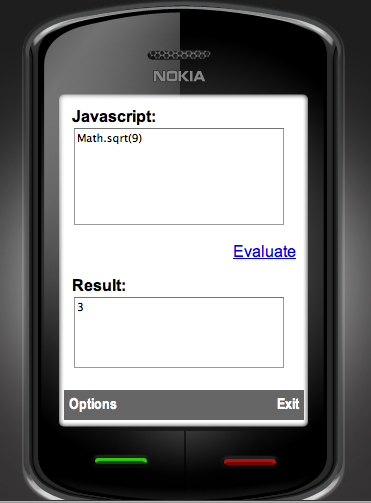 This is a handy utility to evaluate Javascript directly from your Nokia mobile Phone, in the context of your mobile web browser. It requires WRT (Web Runtime) support.
The source code behind this app is really simple:
function evaluate()
{
var JS = document.getElementById(“taJS”);
var Result = document.getElementById(“taResult”);
Result.value = eval(JS.value);
}
For Full source code, download the wgz
oAuth CosumerKey and SecretKey for Google,Twitter,Yahoo and Vimeo
Here are a list of oAuth providers, for Google, Twitter, Yahoo and Vimeo, with consumerKey and SecretKey set for http://Localhost, so they are ideal for testing, although you’ll need to get live ones for live environments:
if (Request.PathInfo == “/requestToken/google/”)
{
consumerKey = “anonymous”;
consumerSecret = “anonymous”;
// Google requires an additional “scope” parameter that identifies one of the google applications
requestTokenEndpoint = “https://www.google.com/accounts/OAuthGetRequestToken?scope=https://www.googleapis.com/auth/userinfo#email”;
requestTokenCallback = GetRouteableUrlFromRelativeUrl(“oAuth/default.aspx/authorizeToken/google/”);
authorizeTokenUrl = “https://www.google.com/accounts/OAuthAuthorizeToken”;
}
else if (Request.PathInfo == “/requestToken/twitter/”)
{
// http://twitter.com/oauth_clients/details/763647
consumerKey = “esK3OieltAXufhxvWJBNw”;
consumerSecret = “8APVHgYEXwDoPgtsUj7tYns4NFNkOnXG5yMAPAPUXU”;
requestTokenEndpoint = “https://api.twitter.com/oauth/request_token”;
requestTokenCallback = GetRouteableUrlFromRelativeUrl(“oAuth/default.aspx/authorizeToken/twitter/”);
authorizeTokenUrl = “https://api.twitter.com/oauth/authorize”;
}
else if (Request.PathInfo == “/requestToken/yahoo/”)
{
//https://developer.apps.yahoo.com/dashboard/createKey.html
consumerKey = “dj0yJmk9QVM4UjFabHZrME4zJmQ9WVdrOVRYbERhMVJSTTJVbWNHbzlOVFF5T0RJeU5UWXkmcz1jb25zdW1lcnNlY3JldCZ4PWJh”;
consumerSecret = “3d9ec8bea068a2bdd5b940b24fbedc9da6949569”;
requestTokenEndpoint = “https://api.login.yahoo.com/oauth/v2/get_request_token”;
requestTokenCallback = GetRouteableUrlFromRelativeUrl(“oAuth/default.aspx/authorizeToken/yahoo/”);
authorizeTokenUrl = “https://api.login.yahoo.com/oauth/v2/request_auth”;
}
else if (Request.PathInfo == “/requestToken/vimeo/”)
{
// http://vimeo.com/api/applications/new
consumerKey = “7a4b3b5d5205e6c6903bf77aeaf258cc”;
consumerSecret = “23609bc1174ca5c5”;
requestTokenEndpoint = “http://vimeo.com/oauth/request_token”;
requestTokenCallback = GetRouteableUrlFromRelativeUrl(“oAuth/default.aspx/authorizeToken/vimeo/”);
authorizeTokenUrl = “http://vimeo.com/oauth/authorize”;
}
Once the oAuth token is acquired, then you can get email address information from Google using:
oAuthConsumer.GetUserInfo(“https://www.googleapis.com/userinfo/email”, realm, consumerKey, consumerSecret, accessToken.Token, accessToken.TokenSecret);
And, significantly more information from Twitter using:
oAuthConsumer.GetUserInfo(“http://api.twitter.com/1/account/verify_credentials.xml”, realm, consumerKey, consumerSecret, accessToken.Token, accessToken.TokenSecret)
Please post updates to this post if you find equivalents for Yahoo!, or Vimeo. I’ve also heard about Messenger Connect which is supposed to be an oAuth system for Microsoft…
How to create a WGZ for Nokia Symbian WRT
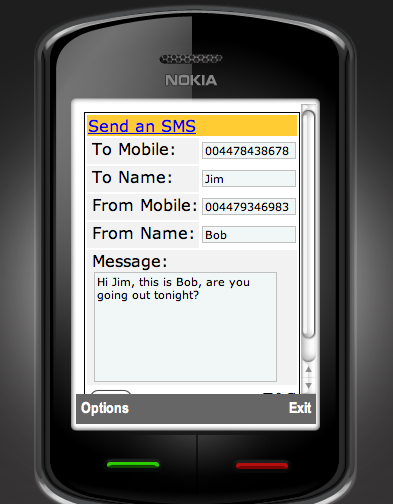 This is a simple HTML form packaged as a WGZ by using Aptana studio and Phonegap.
The WGZ can be created from within Aptana studio, by pressing control-click on the project, then selecting package. This WGZ can then be uploaded to Nokia’s OVI store under their WRT (Web runtime) category.
Source code for this project is available for download as a WGZ (basically a zip file)
This App is now published on OVI!
Parse a varchar to bigint using a regex (Regular Expression)
select convert(bigint,’6592370590..’) will fail with the error below due to the two dots at the end of the string, or a newline, or infact anything non-numeric.
Msg 8114, Level 16, State 5, Line 1
Error converting data type varchar to bigint.
Here’s a more brute-force way of converting ‘dirty’ varchars into numbers:
create function [dbo].[UDF_ExtractNumber](@NumStr varchar(100))
returns bigint
as
begin
BEGIN
WHILE PATINDEX(‘%[^0-9]%’,@NumStr)> 0
SET @NumStr = REPLACE(@NumStr,SUBSTRING(@NumStr,PATINDEX(‘%[^0-9]%’,@NumStr),1),”)
END
return convert(bigint,@NumStr)
end
This does have the side-effect of viewing complete nonsense as the number zero, but that’s fine for my application.
 Network Programming in .NET