Archive
Remote #ErrorLogging in C#

If you are running a C# Application on a client’s machine, and can’t run the debugger on it, then instead of asking your client to send you log files whenever something goes wrong, you can use a remote logging service to record error events, and view them, and even act on them before the client complains.
This example uses RemoteLogCat.com – a logging service designed for Android, but works equally well in C# / .NET. You will need to have an API Key, and store it as a setting as “RemoteLogCat” in your web.config / app.config
public class Logging{public static string key = ConfigurationManager.AppSettings[“RemoteLogCat”];public static void Log(string channel, string log){var strUrl = “http://www.remotelogcat.com/log.php?apikey={0}&channel={1}&log={2}”;strUrl = string.Format(strUrl, key, channel, log);var wc = new WebClient();wc.DownloadString(strUrl);}}
Logging.Log(“MyApp”,”Your Error”)
#ImageRecognition #API with REST webservice

Image Recognition API
This Image Recognition API allows images to be tagged with a label to describe the content of the image, and a confidence score percentage to indicate the level of trust in the algorithm’s judgement. View our homepage at http://imagerecognition.apixml.net
Image Recognition Web Service
The API endpoint can be accessed via this url:
http://imagerecognition.apixml.net/api.asmx
It requires an API Key, which can be applied for via this url:
Recognise
The first API endpoint is http://imagerecognition.apixml.net/api.asmx?op=Recognise
It accepts a url to an image, for example “https://www.argospetinsurance.co.uk/assets/uploads/2017/12/cat-pet-animal-domestic-104827-1024×680.jpeg”
And returns a result as follows;
|
<RecogntionResult xmlns:xsd=”http://www.w3.org/2001/XMLSchema” xmlns:xsi=”http://www.w3.org/2001/XMLSchema-instance” xmlns=”http://imagerecognition.apixml.net/”> <Label>Egyptian cat</Label> <Confidence>3.63228369</Confidence> </RecogntionResult> |
|
Urls must be publicly accessible, you cannot use localhost urls, or intranet addresses. |
RecogniseFromBase64
The next API Endpoint is http://imagerecognition.apixml.net/api.asmx?op=RecogniseFromBase64
It accepts a base64 encoded string containing the image, you must also provide the image format, such as “jpg”, “png”, “bmp” etc.
It returns a result as follows;
|
<RecogntionResult xmlns:xsd=”http://www.w3.org/2001/XMLSchema” xmlns:xsi=”http://www.w3.org/2001/XMLSchema-instance” xmlns=”http://imagerecognition.apixml.net/”> <Label>Egyptian cat</Label> <Confidence>3.63228369</Confidence> </RecogntionResult> |
OCR Web Service
Optical character recognition converts an image containing text to the text itself, a microsite for this service can be reviewed at http://ocr.apixml.net/ , here, there are two API endpoints exposed
ProcessUrl
Extract text from an image that is available on the internet via a Url. It’s endpoint is here
http://ocr.apixml.net/ocr.asmx?op=ProcessUrl
|
Urls must be publicly accessible, you cannot use localhost urls, or intranet addresses. |
ProcessBase64
Extract text from an image which has been base64 encoded. You also require a file extension (png/jpg/etc) to indicate the format. It’s endpoint is here;
http://ocr.apixml.net/ocr.asmx?op=ProcessBase64
|
By default, this service will assume a single line of text, rather than a page of text, in order to change this default behavior, or to customise it to your needs, then you can use the “extraArguments” parameter to fine-tune the OCR operation. The full list of these possible parameters are available on http://ocr.apixml.net/ |
RESOURCES
Contact information
This software is designed by Infinite Loop Development Ltd (http://www.infiniteloop.ie) and is subject to change. If you would like assistance with custom software development work, please contact us below;
-
info@infiniteloop.ie
-
+44 28 71226151
-
Twitter: @webtropy
#ImageRecognition in C# using #tensorflow #inception

Ever been faced with that situation, where you are confronted with fluffy grey animal, with four legs, whiskers, big ears and you just have no idea what it is ?
Never fear, with Artifical intelligence, you can now tell, with 12% confidence, that this is infact a tabby cat!
Ok, in fairness, what this is going to be used for is image tagging, so that a given image can be tagged based on image contents with no other context. So part of a bigger project.
Anyway, This is based on EMGU, and the Inception TensorFlow model. Which I have packaged into a web service.
You need to install the following nuget packages
Install-Package Emgu.TF
Install-Package EMGU.TF.MODELS
Then, ensuring your application is running in 64 bit mode (x86 doesn’t cut it!)
Run the code;
Inception inceptionGraph = new Inception(null, new string[] { Server.MapPath(@”models\tensorflow_inception_graph.pb”),
Server.MapPath(@”models\imagenet_comp_graph_label_strings.txt”) });
Tensor imageTensor = ImageIO.ReadTensorFromImageFile(fileName, 224, 224, 128.0f, 1.0f / 128.0f);float[] probability = inceptionGraph.Recognize(imageTensor);
Where filename is a local image file of our trusty moggie, and the output is an array of floats corresponding to the likelyhood of the image matchine one of the labels in inceptionGraph.labels
The 224, 224 bit is still a bit of dark magic to me, and I’d love someone to explain what those are!
Improving .NET #performance with Parallel.For

If you ever have a bit of code that does this;
var strSoughtUrl = “”
for each url in urls
var blnFoundIt = MakeWebRequestAndFindSomething(url);
if (blnFoundIt)
{
strSoughtUrl = url
}
next
That is to say, loops through a list of Urls, makes a web request to each one, and then breaks when it finds whatever you were looking for –
Then you can greatly improve the speed of the code using Parellel.for to something like this;
var resultCollection = new ConcurrentBag<string>();
Parallel.For(0, urls.Count, (i,loopstate) =>
{
var url = urls[(int)i];
var blnFoundIt = MakeWebRequestAndFindSomething(url);
if (blnFoundIt)
{
resultCollection.Add(url);
loopstate.Stop();
}
});
var strSoughtUrl = resultCollection.ToArray().First()
I have seen this code speeding up from 22 seconds to 5 seconds when searching through about 100 urls, since most of the time spent requesting a url is waiting for another machine to send all it’s data.
This is yet another performance increase for the Car Registration API service! 🙂
#OpenSource KBA & Natcode lookup App for iOS in #Swift

This app allows German and Austrian users search for German KBA (“Kraftfahrt-Bundesamt”) codes, and Austrian NatCode (“Nationaler Code”) by searching by make and model, or by entering the code in the search box.
There is also an API that allows businesses to obtain this data automatically. If you are interested in the API, please visit our German or Austrian website at http://www.kbaapi.de or http://www.natcode.at
The source code for the app is available (minus the API Keys), at Github: https://github.com/infiniteloopltd/KBA-Natcode/ it’s written in Swift, and it’s the first app we’ve published that’s entirely written natively.
The App itself can be downloaded from iTunes here;
https://geo.itunes.apple.com/us/app/kba-und-natcode/id1378122352?mt=8&uo=4&at=1000l9tW
Remote error #logging with #Swift

When you are running your app in the simulator, or attached via USB, you can see your error messages in the debugger, but whenever your app is in the wild, or even on your client’s phone (Or Apple’s testing department) – you can no longer easily see your debug messages, to understand technically, what’s happening in your app.
Remote error logging isn’t new, and you can even knock a simple remote logging mechanism up your self with a little server-side code, but this should make the process super easy for you.
Firstly, Create an Account on “RemoteLogCat.com” and then you get an API key back, then add the following class to your Swift App:
import Foundation
class Logging
{
static var Key : String?
static func Log(Channel : String, Log : String, Completion: ((Bool) -> ())? = nil)
{
if let apiKey = Logging.Key
{
let strChannel = Channel.addingPercentEncoding(withAllowedCharacters: .urlHostAllowed)!
let strLog = Log.addingPercentEncoding(withAllowedCharacters: .urlHostAllowed)!
print(“\(Channel):\(Log)”)
let url = URL(string: “http://www.remotelogcat.com/log.php?apikey=\(apiKey)&channel=\(strChannel)&log=\(strLog)”)
let task = URLSession.shared.dataTask(with: url!) {(data, response, error) in
Completion?(error == nil)
}
task.resume()
}
else
{
print(“No API Key set for RemoteLogCat.com API”)
Completion?(false)
}
}
}
Then you can simply Log errors to the service using the code:
Logging.Key = “……”
Logging.Log(Channel: “macOS”, Log: “Hello Log!”)
Obviously Logging.Key only needs to be set once, and be aware, that this is an asynchronous method, so if your application terminates immediately afterwards, then nothing will be logged.
You can get a completion handler, by adding
Logging.Log(Channel: “macOS”, Log: “Hello Log!”) {
print(“Success: \($0)”)
}
Where the argument to the completion handler is a Boolean indicating success or failure (i.e. no internet)
#Bing Image Search using Swift

Here’s a quick code snippet on how to use Microsoft’s Bing Search API (AKA Cognitive image API) with Swift and the AlamoFire Cocoapod. You’ll need to get a API key for the bing image search API, and replace the \(Secret.subscriptionKey) below.
static func Search(keyword : String, completion: @escaping (UIImage, String) -> Void )
{
let escapedString = keyword.addingPercentEncoding(withAllowedCharacters: .urlHostAllowed)!
let strUrl = “https://api.cognitive.microsoft.com/bing/v7.0/images/search?q=\(escapedString)&count=1&subscription-key=\(Secret.subscriptionKey)”
Alamofire.request(strUrl).responseJSON { (response) in
if response.result.isSuccess {
let searchResult : JSON = JSON (response.result.value!)
// To-Do: handle image not found
let imageResult = searchResult[“value”][0][“contentUrl”].string!
print(imageResult)
Alamofire.request(imageResult).responseData(completionHandler: { (response) in
if response.result.isSuccess {
let image = UIImage(data: response.result.value!)
completion(image!, imageResult)
}
else
{
print(“Image Load Failed! \(response.result.error ?? “error” as! Error)”)
}
})
}
else{
print(“Bing Search Failed! \(response.result.error ?? “error” as! Error)”)
}
}
}
It’s called like so:
Search(keyword: “Kittens”){ (image,url) in
imageView.image = image
}
#AI Image Recognition with #CoreML and #Swift

Being able to recognise a object from an image is a super-easy thing to do, for humans, but for machines, it’s really difficult. But with Apple’s new CoreML framework it’s now possible to do this on-device, even when offline. The trick is to download InceptionV3 from Apple’s machine learning website, and import this file into your app. With this pre-trained neural network, it can recognise thousands of everyday objects from a photo.
This code is adapted from the London App Brewery’s excellent course on Swift, from Udemy, and the complete source code is available on Github here ; https://github.com/infiniteloopltd/SeaFood
Here’s the code
import UIKit
import CoreML
import Vision

class ViewController: UIViewController, UIImagePickerControllerDelegate, UINavigationControllerDelegate {

    @IBOutlet weak var imageView: UIImageView!

    let imagePicker = UIImagePickerController()


    override func viewDidLoad() {
        super.viewDidLoad()
        imagePicker.delegate = self
        imagePicker.sourceType = .camera
        imagePicker.allowsEditing = false
    }

    func imagePickerController(_ picker: UIImagePickerController, didFinishPickingMediaWithInfo info: [String : Any]) {

        let userPickedimage = info[UIImagePickerControllerOriginalImage] as? UIImage
        imageView.image = userPickedimage
        guard let ciImage = CIImage(image: userPickedimage!) else
        {
            fatalError("failed to create ciImage")
        }

        imagePicker.dismiss(animated: true) {
            self.detect(image: ciImage)
        }
    }

    func detect(image : CIImage)
    {
        guard let model = try? VNCoreMLModel(for: Inceptionv3().model) else
        {
            fatalError("Failed to covert ML model")
        }

        let request = VNCoreMLRequest(model: model) { (request, error) in
            guard let results = request.results as? [VNClassificationObservation] else
            {
                fatalError("Failed to cast to VNClassificationObservation")
            }

            print(results)


            self.ShowMessage(title: "I see a...", message: results[0].identifier, controller: self)
        }

        let handler = VNImageRequestHandler(ciImage: image)
        do
        {
            try handler.perform([request])
        }
        catch
        {
            print("\(error)")
        }

    }

    func ShowMessage(title: String, message : String, controller : UIViewController)
    {
        let cancelText = NSLocalizedString("Cancel", comment: "")

        let alertController = UIAlertController(title: title, message: message, preferredStyle: .alert)

        let cancelAction = UIAlertAction(title: cancelText, style: .cancel, handler: nil)

        alertController.addAction(cancelAction)

        controller.present(alertController, animated: true, completion: nil)
    }

    @IBAction func cameraTapped(_ sender: UIBarButtonItem) {
        self.present(imagePicker, animated: true, completion: nil)
    }

}
#3dsecure #VbV #SecureCode handling with @Cardinity in #PHP

I recently got set up with Cardinity (A PSP), and I was learning their API using their PHP SDK at https://github.com/cardinity/cardinity-sdk-php/
When I moved from test to live, I discovered that the result of my card was not success or failed, but pending – because 3D secure was activated on the card. Otherwise known as Verified by Visa or Mastercard Securecode.
What happens, is that you need to capture the Securecode url by calling
$payment->getAuthorizationInformation()->getUrl()
and the data to be posted in the PaReq parameter by calling
$payment->getAuthorizationInformation()->getData()
You also need to have a TermUrl – i.e. your callback URL, and MD – Which I used for the payment ID parameters set.
Once you get your callback, then you need to pull out the MD and PaRes from the form data, I’ve put them into $MD and $PaRes variables respectively, then you call
require_once __DIR__ . ‘/vendor/autoload.php’;
use Cardinity\Client;
use Cardinity\Method\Payment;$client = Client::create([
‘consumerKey’ => ‘…’,
‘consumerSecret’ => ‘…’,
]);$method = new Payment\Finalize($MD,$PaRes);
$payment = $client->call($method);
$serialized = serialize($payment);
echo($serialized);
… And you should get an object like the following back:
{
“id”: “……”,
“amount”: “10.00”,
“currency”: “EUR”,
“created”: “2018-04-12T14:28:40Z”,
“type”: “authorization”,
“live”: true,
“status”: “approved”,
“order_id”: “1234”,
“description”: “test”,
“country”: “GB”,
“payment_method”: “card”,
“payment_instrument”:
{
“card_brand”: “MasterCard”,
“pan”: “….”,
“exp_year”: 2021,
“exp_month”: 9,
“holder”: “Joe Bloggs”
}
}
Once this code is finished up, we will replace the paypal option on AvatarAPI.com to this Cardinity interface
Quick #SQL #Performance fix for #slow queries
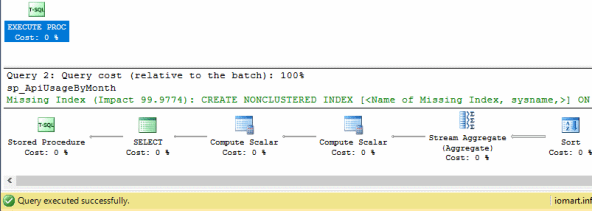
Adding indexes to speed up slow queries is nothing new, but knowing exactly what index to add is sometimes a bit of a dark art.
This feature was added in SQL server management studio 2008, so it’s not new, but it changed one query that took 10 seconds to run, to run in under a second, so I can’t recomend this feature enough. – The 99.97% increase in the screenshot was real.
How does it work. you just press “Display execution plan” over your slow query, and if the “Missing index hint” appears in green, then apply it!, you just need to change give it a name.
Obviously, you can’t go overboard on applying indexes, since too many of them can lead to slower inserts and updates, and of course more disk space usage.