Archive
#Photoshop fix, colours messed up when pasting onto existing PNG


Normally I don’t post Photoshop tips on this blog, but this really got me.
With version 5.0.1 of Cordova iOS, it comes with an iconset of images with optimised colour palettes. This is fine to keep the image sizes low, but it causes a problem, if you want to use your own icons by copy-pasting-resizing an existing icon onto the new icon, suddenly, the colours are all messed up. See the coloured football on the top right?, that becomes the weird grey football on the bottom right!
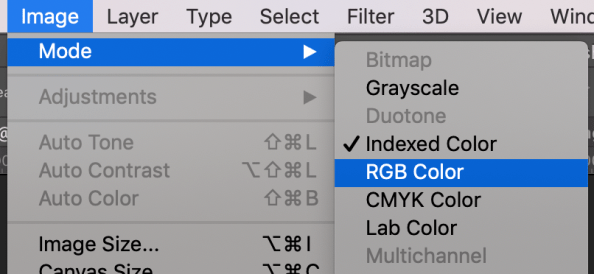
The fix?, to Change the Image Mode from Indexed Color to RGB Color, like shown below.
Support #HTTP2 in your C# Client code

If you use code such as WebClient to make HTTP requests from C#, then you’re probably using HTTP 1.1. if you want to use HTTP/2 then you need to write some extra code.
First, let’s prove that you’re using HTTP 1.1
WebClient wc = new WebClient();
var check1 = wc.DownloadString(“https://http2.pro/api/v1”);
and the response is
{“http2″:0,”protocol”:”HTTP\/1.1″,”push”:0,”user_agent”:””}
Now, to use HTTP 2, you need to override a setting here;
public class Http2CustomHandler : WinHttpHandler
{
protected override Task<HttpResponseMessage> SendAsync(HttpRequestMessage request, System.Threading.CancellationToken cancellationToken)
{
request.Version = new Version(“2.0”);
return base.SendAsync(request, cancellationToken);
}
}
And we can make a GET request like so;
public static string GetHtmlFromUrl(string Url)
{
var httpClient = new HttpClient(new Http2CustomHandler { AutomaticDecompression = DecompressionMethods.GZip | DecompressionMethods.Deflate });
var resTask = httpClient.GetAsync(new Uri(Url));
var response = resTask.Result;
var strTask = response.Content.ReadAsStringAsync();
var strResponse = strTask.Result;
return strResponse;
}
And check again;
var check2 = GetHtmlFromUrl(“https://http2.pro/api/v1”);
Which yields
{“http2″:1,”protocol”:”HTTP\/2.0″,”push”:0,”user_agent”:””}
Hope this helps!
SMTPJS.com now supports #BCC in #Javascript #Email

SMTPJs.com is a Javascript library for sending email from client-side Javascript (not node), it offers plenty of features for sending email, but one was missing until this morning, the ability to send BCC emails. (Blind Carbon-Copy)
It’s used just like the “To” field as follows
Email.send({SecureToken : “…..”,To : [“salesguy@gmail.com“, “boss@gmail.com“] ,Bcc : [“private_admin@hotmail.com“, “Auditors@private.es“],…
Temporary failure in name resolution #Fix #Linux #PHP

If you get this error message in PHP,
php_network_getaddresses: getaddrinfo failed: Temporary failure in name resolution
Then you are either calling a domain name that doesn’t exist, or your DNS resolution has failed on your server. Assuming you haven’t mistyped the API url, then you can check for a DNS issue by SSH’ing into your server and trying to ping http://www.google.com and see if you get a response. – If that fails, then you need to fix your resolving DNS servers, and perhaps contact your host company too.
Google offer their own DNS resolving servers for free, and you can use them as follows;
sudo echo nameserver 8.8.8.8 > /etc/resolv.conf
sudo /etc/init.d/httpd restart
Which changes the DNS resolver on your server to Google’s server with IP 8.8.8.8, and then restarts your web server. You may use apache2 here instead of httpd – depending on your flavour of linux.
Charge a Credit card using #Stripe and #Node

Stripe makes it super-easy to charge a credit card, here is an example from the command line:
var stripe = require(‘stripe’)(‘sk_test_…..’);
stripe.tokens.create({
card: {
number: ‘4242424242424242’,
exp_month: 12,
exp_year: 2020,
cvc: ‘123’
}
}, function(err, token) {
if (err != null)
{
console.log(“err:” + err);
}
else
{
console.log(“tokenid:” + token.id);
stripe.charges.create({
amount: 2000,
currency: “usd”,
source: token.id,
description: “Charge for 4242424242424242”
}, function(err, charge) {
if (err != null)
{
console.log(“err:” + err);
}
else {
console.log(“charge:” + charge.id);
}
});
}
});
Proxy testing script in #NodeJs

Not going to win any awards, but here is a little script in Node.js to test if a proxy is working or not
const request = require(‘request’);
request({
‘url’:’http://icanhazip.com’,
‘proxy’:process.argv[2]
}, function (error, response, body) {
console.log(‘error:’, error); // Print the error if one occurred
console.log(‘statusCode:’, response && response.statusCode); // Print the response status code if a response was received
console.log(‘ip:’, body); // Print the HTML for the Google homepage.
});
It requires npm install request
and is run like node proxycheck.js <ProxyAddress>
Unit testing a AWS #Lambda function with #Cloudwatch

Unit testing is primarily used to detect breaking code changes, but it can also be used to detect breaking changes in external environments, if run periodically.
So, imagine your code connects to an external database, that is operated by a third party. Perhaps they might suddenly change something without telling you, and your code breaks in the middle of the night, with no warning. In fact the first alert you’ll get will be an irate customer.
I’m assuming a serverless environment running Node on Lambda.
So, firstly, I set up a special entry point for my Lambda function, so that it knows it’s under test; In my case, was the following
exports.handler = function (event, context) {
if (typeof event.request == “undefined”)
{
console.log(“Lambda called via Cloudwatch”);
console.log(event);
console.log(event.test);
testing.selectTest(event.test,function(){
context.succeed();
});
return;
}
Which, in my case, was if the lambda function was being called via cloudwatch, rather than alexa, it wouldn’t have a event.request element, but would have a event.test element.
Now, “testing” is a javascript file, which selects a test as follows;
module.exports.selectTest = function(testName,callback)
{var testMethod = null;
if (testName == “testA”) testMethod = testA;testMethod(
function(pass)
{
console.log(pass);
console.log(testName + ” passed”);
},
function(fail)
{
console.log(fail);
console.log(testName + ” failed”);
email.send({..} )}
In this case, it would just console.log the output, unless, it failed, it would email me with the warning.
An individual test would be defined as
function testA(pass, fail)
{
myIntent.Search(function(result)
{
if(result == “Fail“)
{
fail(result);
}
else
{
pass(result);
}
});
}
myIntent.Search is outside of the scope of this example, but in this example, imagine it returns “Fail” on Failure, and some other string on success.
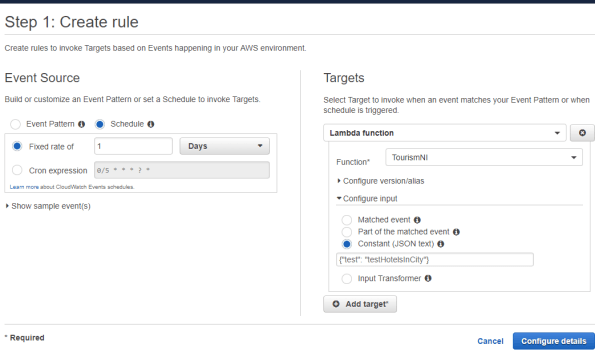
Now, to schedule this regularly, then you create a CloudWatch Rule, where you set the event source to a schedule of 1 day (in my case), and the target to your lambda function. You set the input to a constant JSON text of {“test”: “testA”}, or whatever the name of your test is.
Hopefully, this will mean if someone unplugs your database, you will get an alert before your customers discover it’s down.
Run #Windows exe on #OSX using #Wine

To run Windows on a mac, you can run a virtual machine, or make it dual boot. However, those approaches use a load of disk space, and memory. There is another approach, which would be obvious to anyone from the Linux world, but it also applies to OSX. – It’s called Wine, and it is available for download here; https://wiki.winehq.org/MacOS
You will also need to download XQuartz, which is an X11 windows server, and is available here; https://www.xquartz.org/
With that, you can then simply right click your exe, and press Send to > Wine Stable, and it might just run. The interface looks quite different, and some applications I tried didn’t work.
Return Asynchronous responses from #dialogflow-fulfillment

If you are writing a Dialogflow webhook in node, you’re probably using dialogflow-fulfillment , and if you’re reading this post, you’ve run into the issue where DialogFlow is not returning properly when you carry out an asynchronous call.
Let’s see a typical syncronous case first;
intentMap.set(‘Default Welcome Intent’, welcome);
….
function welcome(agent) {
agent.add(“Welcome”);
}
Which returns Welcome, when the Default Welcome Intent is fired.
In this next typical use case, where I want to record failed queries, i.e. queries that trigger the fallback intent in a database. The Database is asyncronous, so it will fire a callback once the data is stored.
intentMap.set(‘Default Fallback Intent’, fallback);
….
function fallback(agent) {
database.recordFailure(request.body.queryResult.queryText, function(text)
{
agent.add(“Sorry, I couldn’t help you”);
});
}
Now, if you run this with the fallback intent, then you may notice that the data is stored in the database, but you get an error response back, rather than the “Sorry, I couldn’t help you” message
The trick is, to wrap the function in a promise like so;
function fallback(agent) {
return new Promise ( (resolve, reject) => {
database.recordFailure(request.body.queryResult.queryText, function(text)
{
agent.add(text);
return resolve();
});
});
}
And call resolve() once you’re ready to reply to the user.
Quickly upload a #Lambda function on Windows #7z

If you have a lambda function above a certain size, (50 MB ish), then the inline code editor will no longer be available in AWS lambda. You then have to resort to uploading zipped files of your lambda function. This can be cumbersome on windows, if you haven’t got a quick script to run to zip and upload the lambda function.
You will need to have run AWS configure, and given this the correct credentials, and you will need to replace the function name below
@echo off
erase Lambda.zip
“C:\Program Files\7-Zip\7z” a Lambda.zip
aws lambda update-function-code –function-name xxxxxxx –zip-file “fileb://lambda.zip”
This ran in about 17 seconds for my lambda function, which would have taken easily a minute using the GUI. – plus, it’s less prone to human error.

